Activate your licence#
Enter your key to activate this device, and learn which tasks still reach the internet afterwards.
A licence activates GraphDagger on one machine at a time, and the activation happens online. The app needs a licence key and a working internet connection first. After activation, the app keeps working, and only a few housekeeping tasks reach the internet.
Activate this device#
The app opens on an activation screen when it has no active licence. This happens on first launch, and also when a licence expires or becomes suspended. Enter your licence key and select Activate licence. The app checks the key online, and it opens straight into the workspace when the key is valid.
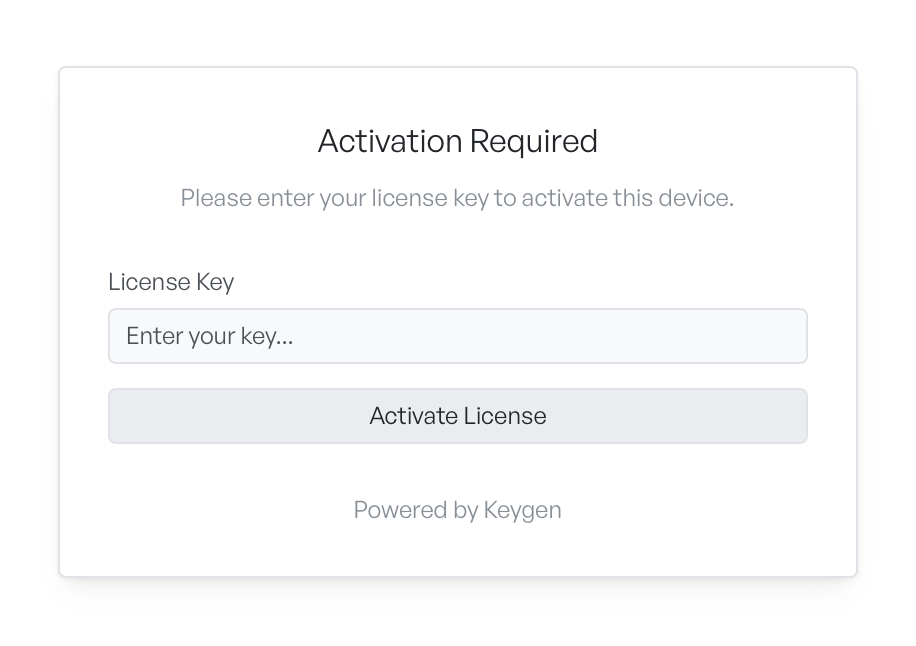
If activation fails, the reason appears above the field. An expired or suspended licence needs a renewal. You can also enter a different key on the same screen.
Let the app save your licence#
The first time you activate, your operating system can ask the app for permission to use its secure store: the Keychain on macOS, or the credential store on Windows. Allow the request. The app saves the licence there, so you stay activated between launches and do not enter the key each time. If you deny access, the app cannot save the licence and asks you to activate again at the next launch.
What needs an internet connection#
After activation, three tasks reach the internet on behalf of the app:
- activating, renewing, or deactivating your licence
- checking for a new version of the app
- loading the changelog you read in Settings
None of these tasks blocks your work. When you are offline, the tools still run on your own machine and network. You cannot activate, update, or refresh the changelog until you reconnect.
Some tools reach the network as part of their work, for example a scan of a host or a request that you send. That is the tool doing its job, and it is separate from the housekeeping tasks above.
Manage the licence later#
You manage the licence on this device from Settings, then Licence, including a move to another machine. You check for and install new versions from Settings, then Updates.