Manage your licence#
Show the licence details tied to this device, and release the licence when you move to another machine.
A licence activates the app on one machine at a time. The Licence tab shows the licence tied to this device and its expiry date. It also gives you a way to release the licence, so you can activate it somewhere else.
Show your licence details#
The tab lists three values that together identify your licence and this machine: the licence key, a machine ID, and a fingerprint. Dots hide each value by default. Select Show next to a value to reveal it, and Hide to cover it again.
These values are private. Never share them, because anyone who has them can identify your licence and device.
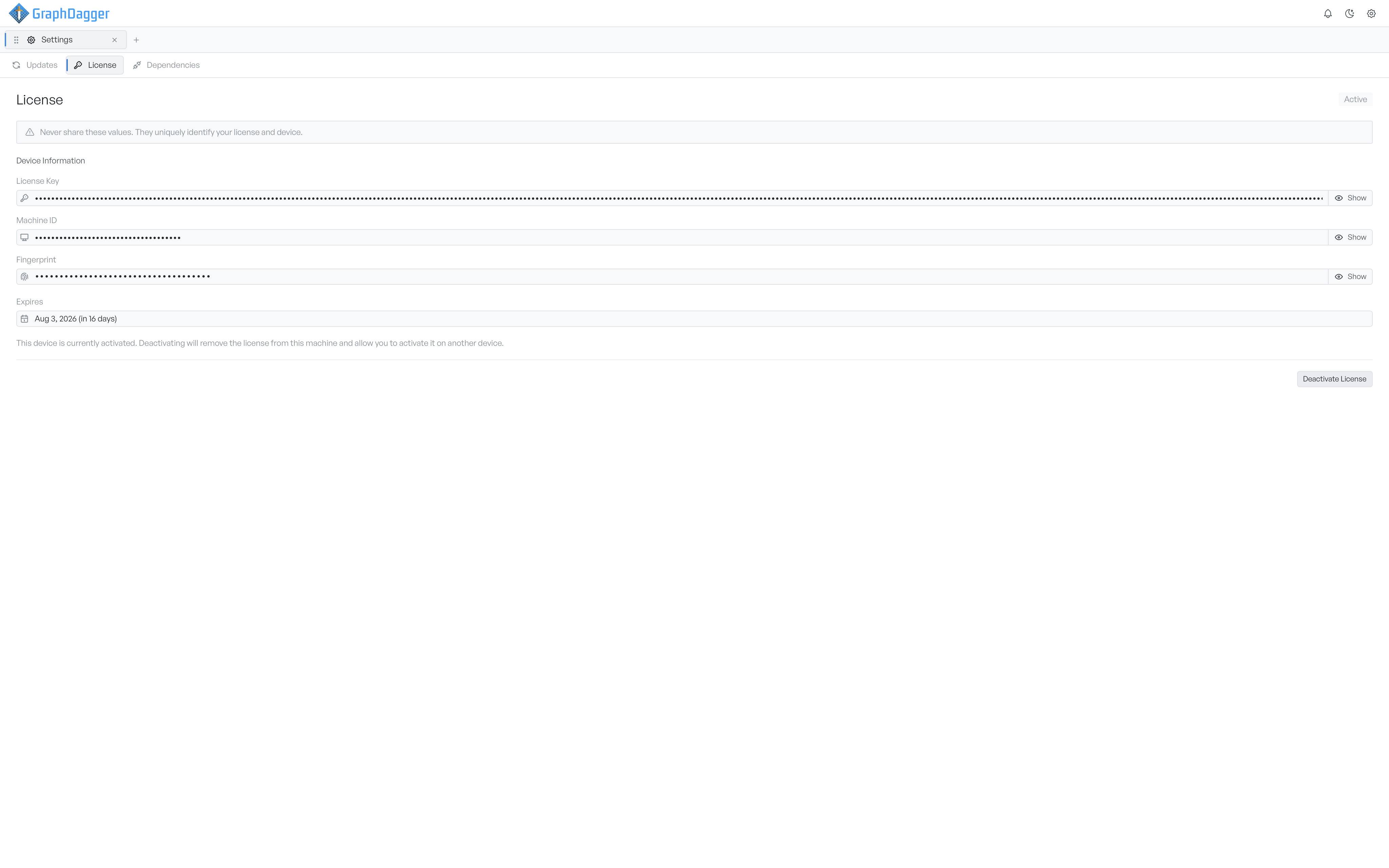
The Expires field shows the licence expiry date and how far away it is. A status label reads Active while the licence is valid on this device.
Move the licence to another machine#
A licence is active on one machine at a time, so you move it with a deactivation here first.
Select Deactivate licence. A confirmation asks you to be sure, because you cannot undo the step. After you confirm, the app removes the licence from this machine and returns to the activation screen. You can then activate the same licence on another device.