What Settings manages#
Open Settings from the gear icon and see which of its three tabs holds the control you want.
Settings is where you manage the application itself rather than the work you do in it. It gathers three things that sit outside any single tool: the updates that keep the app current, your licence on this device, and the system prerequisites that individual features rely on.
Open Settings#
Select the gear icon in the top-right corner of the app. Settings opens as its own workspace tab, so it sits alongside whatever else you have open. To return to your work, switch tabs.
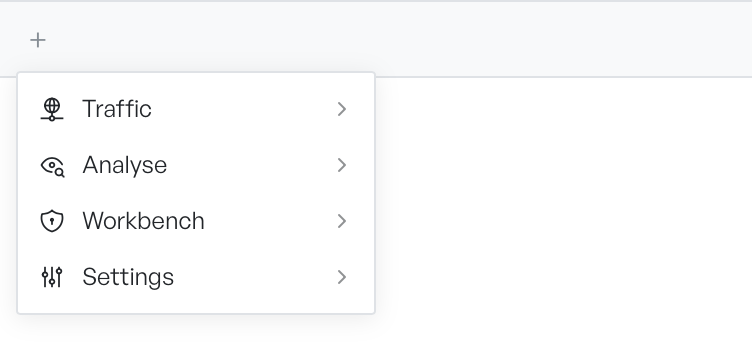
You can also open Settings from the new-tab menu. Select the + button on the tab bar and select Settings from the list of modules.
If an update waits for you, a small dot appears on the gear icon. That dot is your cue to open Settings and finish the update.
What each tab holds#
Settings has three tabs across the top. Each tab has its own page:
- Updates shows the changelog and lets you check for, download, and install a new version.
- Licence shows the licence tied to this device and lets you move it to another machine.
- Dependencies lists the system prerequisites that each feature needs and helps you install any that are missing.