Open recent items and files#
Pick up recent features and files from an empty search, then choose the analyzer that opens a file.
Spotlight remembers what you worked on. When you open it with an empty search, it puts your most recent features and files at the top of the list. The item you want is usually already on screen. This page covers the Recent surface and the Open with step for files.
Recent features and files#
Open Spotlight without any text, and two sections replace the full feature list:
RECENT: the features you opened most recently, newest first.RECENT FILES: the files you opened in GraphDagger recently. Each row shows the filename and a truncated absolute path, so you can tell apart several files that share a name.
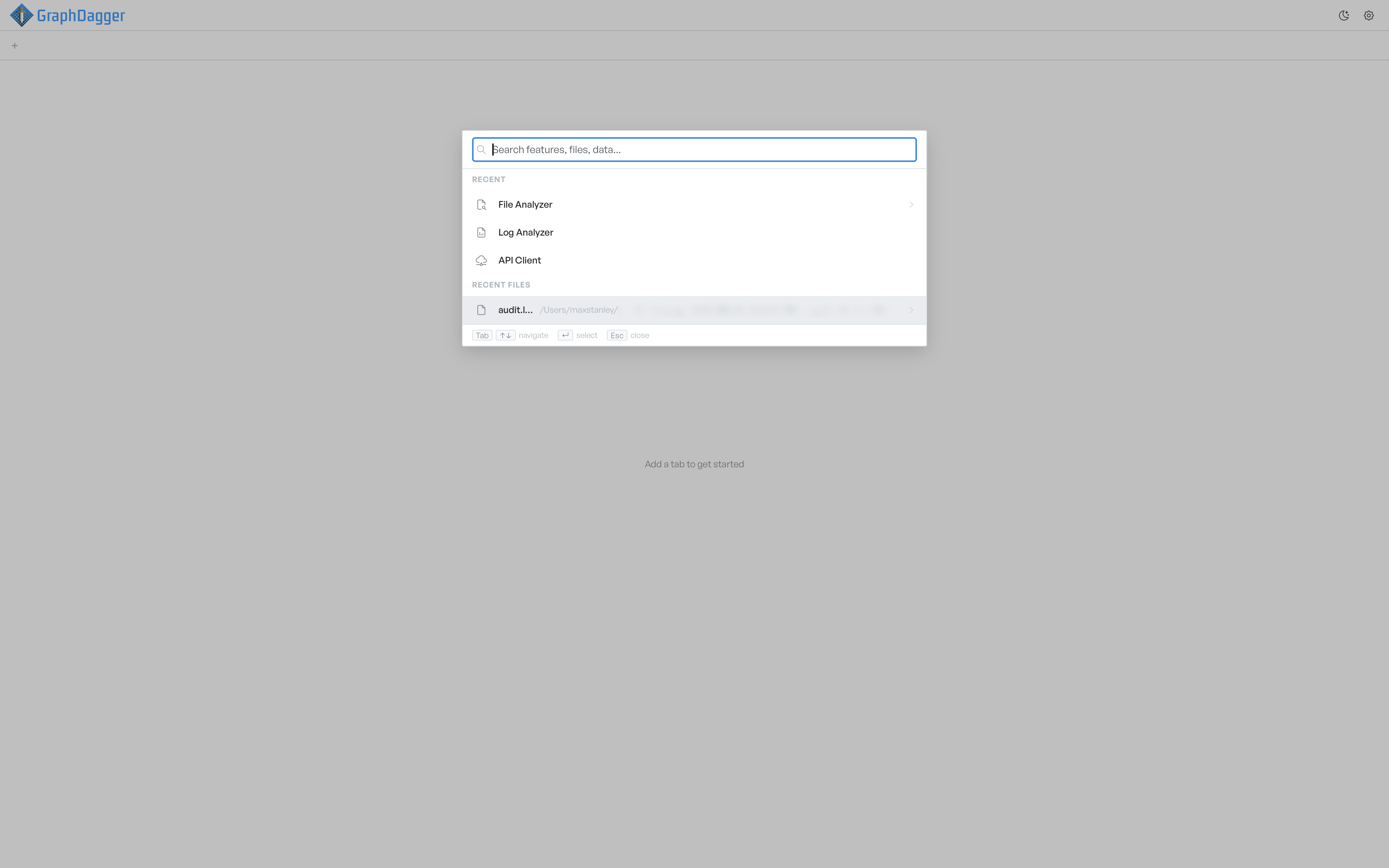
Move through the combined list with ↑ and ↓. The selection skips between the sections as if they were one list. Enter on a recent feature reopens it, or switches to the existing tab when the feature is already open. Enter on a recent file drills into that file so you can select an opener, and the next section covers that step.
As soon as you type, search results across all features and files replace the Recent sections.
Open a file with an analyzer#
Files in GraphDagger are not tied to a single view. The Log Explorer reads a log file, a viewer takes a raw capture, and in some cases the same file is useful in more than one place. Spotlight resolves that with an Open with step instead of an immediate open.
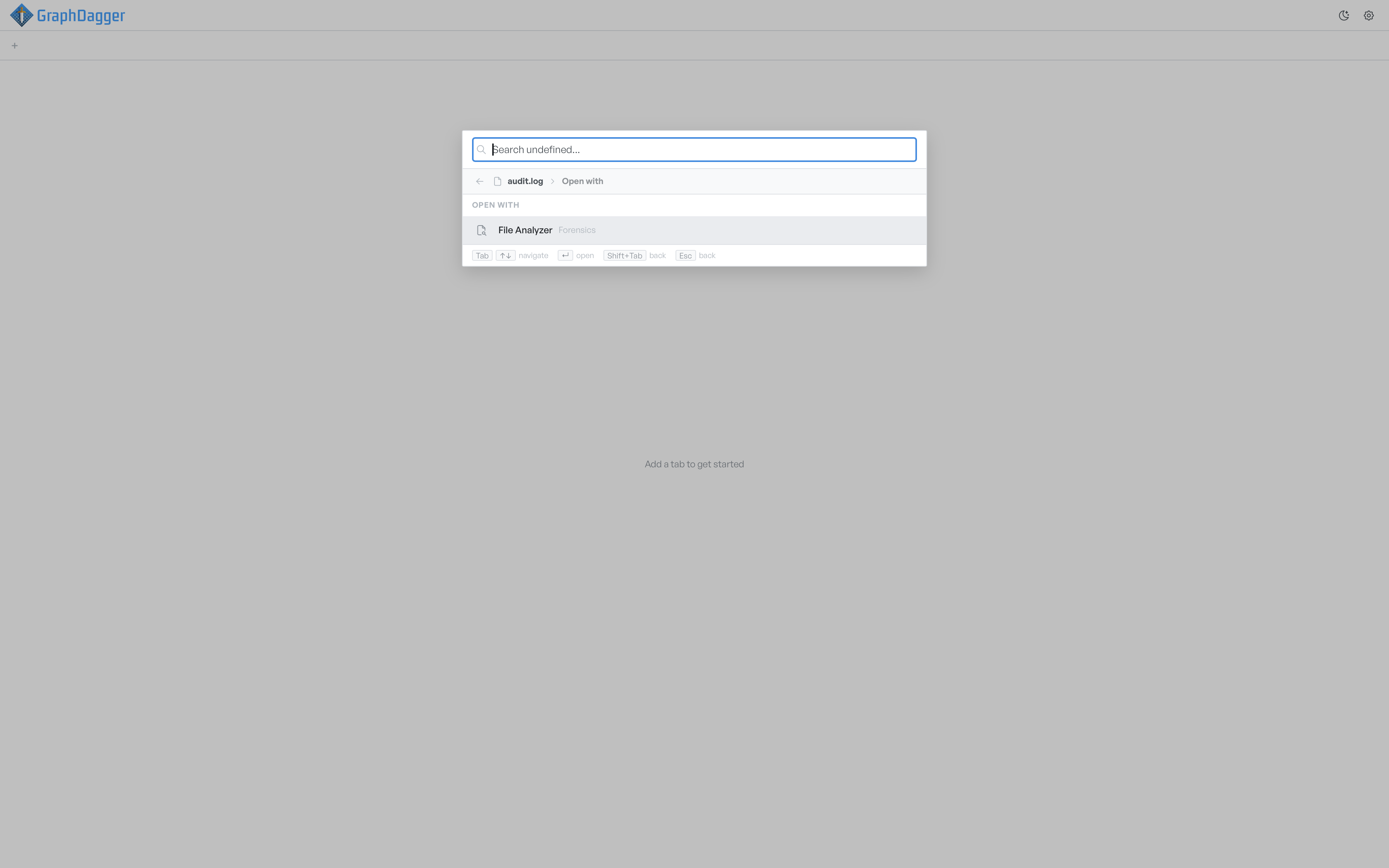
Drill into a file the same way you drill into a feature: highlight the row and press Tab, or click the chevron. Spotlight then shows an OPEN WITH section that lists every analyzer that can read this file, each one tagged with its module.
Use ↑ and ↓ to highlight an opener, then press Enter to open the file in that tool. If only one analyzer fits, Spotlight still shows the step, so you confirm the choice rather than a silent open.
To back out, press Shift + Tab, press Esc, or click the back arrow in the breadcrumb. The keyboard hint bar shows Tab navigate, Enter open, Shift+Tab back, and Esc back while you are in this view.
What to remember#
- Open Spotlight on an empty query to pick up where you left off.
Enteron a feature reopens it.Enteron a file drills intoOpen with.Shift+TabandEscalways step back out.