What Spotlight does#
Open the command bar, learn the three parts of the panel, and move through it with the keyboard.
Spotlight is the command bar in every GraphDagger workspace. It gives you a single, keyboard-first place to jump to any module, reopen a recent feature, search for a file, and select the right tool to open it with. You do not hunt through tabs or menus.
Open Spotlight#
Press Ctrl + / anywhere in the app. On macOS, use Cmd + /. Spotlight appears as a floating panel in the centre of the current workspace and takes focus at once, so you can type straight away.
Press Esc at any time to close the panel, or click outside the panel to dismiss it.
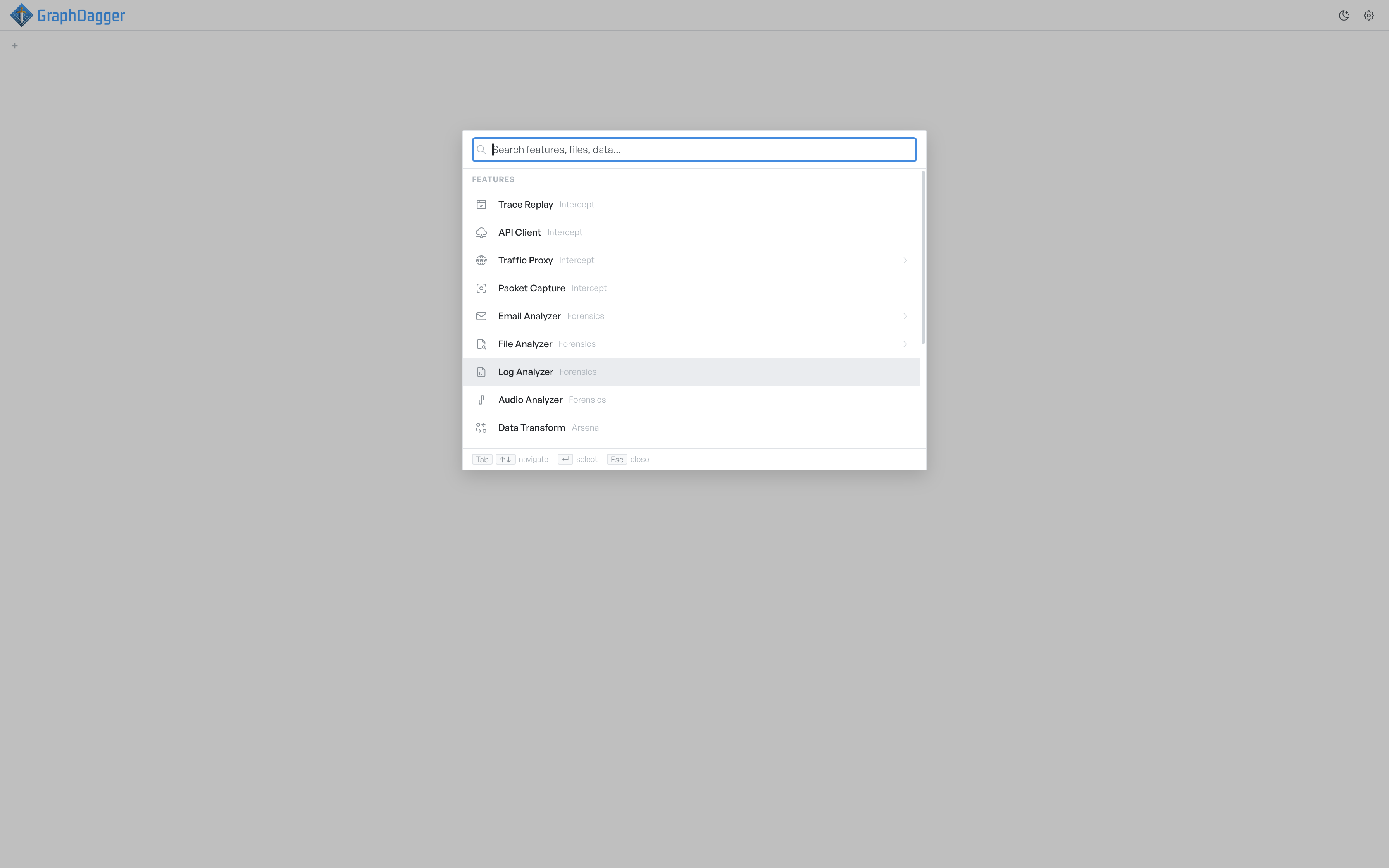
The three parts of the panel#
The panel has three parts, top to bottom:
- Search input. A single field that filters the list on screen. The placeholder text reflects what you search:
Search features, files, data…at the top level, or the name of the item you drilled into. - Results. Rows grouped under section headings such as
FEATURES,RECENT,RECENT FILES,SUB-FEATURES, orOPEN WITH. Each row shows an icon, the item name, and a short qualifier. For features, that qualifier is the module the feature belongs to (Traffic,Analyse, orWorkbench). - Keyboard hint bar. A thin footer that shows the keys available for the current view: navigate, select, open, back, and close.
Rows that you can drill into show a chevron on the right edge. Rows without a chevron act directly when you select them.
Move around on the keyboard#
Spotlight keeps you on the keyboard:
↑and↓move the selection up and down the list.Tabmoves forward. It highlights the next result or, on a drillable row, steps into that row.Enteractivates the highlighted row. For a feature, it opens the feature in a new tab. For a sub-feature or a file opener, it opens the target.Shift+Tabsteps back out of a drilled view to the previous level.Esccloses Spotlight from the top level, or steps back one level when you are drilled in.
What Spotlight can find#
Four kinds of results flow through the same search box:
- Features and sub-features: every top-level module in the app, plus their nested tabs and workflows. See Finding features.
- Recently opened features and files: shown automatically when the search box is empty. See Recent items and files.
- Files: from Recent files and from typed searches, with an
Open withstep where you select the analyzer. - Data inside open tabs: entries, rows, or records that live in the features you already have running.
Each of those surfaces has its own page.