Find a feature#
Browse the feature list, narrow it as you type, and step into the workflows inside a large tool.
To open anything in GraphDagger quickly, open Spotlight and type the name. This page covers the feature list, sub-features, and the keys that move you in and out of them.
Browse the feature list#
Open Spotlight with an empty search, and every feature in the app appears under a FEATURES heading. Each row names the feature and the module it belongs to: Traffic, Analyse, or Workbench.
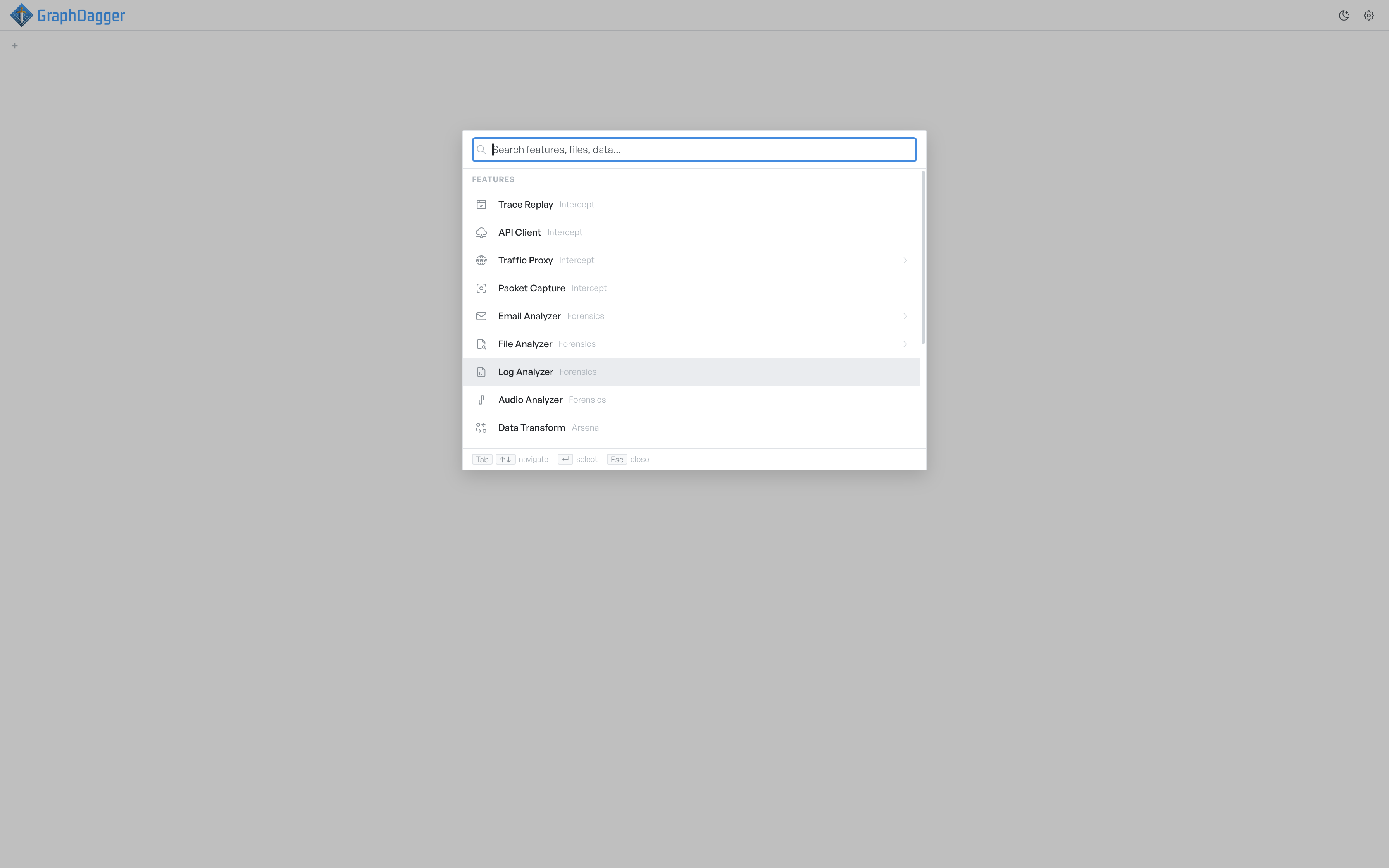
Use ↑ and ↓ to move through the list. The list scrolls with the selection.
Press Enter on any feature row to open that feature in a new workspace tab. If the feature is already open, Spotlight switches you to the existing tab instead of a duplicate.
Filter the list as you type#
Type in the search field, and the list narrows to the matches as you type. The match runs over both the feature name and the module tag. For example, traffic narrows the list to the Traffic modules, and pack jumps straight to Packet Capture.
The placeholder Search features, files, data… reminds you that the same search also reaches files and in-tab data, not only features. See Recent items and files for the way files appear.
Features with sub-features#
Some features, such as Web Debugger, are large enough to contain several workflows. Those rows show a chevron (›) on the right edge, which signals that you can drill into the row.
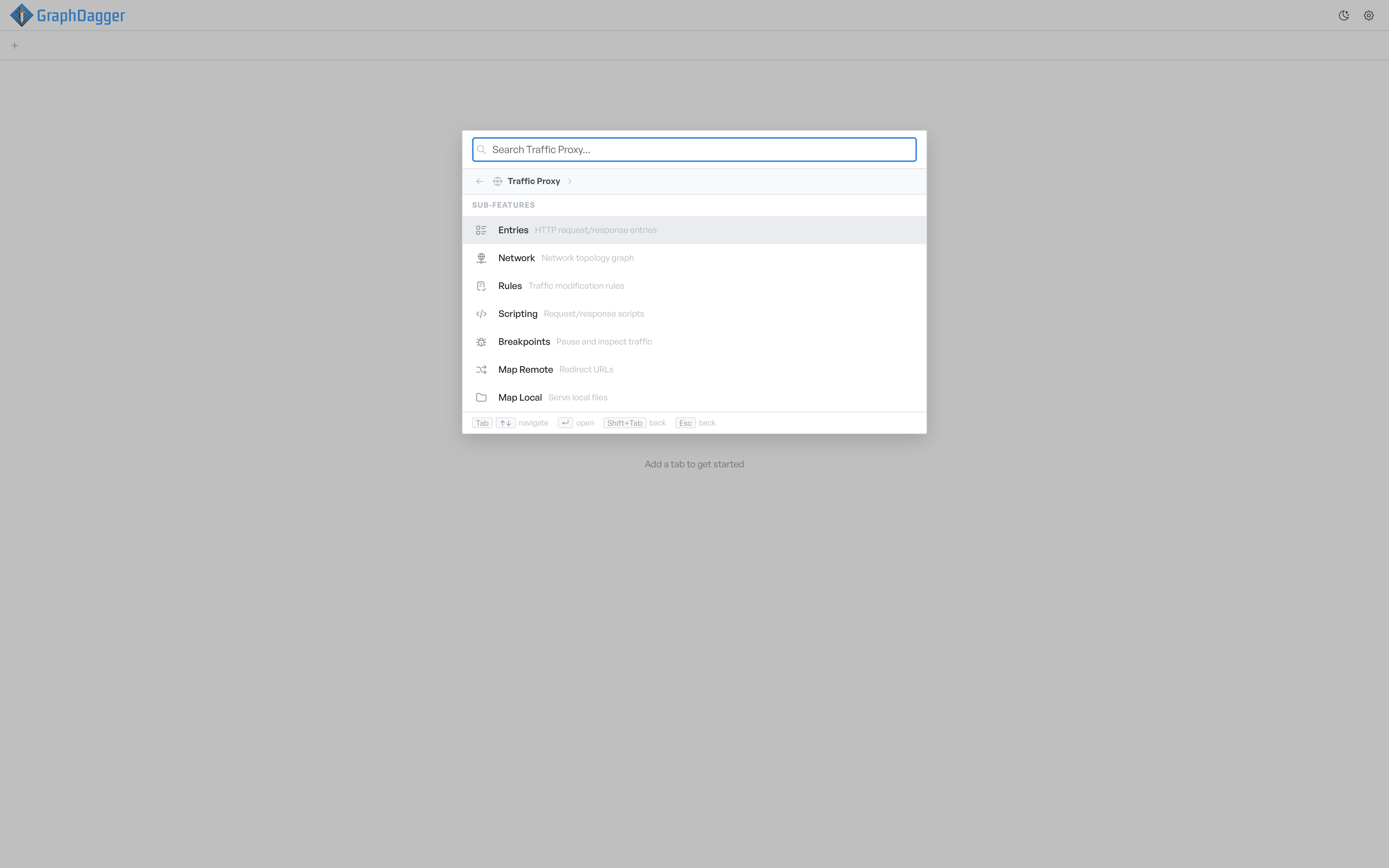
You drill in two ways:
- Highlight the row and press
Tabto step into it. - Or click the chevron.
Once you are inside a feature, three things change:
- A breadcrumb appears above the results and shows your location.
- The search placeholder names the feature you are in, for example
Search Web Debugger…, so your search scope is clear. - A
SUB-FEATURESsection replaces the results list and lists the workflows inside that feature. Each row carries a short qualifier that describes the sub-feature.
Press Enter on a sub-feature row to open the feature tab directly on that workflow. If the feature is already open, Spotlight switches to the existing tab and moves to the sub-feature you selected.
Step back out of a feature#
To leave a drilled view and return to the top-level list:
- Press
Shift+Tabto step back one level. - Or press
Esc. From a drilled view,Escsteps back first, and a second press at the top level closes Spotlight. - Or click the back arrow on the left of the breadcrumb.
The keyboard hint bar at the bottom of the panel shows these controls for the current view, so the right move is always visible.