Update the app#
Read the changelog for each release, then check for a new version, download it, and install it.
The Updates tab does two jobs at once. It shows the changelog, so you read what changed in each release. It also drives the update itself, from the check for a new version through to the installation. The two jobs sit together because the changelog you read here describes the version you are about to install.
Read the changelog#
The changelog is a feed of releases, newest first. Each release shows its version, how long ago it shipped, and release notes grouped under category headings such as New, Improvement, and Fix.
The app delivers the changelog securely and checks it before it shows it, so you read the genuine release note for that version.
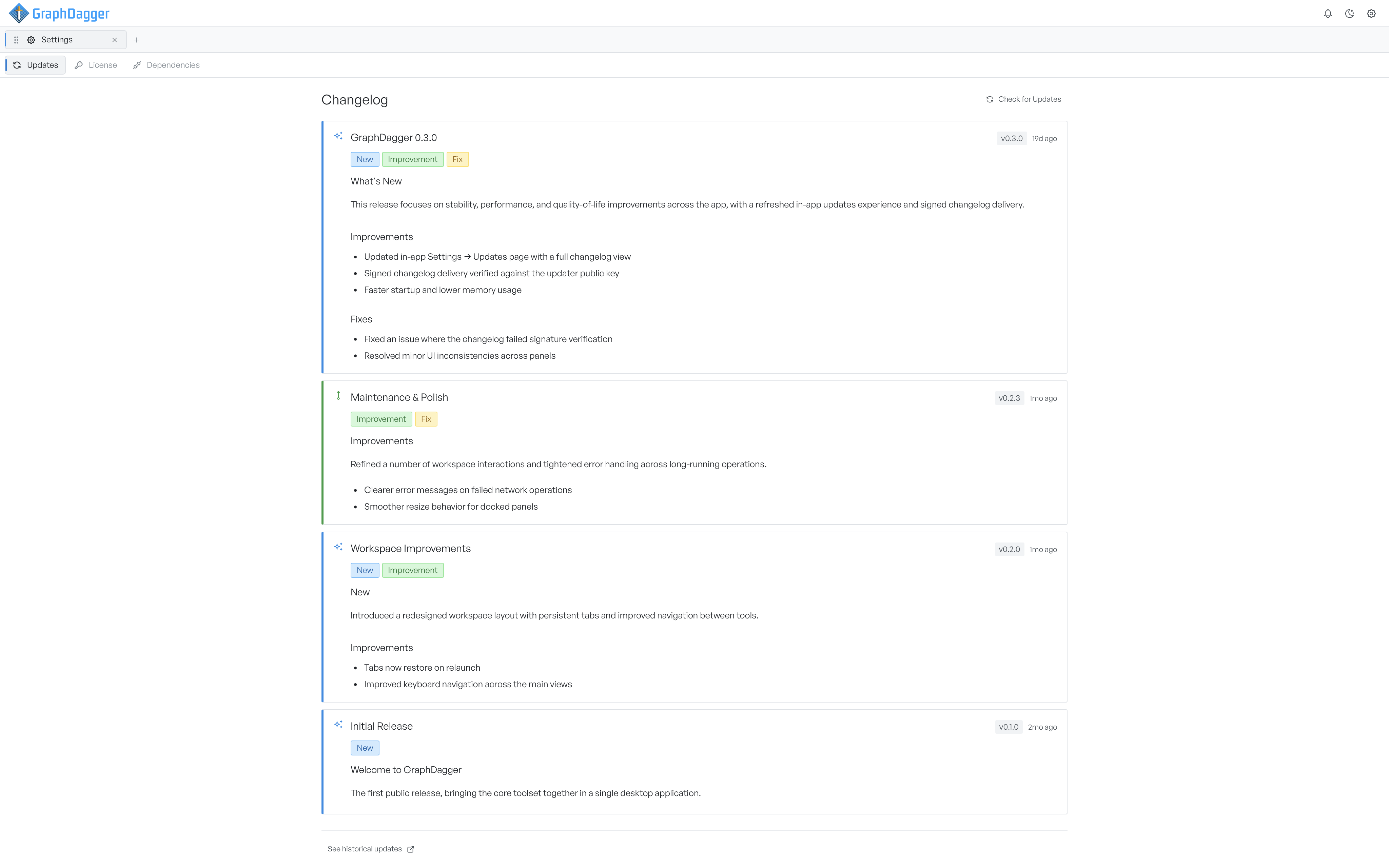
To read the full release history on the web, select See historical updates at the foot of the panel.
Check for a new version#
Select Check for updates. The button is there whenever no update is already in progress.
A status bar then reports the progress of the check:
- Update available means the app found a newer version. Select Download to fetch it.
- Downloading shows a progress bar with the amount transferred.
- Ready to install means the download is complete. Select Restart to apply to install the version and reopen the app on it.
- Update check failed means something went wrong. Select Retry to try again.
When an update is ready and you carry on working, the reminder stays. A dot sits on the Settings gear icon until you install the update.
Release notes after an update#
The first time you open the app after an update, the same release notes appear as a one-off notification. See What's new notifications.