Move files over SSH#
Open a file browser beside an SSH pane to upload, download, rename, and remove files on that host.
Any SSH session can show a file browser beside it. The browser runs over the connection you already have open, so there is no second login, and it lists the same machine your prompt is on. Use it to pull a log file down, push a config up, or tidy a directory from inside the terminal.
Open the file browser#
Focus an SSH pane and select the folder button in its header, or press Ctrl+Shift+F. The panel opens beside that pane and shows the directory the session is currently in. If it cannot work that out, it shows the root directory.
The button appears only on SSH panes. A local shell has no file browser, because the files are already on your machine.
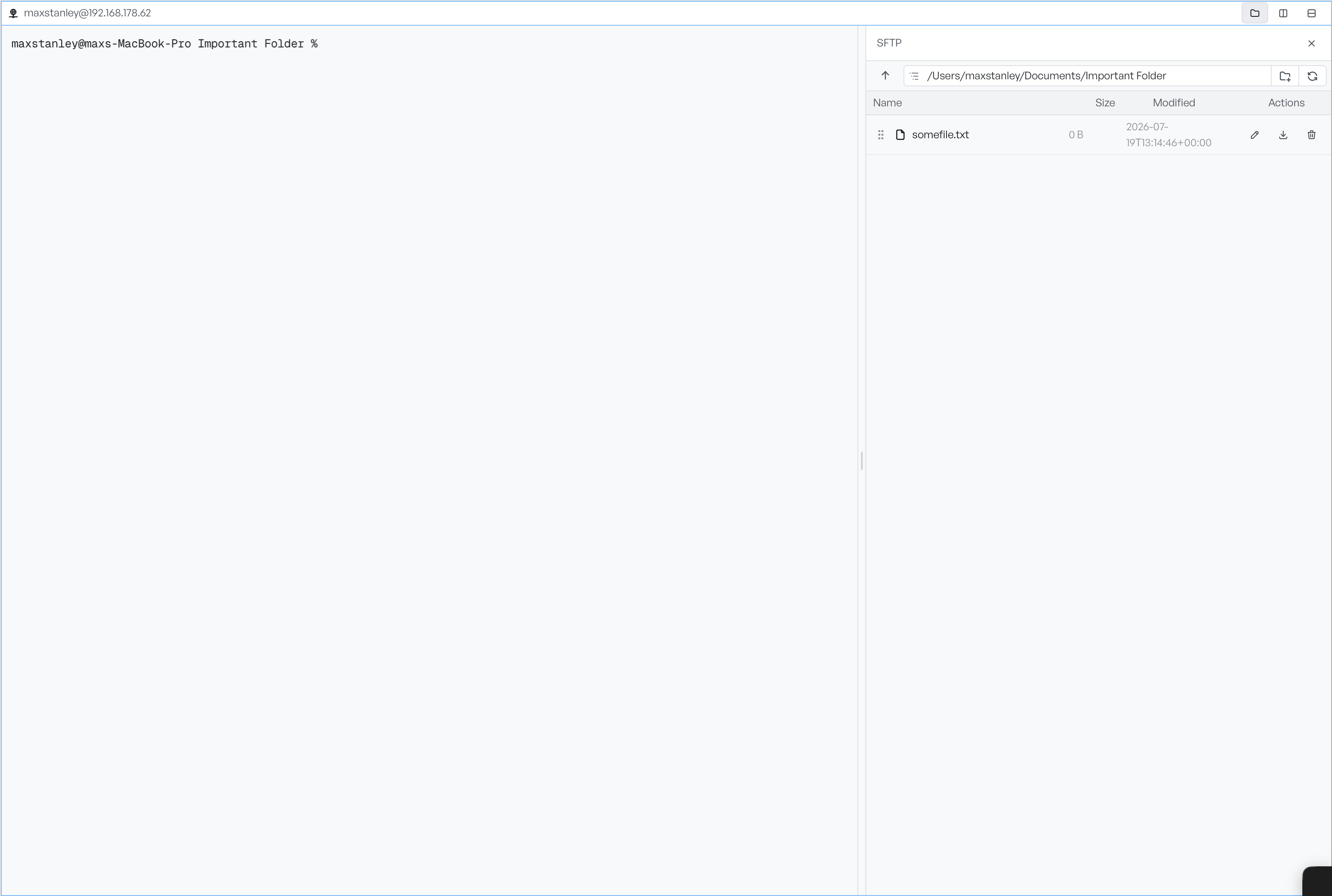
Drag the divider to resize the panel between 15% and 60% of the pane. To close the panel, select the button in its header, or press Ctrl+Shift+F again.
Move between directories#
The path row gives you three ways to move around.
- Parent arrow: goes up one directory.
- Path field: type a path and press Enter to jump there.
- Refresh: reloads the listing if something changed on the host.
Select a folder in the list to open it. Files show their size and the time they were last modified. Folders show a dash in the size column, and so does any entry whose modification time the host did not report.
The panel follows your prompt. Change directory in the terminal and the browser moves with you, so cd is often the fastest way to navigate it. This works one way only: movement in the browser does not change the shell's working directory.
Upload and download files#
Drag files from your desktop or file manager onto the panel to upload them to the directory you are viewing. This is the only way to upload. The whole file stays in memory while it transfers, so it suits configs and scripts rather than large archives.
A drop works on the focused pane only. If nothing happens when you drop a file, select the pane first and try again.
To download a file, select the download button on its row and choose where to save it. The button appears on files only, not on folders.
Transfers appear in a Transfers list with the progress of each one. To cancel a transfer in progress, select the button at the end of its row. Once a transfer finishes, the same button dismisses the row, and Clear removes all the finished ones at once. A failed transfer keeps its error. Hover over the filename to read it.
Rename, move, and remove files#
To rename a file, select the pencil button on its row. The name becomes editable in place. Enter commits it, Escape cancels it, and a select away from the field also cancels. A name cannot contain a slash.
To create a folder, select the new folder button on the path row. A field appears with a Create button beside it. Enter creates the folder, Escape cancels, and an empty name also cancels.
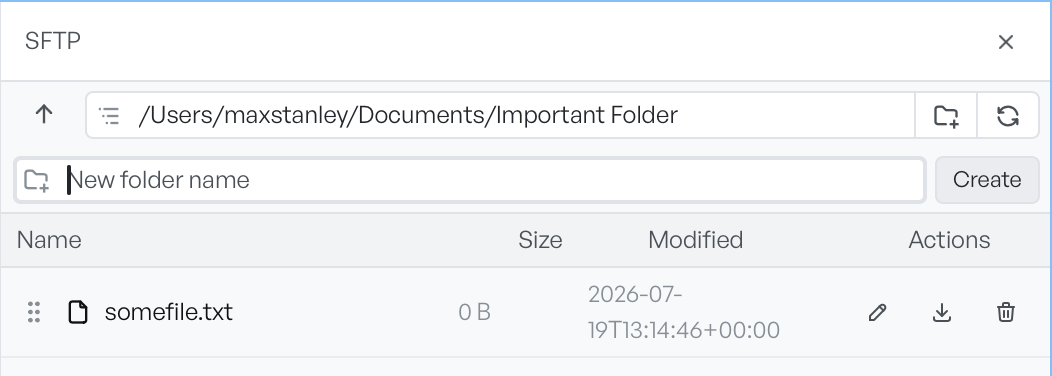
To move a file, use the grip handle at the start of its row. Drag the handle onto a folder in the list to move the file into it, or onto the up arrow to move it to the parent directory. A drag on the filename itself does nothing: the handle is the only place a drag starts.
Warning The delete button removes the file from the remote host straight away. There is no confirmation and no undo.
Remote Terminal does not check whether the destination name is already taken when you rename or move a file, so take care not to overwrite something.
When a listing fails#
A directory listing gives up after 15 seconds and tells you that it timed out. This usually means a slow link or a directory with a very large number of entries, rather than a lost connection.
When a listing fails, the file area stays blank and shows no error in place. The message arrives as a notification, so check there if a directory looks empty when you know it is not.