What Remote Terminal opens#
Open the feature, start a local shell, and see how the sidebar, toolbar, and panes fit together.
Remote Terminal gives you shells: local shells on your own machine and remote shells over SSH, side by side in one tab. Each session lives in a pane, and you can split a pane, so a tab holds as many sessions as you need. The rest of the feature supports that arrangement: profiles remember the hosts you use often, broadcast sends your keystrokes to every pane at once, and the file browser moves files over an SSH session you already have open.
Open Remote Terminal#
Open Remote Terminal from the sidebar under Workbench, or type its name into Spotlight. Each tab keeps its own sessions and its own layout. A local shell in one tab and a production host in another never interfere.
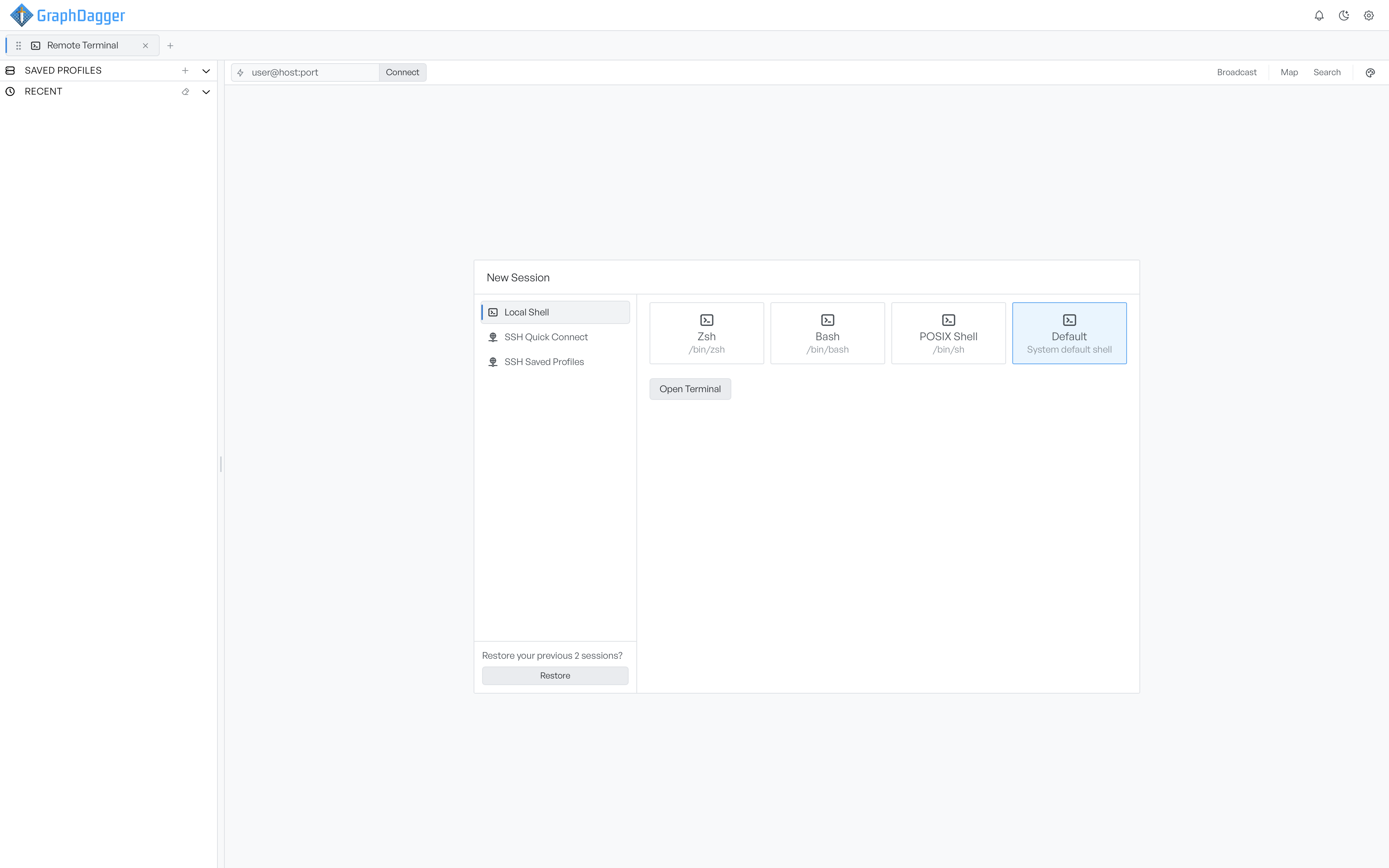
A tab with no sessions shows the New Session panel in the middle of the workspace. This panel is the start point for every session, local or remote.
Start a local shell#
Local Shell lists the shells on your machine as tiles. A Default tile sits at the end, and the panel selects it when it opens. The Default tile starts the shell your system uses by default. Select a tile, then select Open Terminal.
The session opens in a pane, and the prompt appears when the shell is ready. To start an SSH session instead, see connecting with Quick Connect.
Find hosts in the sidebar#
The sidebar on the left holds two sections. Saved Profiles is your library of SSH connections, and it is open by default. Recent lists the hosts you connected to lately, so you can return to one without a retype.
Drag the inner edge of the sidebar to resize it. Drag it narrow enough and it collapses out of the way. A button in the toolbar brings it back.
Tools above the panes#
Above the panes, the Quick Connect field takes a user@host:port string and opens an SSH session from it. Four tools beside it act on the whole tab.
- Broadcast: mirrors your typing into every pane.
- Map: draws the hosts the tab is connected to.
- Search: looks through the scrollback of the focused pane.
- Palette: changes the terminal colours.
The Map has nothing to draw until the tab has a session, so nothing happens if you select it before then.
Where to go next#
Connecting has its own section, split by how you connect: Quick Connect for one-off hosts, saved profiles for hosts you return to, and importing an SSH config if you already keep your hosts there.
When you are connected, splitting panes explains the layout, the file browser moves files over an open SSH session, and broadcast runs one command everywhere at once.