Save a host profile#
Add a host to your profile library, then connect to it, edit it, or remove it from the sidebar.
A profile is a host you have written down: its address, who you log in as, how you authenticate, and anything that should happen when you connect. Save one and the host is a click away in the sidebar. Your operating system's keychain holds the password or passphrase, and the profile itself does not.
Saved Profiles and Recent#
Saved Profiles and Recent sit at the top of the sidebar. A plus on Saved Profiles adds a profile, and an eraser on Recent clears the list. A chevron collapses either section.

Save a new profile#
Select the plus on the Saved Profiles header. A form opens with the connection details. Fill in at least Host and Username, then select Save.
Name is optional. Leave it empty and Remote Terminal names the profile username@host. The fields for authentication, jump hosts, and on-connect commands are covered in authentication and profile fields.
Find a profile#
The search box above the list filters on name, host, username, and tags, so a search for a tag such as production narrows the list to those machines.
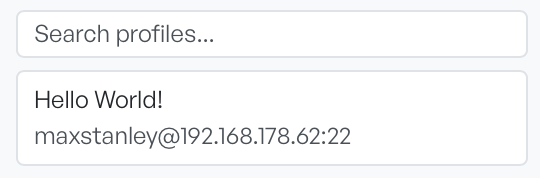
Tags are the way to organise the library. Add them when you create or edit a profile. An unselected row shows the first two of them.
Connect, edit, or remove a profile#
Select a profile row, and connect, edit, and delete buttons take the place of its tags.

Connect opens the session in a new pane with the credentials held in your keychain. Edit reopens the same form with the profile's details, and the button reads Update rather than Save. Remote Terminal never fills passwords and passphrases back in, so an empty field when you edit keeps the stored secret as it is.
Warning Delete removes the profile immediately. There is no confirmation step and no undo.