Set colours and paste behaviour#
Choose a colour theme for the tab, and see what selecting text, clicking links, and pasting several lines do.
Remote Terminal sets the colour scheme per tab, so the tab you keep production in can look different from your local one. A theme changes the terminal's background, its text, and the sixteen colours that programs use for their own output.
Choose a theme#
Select the palette button at the right of the toolbar. A tick marks the current theme.
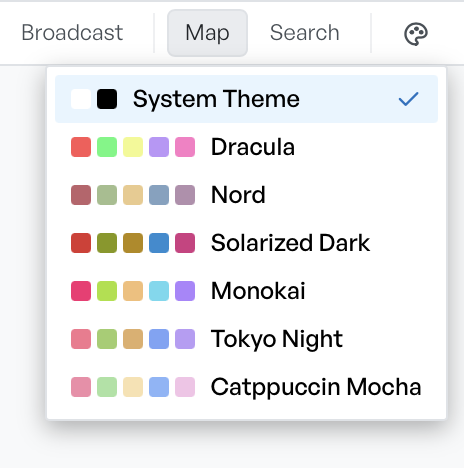
System Theme is the default. It follows the appearance of the rest of the app and switches between light and dark with it. The six presets under it are all dark. The dots beside each name preview its colours.
A theme applies to the whole tab, so every pane in it changes together. Remote Terminal keeps the choice when your sessions are restored.
Fixed fonts, copy, and links#
Every theme uses the same font at the same size, so a change of theme changes the colours and nothing else. There is no setting for the font, its size, the cursor, or the line spacing.
Two behaviours are always on:
- Select text to copy it. When you highlight anything in a pane, Remote Terminal puts it on your clipboard straight away. There is no separate copy step.
- Links open in your browser. URLs in the output are clickable and open in your default browser rather than inside the app.
Paste more than one line#
When you paste text that contains line breaks, a prompt titled Paste multiple lines? appears. It tells you how many lines you are about to paste, and warns that each newline may run a separate command. Select Paste to continue, or Cancel to discard the text.
This prompt guards against a paste of a text block into a shell that then runs each line in turn. It appears only for a true multi-line paste, so a single line with a trailing newline pastes without interruption. You cannot turn it off, and you cannot stop it asking again.