What History records#
Every request you send lands at the top of the list with its method, age, and status.
History keeps a running list of the requests you have sent, so you can find one again without a rebuild. API Client adds every request you run to the top of the list the moment it finishes. Open it from the History tab in the side panel. This page covers the list and the two controls above it.
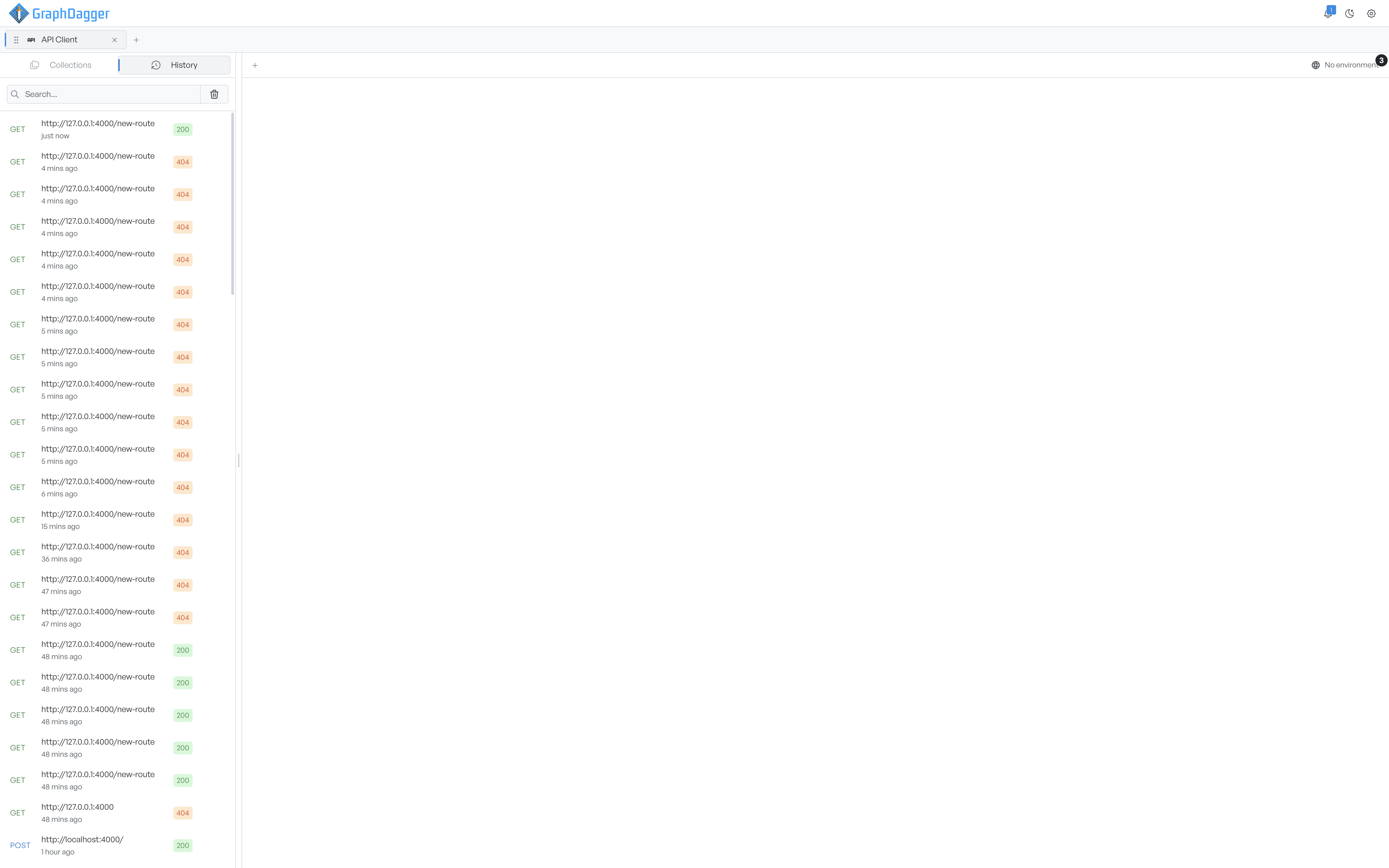
What a row shows#
The newest request sits at the top. The time reads in relative terms such as just now, 5 mins ago or 2 hours ago. Entries older than a week show the date instead.
Where a response came back, a coloured status badge reports the status class:
- Green: a success.
- Blue: a redirect.
- Orange: a client error.
- Red: a server error.
Hover the URL to read it in full if it is too long for the row.
Search the list#
A search box sits above the list. Type part of a URL or a method, and the list narrows to matching rows as you go. Clear the box to see everything again. If nothing matches, the list reads No matching requests.
Clear the whole list#
The bin button next to the search box removes every entry at once. It acts straight away, with no confirmation step. Save anything you want to keep to a collection first. The button is greyed out when the list is already empty, which is also when you see No request history yet.
Warning Clearing history cannot be undone.
API Client keeps History on your device, and it survives restarts of the app. There is no cloud sync.
Where to go next#
- Open a recent request to load it into a new tab, run it again, or copy its URL.
- Save a recent request to a collection so it outlasts the next clear.