Remote Terminal
Built-in terminal: SSH, local shell, snippet library, session recording and credential management.
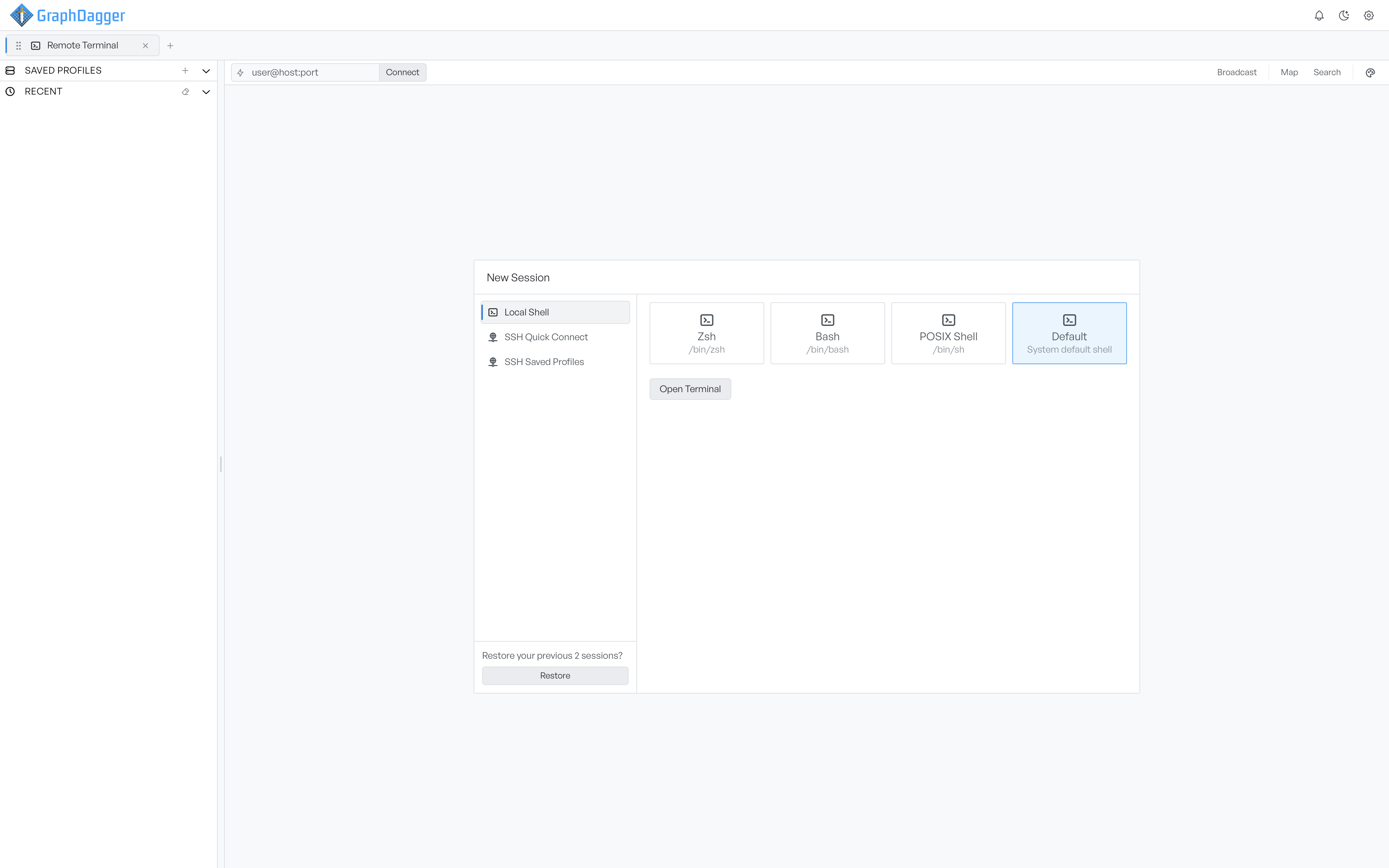
Local shells and SSH in one tab
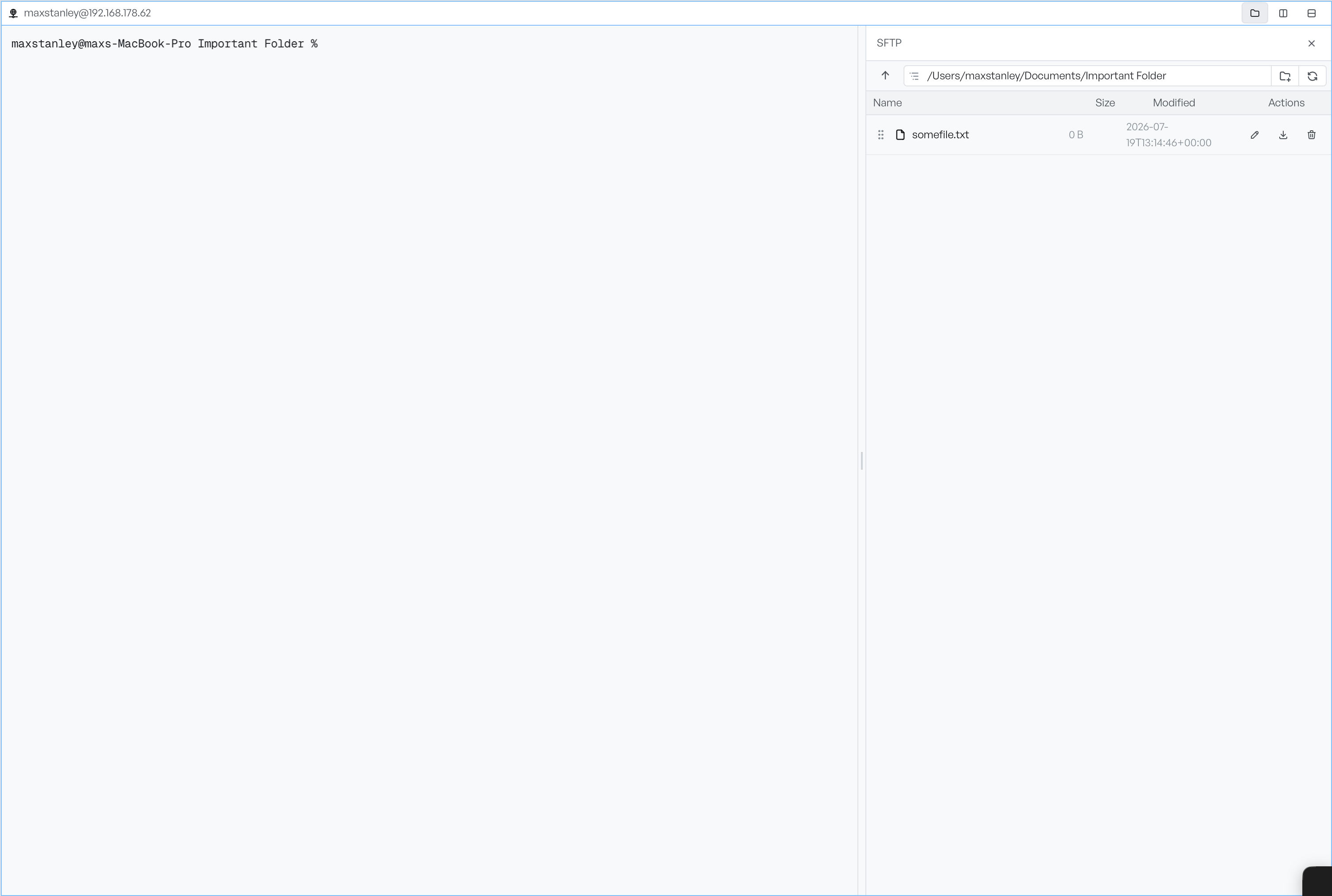
Every session lives in a pane, and panes split, so one tab can hold a local shell and several remote hosts side by side. Saved profiles sit in the sidebar, and any SSH session can open a file browser on the right that runs over the connection you already have.
- Split panes right or down, up to sixteen in a tab
- Saved profiles keep passwords in your operating system keychain
- The file browser follows your prompt as you change directory
Move files without a second login
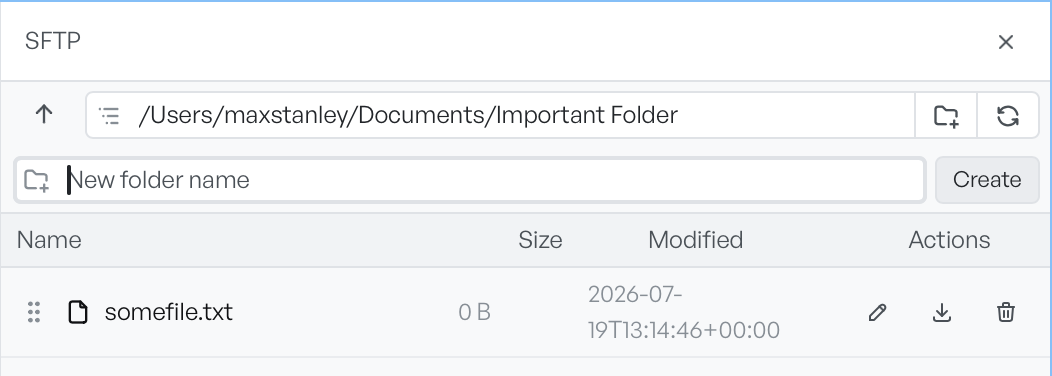
The file browser lists the same machine your prompt is on, so pulling a log down or pushing a config up needs no separate session. Each file row carries inline actions: rename it in place, download it, or delete it from the remote host. Drag files from your desktop onto the panel to upload them.
- Rename, download and delete on each file row
- Drag from your file manager to upload, drag the grip handle to move
- A transfers list shows progress and lets you cancel
Keep the hosts you come back to
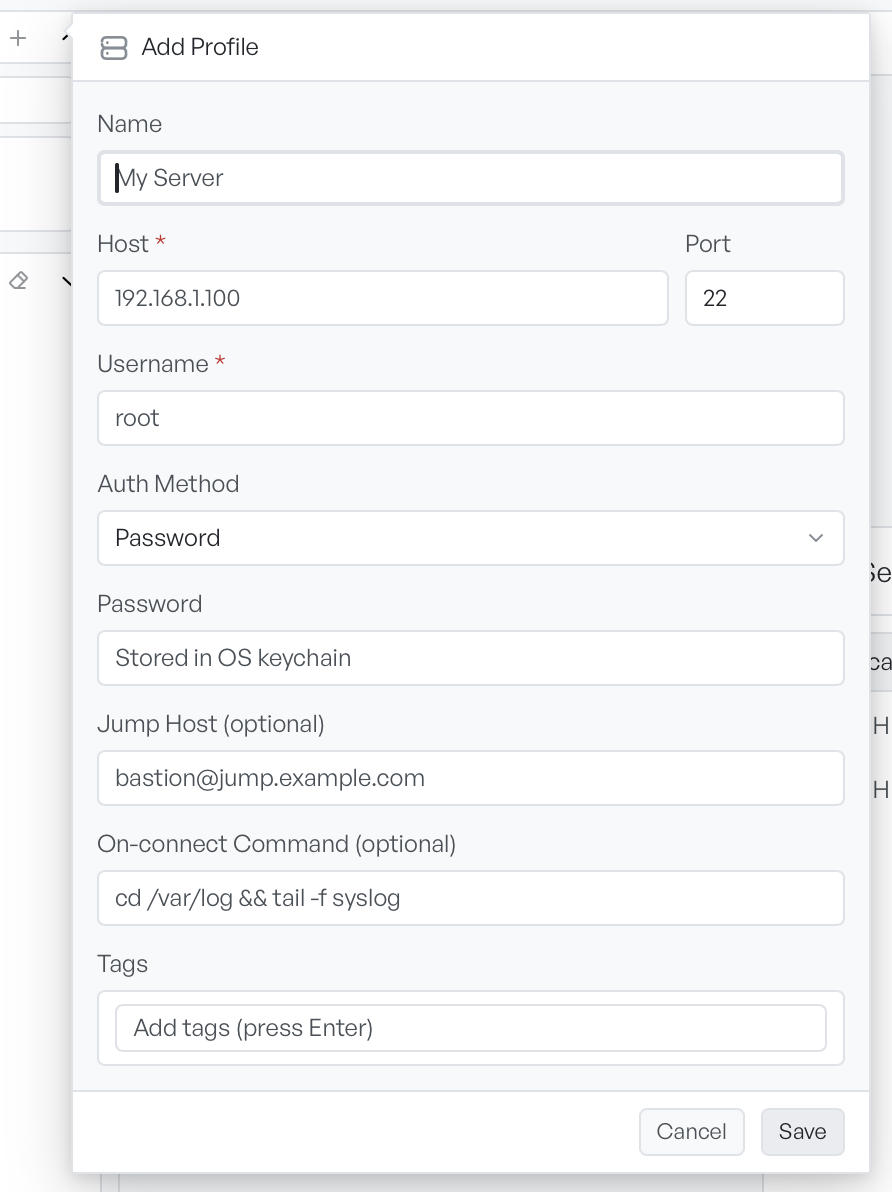
Quick Connect takes a user@host:port string for a machine you are visiting once. For the ones you return to, a saved profile remembers the address, login and authentication, and can add a jump host and a command to run on connect. Passwords live in your operating system keychain, not in a config file.
- Saved profiles with an optional jump host and on-connect command
- Passwords kept in the operating system keychain
- Organise profiles with tags, connect one-offs with Quick Connect

See what the tab is connected to
The Map draws the tab as a small graph: your machine in the middle, every host it reaches, and any jump host in between. It is a quick way to confirm what a broadcast will hit before you send it.
- Your machine, each host and any jump host on one graph
- Confirms what a broadcast reaches before you send it
- Opens from the Map control in the header

Tools along the top
The workspace header carries a few more tools. Snippets keep the commands you run often within reach, Guard Rules warn before a risky command runs, and Tunnels forward ports over an SSH connection. Search reads back through a session's scrollback, and the terminal's colours can be changed from a palette.
- Snippets, Guard Rules and Tunnels along the header
- Search back through a session's scrollback
- Multiple colour themes for the terminal