Use the notification centre#
Open the bell to read every message from this session, expand an error, and clear the list when you are done.
The notification centre keeps a full record of everything the app told you this session, whether or not you saw the message pop up. It sits behind the bell in the top-right corner, so a message that fades from the screen stays available until you clear it.
Open the centre#
Select the bell to open the centre as a panel beneath it. When you have unread notifications, a small count sits on the bell. Above nine, the count shows as 9+. The centre marks everything in it as read when you open it, so the count clears as soon as you look.
Read a notification row#
Unread rows carry a small dot until you open the centre.
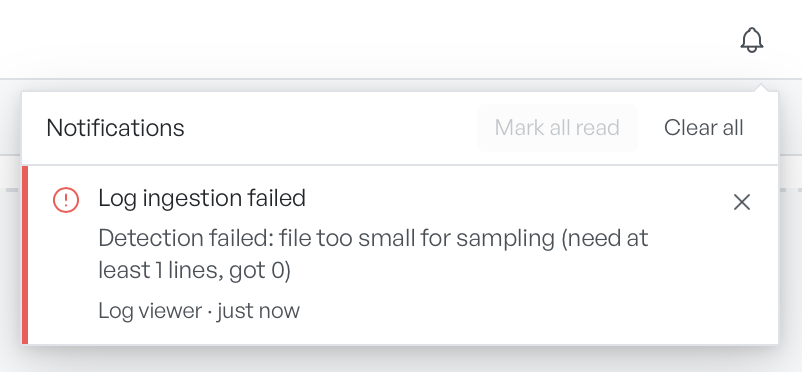
When an error carries a long or technical message, the row keeps it tidy. Select View details to expand the full text in a scrollable block, and Hide details to collapse it again. Select Copy to put the text on the clipboard, which helps when you need to share the exact error.
Clear notifications#
You have three ways to tidy the list:
- Select the cross on a single row to remove that row on its own.
- Select Mark all read in the header to clear the unread dots without removal of any row.
- Select Clear all to empty the centre completely.
When the centre has nothing to show, it reads No notifications.