Pop-up messages#
Read the messages that slide in at the bottom-right, pause one while you read it, and act on the ones that wait.
A pop-up message is the notification you see in the moment. It slides in at the bottom-right corner when something happens, and routine messages fade away on their own. This keeps you informed and does not ask you to stop and clear each message.
How messages stack#
The app shows up to three messages at once, newest on top.
If more messages arrive than the stack can show, a +N more button appears below the stack. Select it to open the notification centre, where every message waits in full.
How long a message stays#
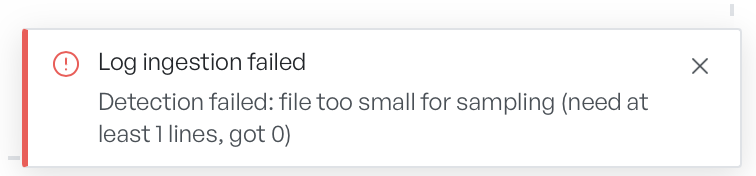
Routine messages clear themselves after a few seconds. The time depends on the severity: successes go quickest, information sits a little longer, and warnings and errors stay longest. The messages that matter most stay on screen longest.
To stop a message from fading while you read it, move the pointer over it or move keyboard focus onto it. The timer pauses while you are there, and it starts again when you move away.
To close a message at once, select the cross on it.
Messages that wait for you#
Not every message fades. Some stay on screen until you act on them:
- an error that offers a button to retry or fix the problem
- a task that still runs, which shows a progress bar as it works
- anything the app pins as important
These messages stay put, so a result that needs your action cannot slip past while you look elsewhere. When a message offers a button, select the button to do the thing it describes, for example a retry of the failed step.