Where notifications appear#
See the two places a message shows, and how its severity sets the colour, the icon, and how long it stays.
Notifications tell you that something happened: a job finished, a download failed, a new version is ready. They appear in two places that work together. A message slides in at the bottom-right of the screen when the event happens. The notification centre keeps a copy, so you can catch up on anything you missed.
Pop-ups and the centre#
The bottom-right message is for the moment. Most of these messages fade on their own after a few seconds, so a run of small successes does not pile up in front of you. See Pop-up messages.
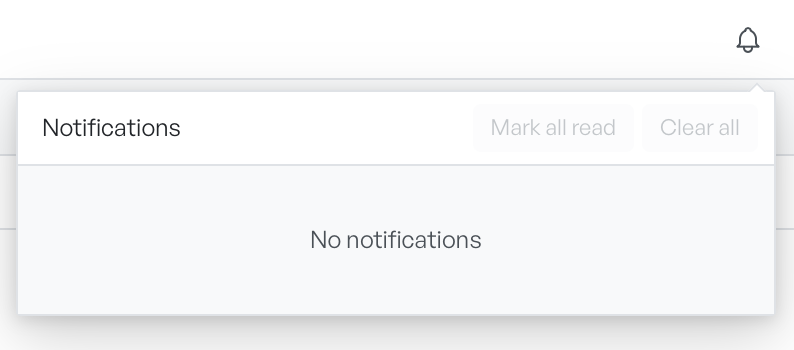
The notification centre is the record. Open it from the bell in the top-right corner of the app to see everything from this session in one list, whether or not you saw the message pop up. See The notification centre.
Severity and behaviour#
Every notification carries a severity, and its colour and icon show that severity: blue for information, green for success, amber for a warning, and red for an error. A job that still runs shows a grey spinner until it settles into success or failure.
Severity also decides how a notification behaves. Routine notifications fade from the bottom-right on their own. The ones you must act on stay put until you deal with them: an error that offers you a choice, a task still in progress, and anything the app pins.
Notifications last for the session. When you restart the app, the centre starts empty again.