Read the DNS records#
Type a domain to start all six lookups at once, then read the record groups for the addresses and the third-party providers a domain depends on.
Reconnaissance takes a domain and asks six independent questions about it at once. DNS is the first of those and usually the most useful, because it tells you which addresses and which third-party services a domain points at.
Enter a domain in the field at the top and select Analyze, or press Enter. All six sections start together, each with its own spinner, and each fills in when its answer arrives. A partly filled page is normal, not a fault.
Read the record groups#
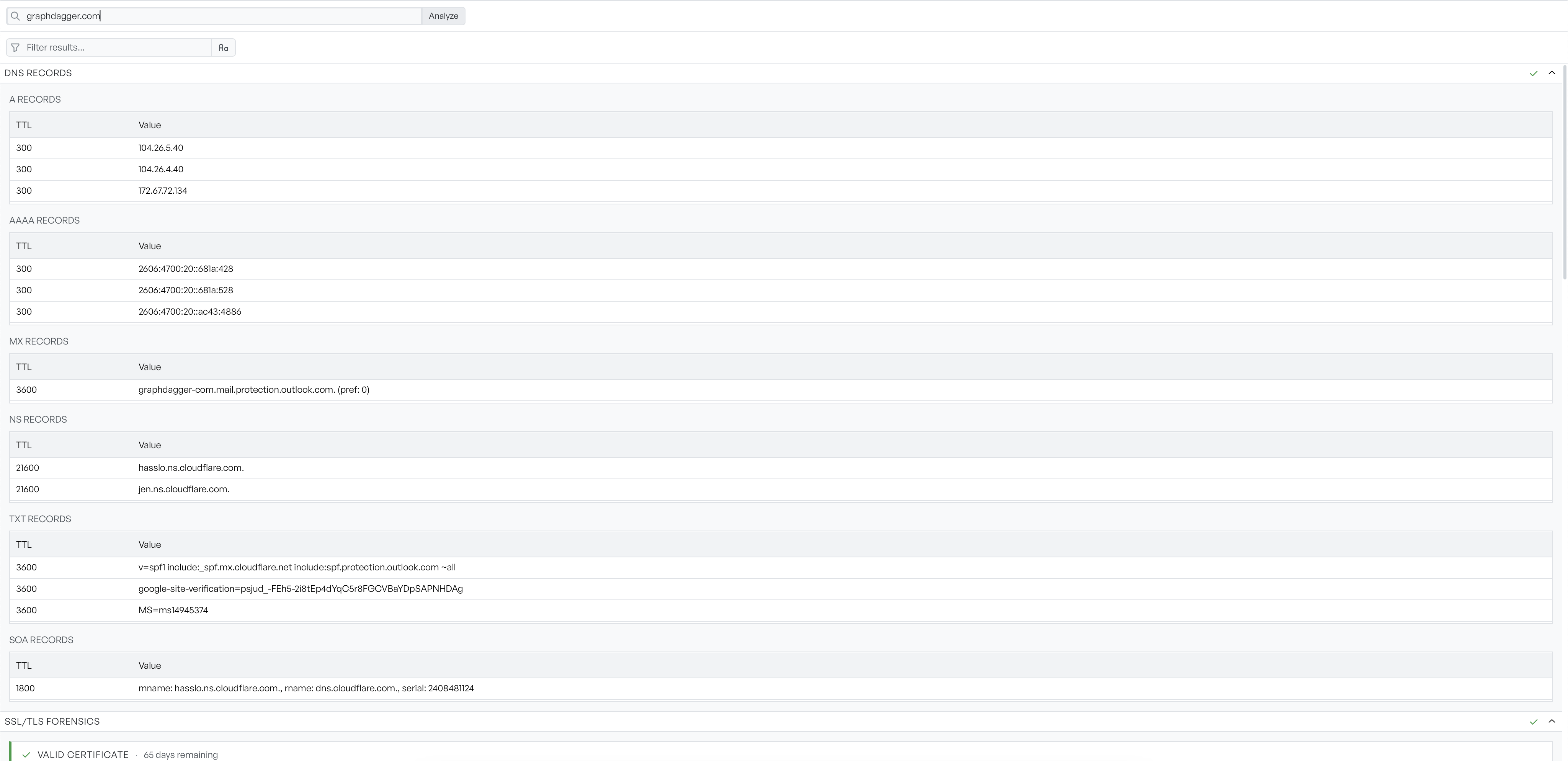
The DNS Records section groups results by record type, in the order A, AAAA, MX, NS, CNAME, TXT, SOA. Each group is a small table of TTL against value.
The section leaves out a record type that returned nothing. If a domain has no CNAME records, you do not see an empty CNAME heading. The sections that are present are therefore a fact about the domain.
Read the groups for what they tell you about infrastructure.
- A and AAAA: give you the addresses to scan.
- MX: names the mail provider.
- NS: names who controls the zone, which is often a different organisation from the one that owns the domain.
- TXT: holds the verification tokens and the SPF policy, so it tends to list every service the domain ever enrolled in.
Filter across all sections#
When results exist, a filter box appears under the target field. It applies to every section at once rather than to DNS alone. Enter part of an address and the filter narrows DNS, the certificate names, and the WHOIS fields together.
The button beside it turns case-sensitive matching on and off. The filter is live and local, so it never runs the lookups again.
If a filter excludes everything in a section, that section says so rather than going blank: the DNS panel reads No matching DNS records found, against No DNS records found when the domain genuinely has none.
What the section tick means#
Each section header carries a tick once its lookup stops. The tick means finished, not succeeded. A lookup that failed outright shows the same tick as one that worked.
To tell the difference, look at the section body and at any notification. A failed lookup leaves its section empty, and Network Recon raises one notification per scan that summarises which lookups did not complete. An unreachable or non-existent domain fails all six lookups, and in that case the notification offers a Retry action.
The other five lookups#
The other five sections are covered separately: the TLS certificate, email authentication, registration details, and reachability and the network path.