Trace the delivery hops#
The Received headers are redrawn as a chain of servers, and selecting any hop opens the fields that server stamped on the message.
The Routing tab rebuilds the delivery path of the message from its Received headers. It draws the path as a chain of hops. Each node is one server that handled the message. The chain shows where a message came from, which servers it passed through, and whether anything unexpected sits in the path.
Read the hop chain#
The tab lays out the hops in delivery order. Each hop carries a counter, for example HOP 2/6. The message starts at the ORIGIN and arrives at the DESTINATION, the final receiving server. RELAY servers sit in between. A counter shows the total number of hops.
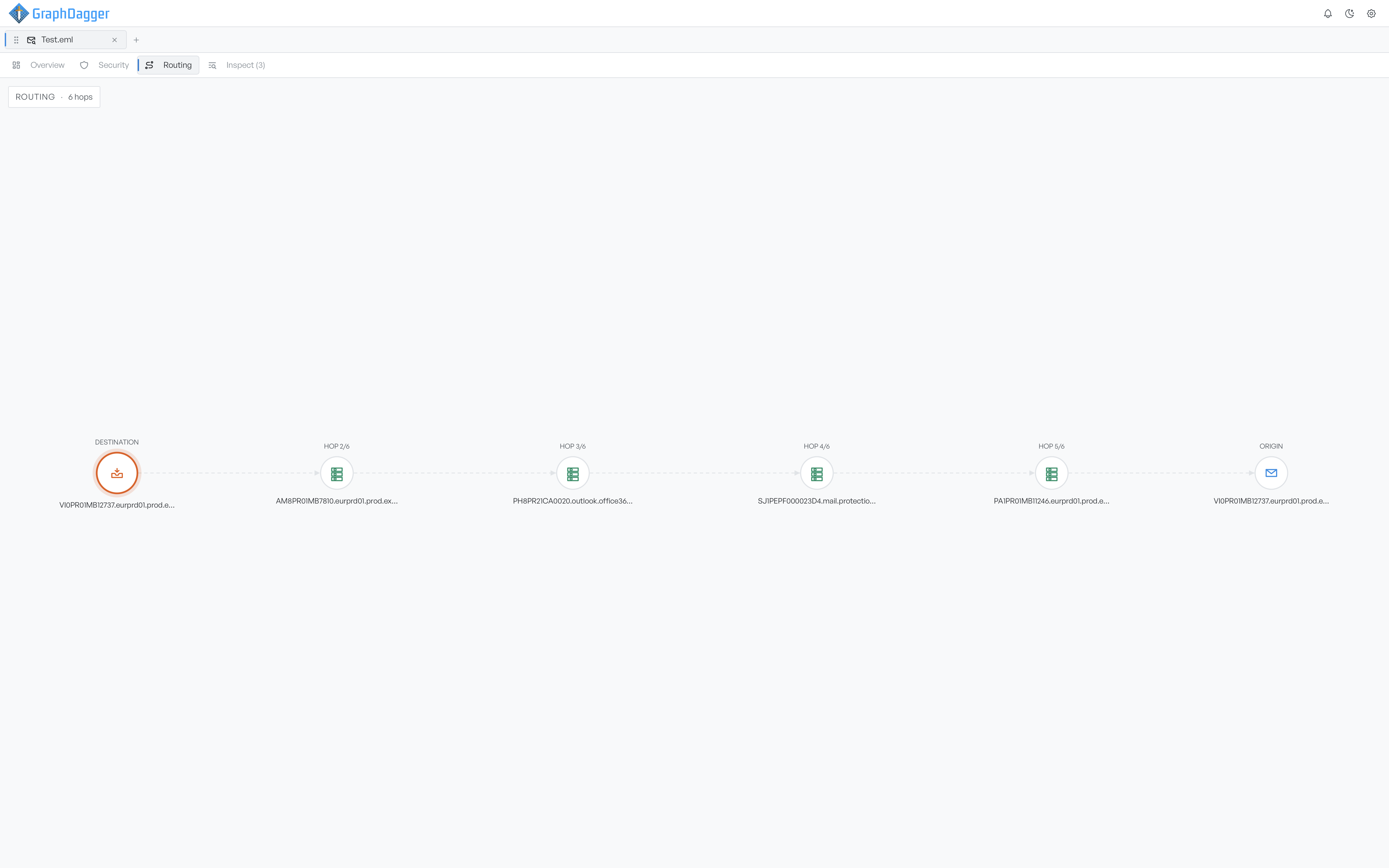
Open a hop panel#
Select any node to open a details panel for that hop.
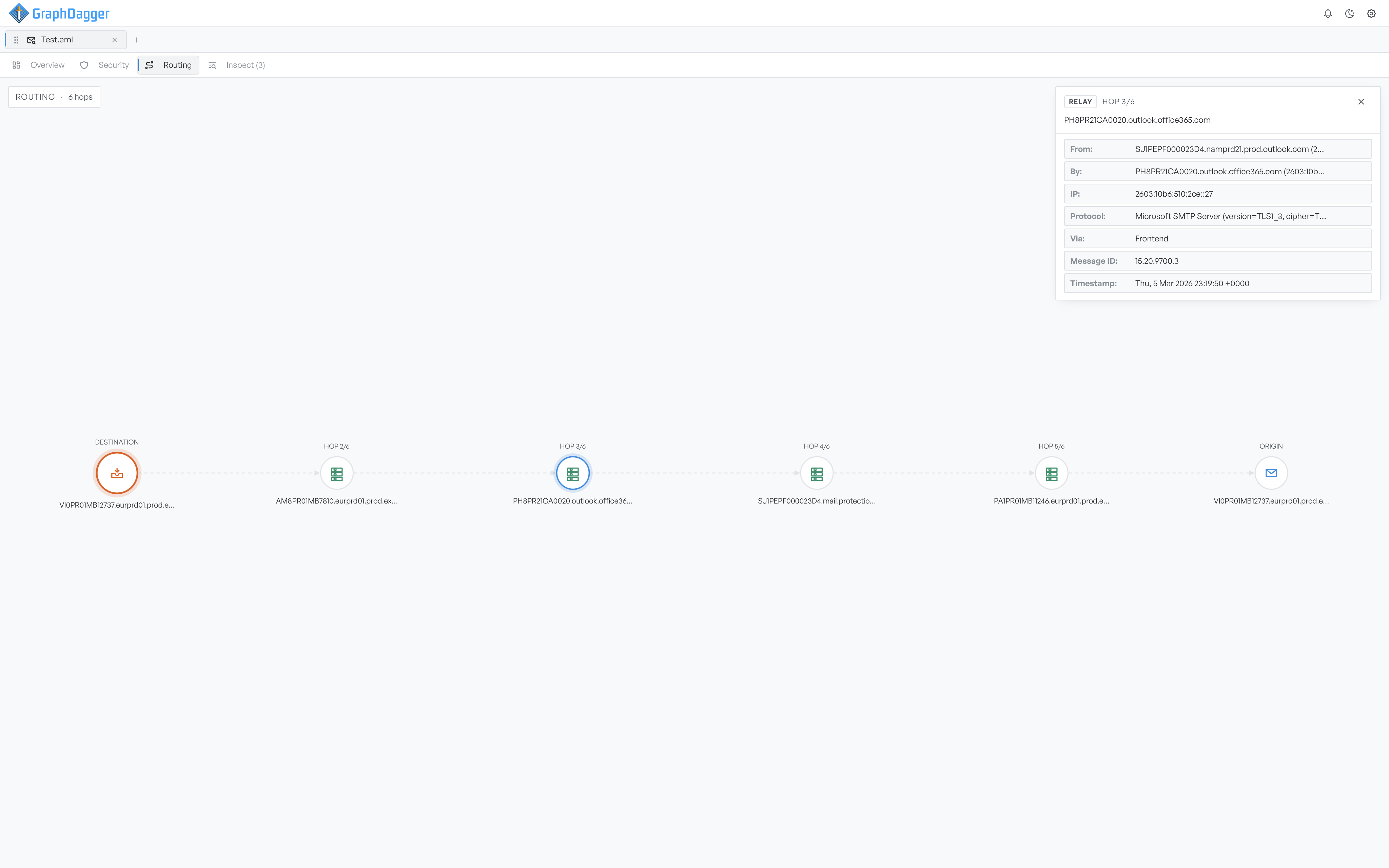
The panel shows the fields that the Received header of that hop contains, from this set:
- From: the system that sent this hop, with its hostname and IP.
- By: the server that received it, the subject of the node you selected.
- IP: the address the connection arrived from.
- Protocol: the SMTP variant and TLS parameters the server reported, for example a TLS version and cipher.
- Via: the transport in use, such as a frontend relay.
- Message ID: the server-local identifier stamped on the hop.
- For: the recipient address that the hop handled, when present.
- Timestamp: when the server handled the message.
Each row has a copy button, and long values have an expand control so you can read them in full. Close the panel with the icon in its top corner, or select another node to jump to its details.
When a message has no Received headers, the tab shows No routing information available for this email. For the verdicts behind these hops, switch to the Security tab.