What Email Forensics checks#
Load a message from a file or from pasted headers, then work through the four tabs that take it apart.
Email Forensics turns a raw email into something you can read in full. Your mail client hides that raw email behind a friendly sender name. Open a message, and Email Forensics lists every header, checks who authenticated the message, redraws the route the message travelled, and runs a ruleset that flags anything suspect. Use it to investigate a phishing report, to confirm that a message is genuine, or to find why legitimate mail fails delivery.
Open a message#
Open Email Forensics from the sidebar. Email Forensics starts on a prompt with a drop zone in the centre. Load a message in one of three ways:
- Drag a file onto the prompt.
- Choose a file from disk.
- Select Paste headers, paste raw headers or a full message into the editor, and select
Analyze.
Email Forensics reads .eml, .mbox, .txt, .headers, and .hdr files. Each message opens in its own workspace tab, with the filename as the title. You can keep several messages open at once and switch between them. You never lose your place.
The four message tabs#
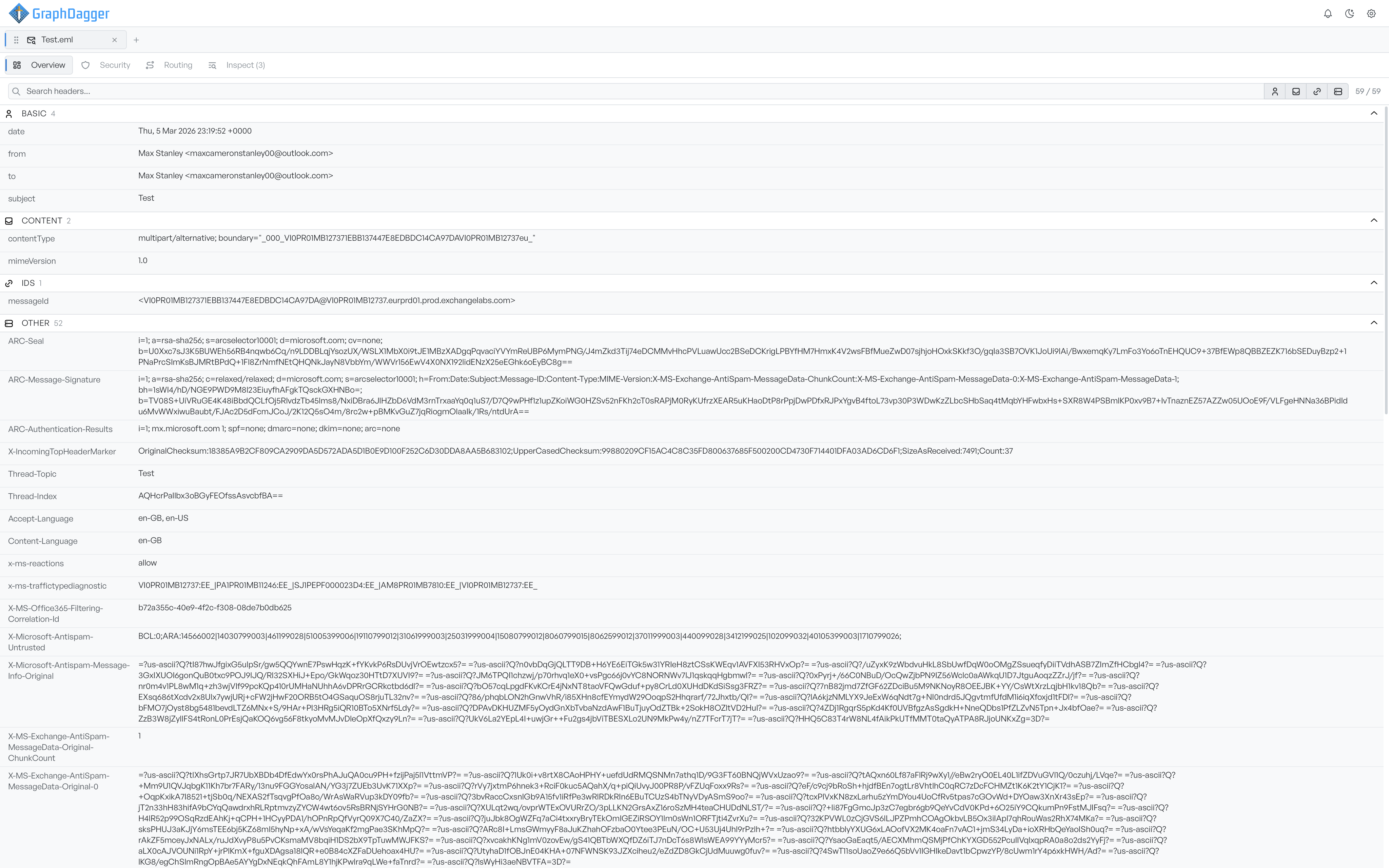
Each tab answers a different question about the message:
- Overview lists every header in the message. It groups the headers by category, and you can search them.
- Security shows the authentication result: SPF, DKIM, DMARC, ARC, and the combined Authentication-Results record, each with its verdict.
- Routing redraws the delivery path hop by hop from the
Receivedheaders. - Inspect runs a ruleset against the message and shows each finding next to the exact source text that triggered it. When the active ruleset flags something, the tab label carries a count, for example
Inspect (3).