How findings meet the source#
The tab splits in two: rule findings on the left, the message itself on the right, and selecting a finding jumps the source to the text that triggered it.
The Inspect tab applies the rules to the message. The tab splits in two. The left pane holds the findings that a ruleset produced against the open message. The right pane holds the message source. Select a finding, and the source jumps to the exact text that triggered it. A rule name is never abstract: you always see what the rule caught and where.
Findings left, source right#
You can read the message as raw source or as a rendered preview. Drag the divider between the panes to give either side more room.
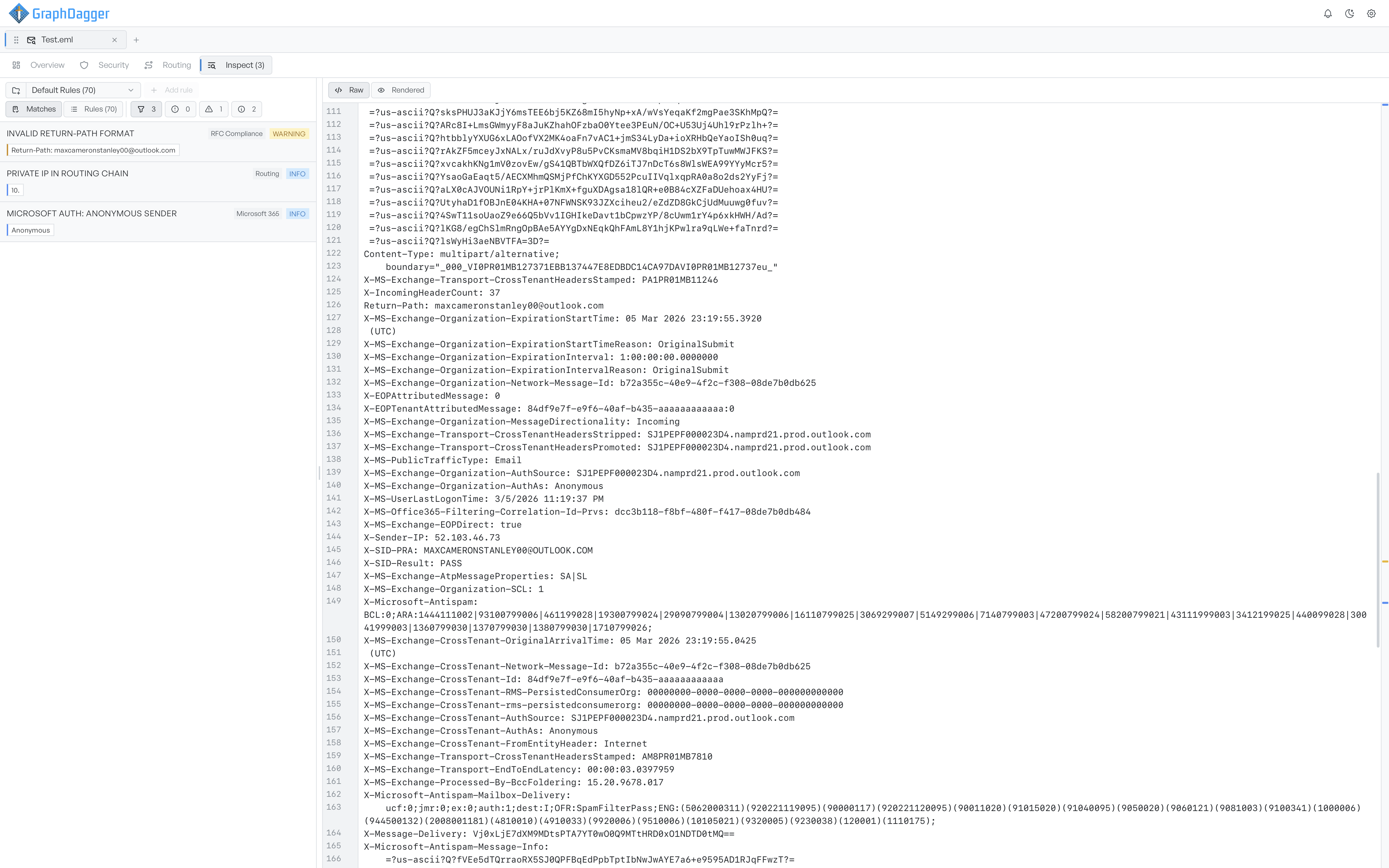
The left pane offers two views of the same ruleset:
- Matches shows only the rules that fired on this message, each as a finding you can open and trace into the source.
- Rules shows every rule in the set, whether or not it matched, so you can see what the ruleset checks for.
Severity filters narrow the list to one severity: All, Errors, Warnings, and Info. Each filter carries a count. A picker switches between rulesets, and you can create or delete your own rulesets there.
Start with the Matches view#
Most of the time you start on Matches. Open each finding to read what it means. Use the highlight to confirm the finding against the real source. From there: