Read a finding card#
Open a card to see what the rule checks for, which header it read, and the fix it suggests, then follow the highlight into the message.
A finding tells you what a rule caught and where it caught it. In the Matches view, each finding is a card. This page explains how to read a card and how the card links to the message source.
Read a match card#
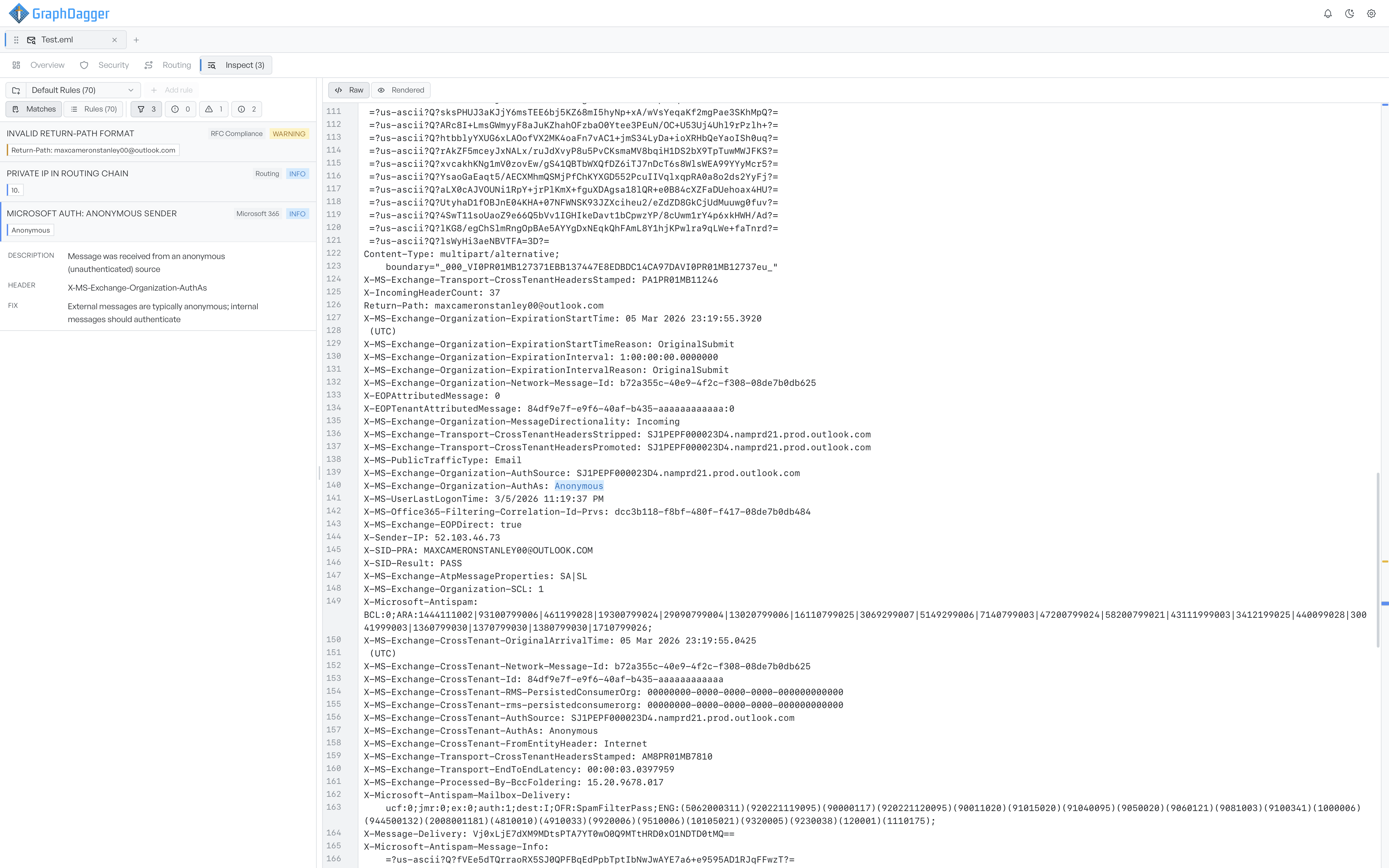
Every card carries a severity of error, warning, or info. When the rule belongs to a named category, the card also shows a tag such as Routing or Microsoft 365. Chips show the exact text in the message that matched. The card shortens long values, so hover a chip to read one in full.
Select a card to expand it. The detail rows explain the finding:
- Description: what the rule checks for, in plain language.
- Header: the header the rule evaluated.
- Standard: the RFC or policy the rule is based on, where there is one.
- Fix: a one-line suggestion for what to do about it.
Trace a finding into the source#
Select a card, and the source pane outlines the matched text and scrolls it into view. You then read the finding in its full context rather than as an isolated snippet. The rail down the edge of the source marks every match by its position in the message. It colours each tick by severity, so you get a map of where the problems sit. Hover a highlight in the source to see the rule name, or select it to jump back to its card. Select the open card again to clear the selection.
When you can edit the ruleset, the expanded card carries an Edit rule button. The button opens the rule of that finding in the builder.
When nothing matches#
If the active ruleset finds no problems, the list shows a green shield and No issues detected. A note says that the message passed every rule. If you apply a severity filter, the list instead reports that there are no findings at that severity.