Make your own ruleset#
Build the checks your team cares about condition by condition, and watch each one match or miss the open message as you write it.
Custom rules record the checks that matter to your team: a phrase that signals phishing, an internal domain that must appear only in certain headers, or a spam score threshold. You build a rule visually, condition by condition. Each condition shows whether it matches or misses the open message as you work. The built-in Default Rules set is read-only, so your rules live in a ruleset of your own.
Make a ruleset#
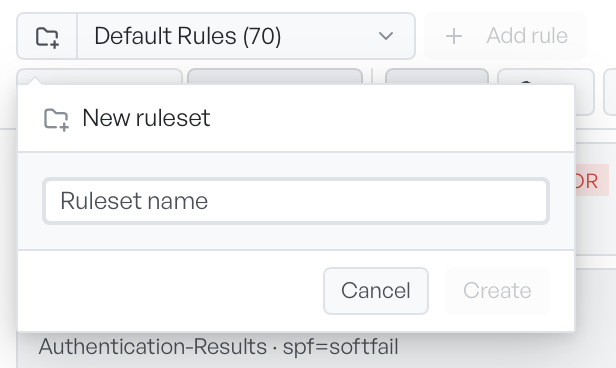
Select the folder icon to the left of the ruleset picker. A small popover asks for a Ruleset name. Enter a name and select Create. The new set starts empty and becomes the active selection. You can now add rules to it.
Add a rule#
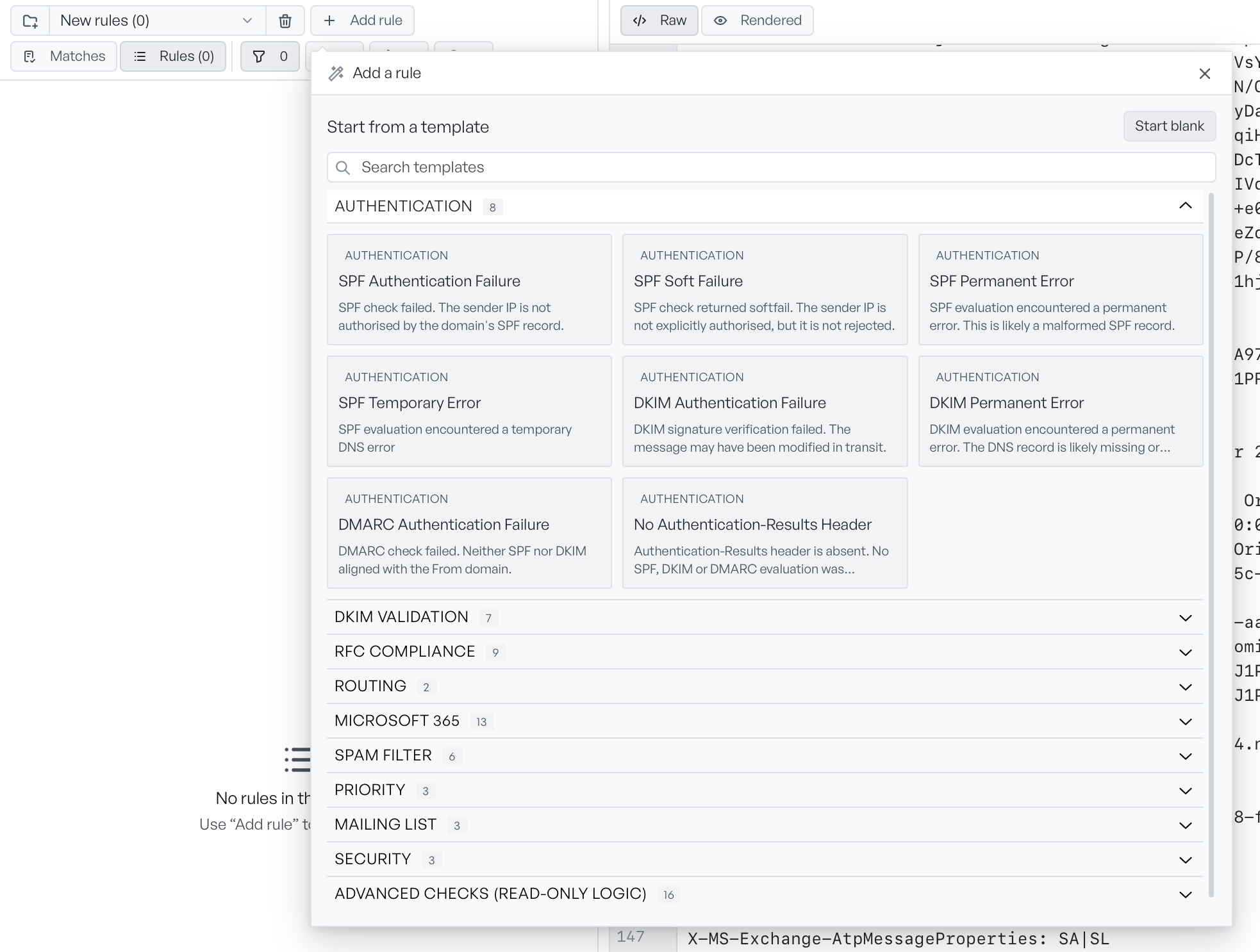
Select a ruleset of your own, then select Add rule to open the builder. The builder starts on a gallery of the built-in checks, grouped by category, so you can start from a proven check rather than a blank rule. Search the templates and select one to load a copy that you can edit. To build from scratch, select Start blank. A template copy never changes the original.
Write a condition#
A rule has a name, a severity (error, warning, or info), a category, and an optional fix hint. In the When this is true section underneath, you set what the rule looks for.
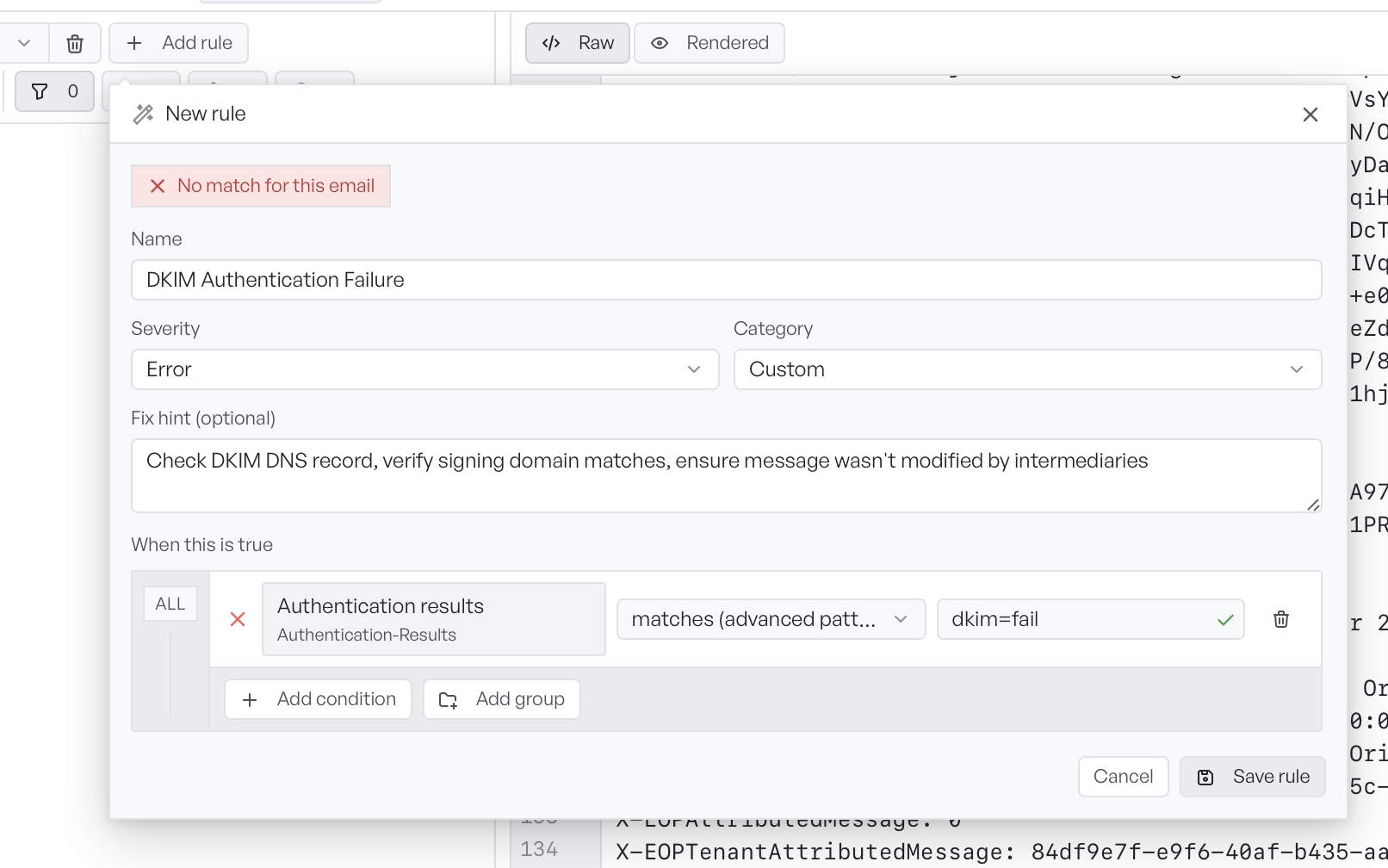
Each condition reads as a sentence: a field, an operator, and a value. The field picker groups the headers under friendly names: Authentication, Routing, Identity, Microsoft 365, Content and Spam, and Other. A custom-header option covers a header that the picker does not list. The operator sets the test:
- contains, equals, starts with, ends with compare text.
- matches (advanced pattern) tests against a regular expression. Email Forensics checks the pattern as you type, so you catch a broken pattern before you save.
- is present and is missing check only whether the header is there, and hide the value box.
- is greater than and is less than compare numbers, on fields that hold them, such as a spam score.
Combine conditions in a group set to ALL (every condition must hold) or ANY (one condition is enough). You can nest a group inside a group for combined logic. A dot on each condition shows whether that condition matches the open message. A badge at the top of the builder shows whether the whole rule matches, and the value it matched on. Select Save rule when the rule reads the way you want.
Change or remove your rules#
Findings from an editable ruleset carry an Edit rule button that reopens the rule in the builder. To remove a whole ruleset, select the trash icon beside the picker. The built-in Default Rules set has neither button, because you cannot change it.