Set the URL and method#
Pick GET or POST, type an address, or paste a whole curl command in one go.
The URL bar decides where an HTTP request goes and which method it uses. This page covers the method select, the URL field, the query string that stays in step with the Params tab, and how to paste a curl command.
Select a method#
For an HTTP request the method select offers GET, POST, PUT, PATCH, DELETE, HEAD, and OPTIONS.
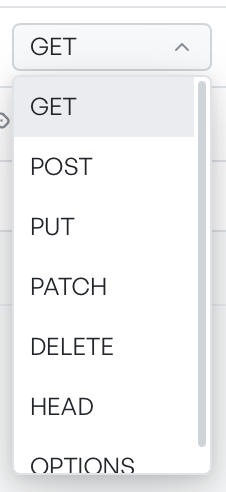
The app sends the method you select with the request. A body only goes out on POST, PUT, and PATCH. The other methods leave the Body tab out of the call.
Type a URL#
Type or paste the address into the URL field. If you leave out the scheme, the app adds https:// when it sends the request, so example.com/api goes out as https://example.com/api.
Keep the query string in step#
The URL field and the Params tab describe the same query string from two directions.
Paste a URL that ends in a query string, and the app lifts the pairs after the ? into the Params table, one row each. Edit the rows, and the app rewrites the URL field to match. Turn a row off, and it drops out of the URL but stays in the table.
Paste a curl command#
Paste a command that starts with curl into the URL field, and the app builds the whole request from it in place. The app reads across the method, URL, query parameters, headers, body, and basic authentication. You can lift a call straight from a terminal or from another tool's copy-as-curl.