Follow a finding to evidence#
Every finding carries a severity, a confidence and the exact header or value that triggered it, highlighted for you in the recorded exchange.
A finding is a check's judgement about one location. It states what the check thinks is wrong, how confident it is, and the part of the exchange that made it say so. Findings fill the lower left of the results. Select a finding, and the pane on the right shows its evidence.

The severity-ordered list#
The findings form a flat list in severity order, most serious first: critical, high, medium, low, then info. Each row gives the title, a severity badge, and the URL it applies to. A coloured bar down the left edge also shows the severity, red through to blue.
The same finding on twenty pages gives twenty rows. Servers and frameworks usually set security headers in one place, so the same header finding on every page is one fix, not twenty. Read the list for distinct titles first, and treat the repetition as a measure of how widely a single problem applies.
The three detail tabs#
Select a finding, and it opens in the pane on the right. The pane has three tabs.
- Overview: lists the finding's fields: title, severity, confidence, which check raised it, the location, and where applicable the OWASP category, the subject the check examined, and the evidence snippet. When the check has advice attached, a Remediation line sits underneath.
- Request: gives the method, URL, and the headers sent.
- Response: gives the status, elapsed time, size in bytes, and every response header in the order it arrived.
Request and Response show the exchange itself, as name and value pairs. The pane does not show the response body.
Read confidence alongside severity. Severity says how bad the problem is. Confidence says how sure the check is. A firm high-severity finding deserves attention before a tentative one.
Find the highlighted header#
The detail pane points at the evidence rather than describes it.
When a finding names a specific header, the tab highlights that header in the Request or Response view, and the tab carries a yellow badge counting the matching rows.
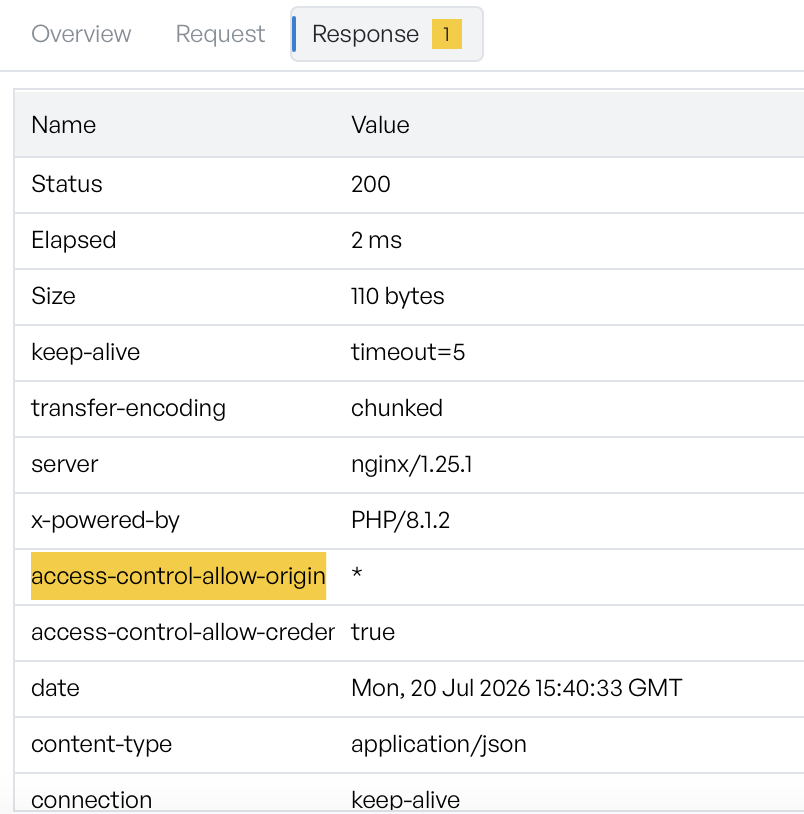
A permissive CORS finding is a good example. The response sets access-control-allow-origin to * and also allows credentials, and the check flags the combination. Read it in the response to see whether the finding is real, and what to change.
A finding about a missing header has nothing to point at, so no highlight appears. That is expected, and the absence is itself the evidence.
Empty lists and missing exchanges#
The list reads No findings when no check flagged anything. The detail pane reads Select a location or finding for details until you choose something.
Some locations have no stored exchange. This usually happens when the crawl records the URL but does not complete a request for it. Their Request and Response tabs report that the raw exchange was not captured.
Select a row in the locations grid instead of a finding, and the same pane shows that location's own details: the URL, kind, status, depth, and how the crawler found it.