Find repeating log templates#
LogMine discovers the shapes of your log lines and Grok matches shapes you already know, both feeding one table you can sort and filter by.
The Patterns mode of Group into extracts repeating templates from the current result set. It then groups rows by the template they match. It is the fastest way to answer "what shapes of log line exist in this file?" without a hand-written regular expression. Switch the Group into pill on the query bar to Patterns to enter this mode.
LogMine and Grok#
Two extraction engines appear as sub-tabs next to the Patterns pill:
- LogMine clusters log lines by structure and proposes a template per cluster. Use it when you do not yet know the shape of the log.
- Grok applies Grok pattern definitions, so you can match a known format such as a common web-server or syslog pattern.
Both engines feed the same table below.
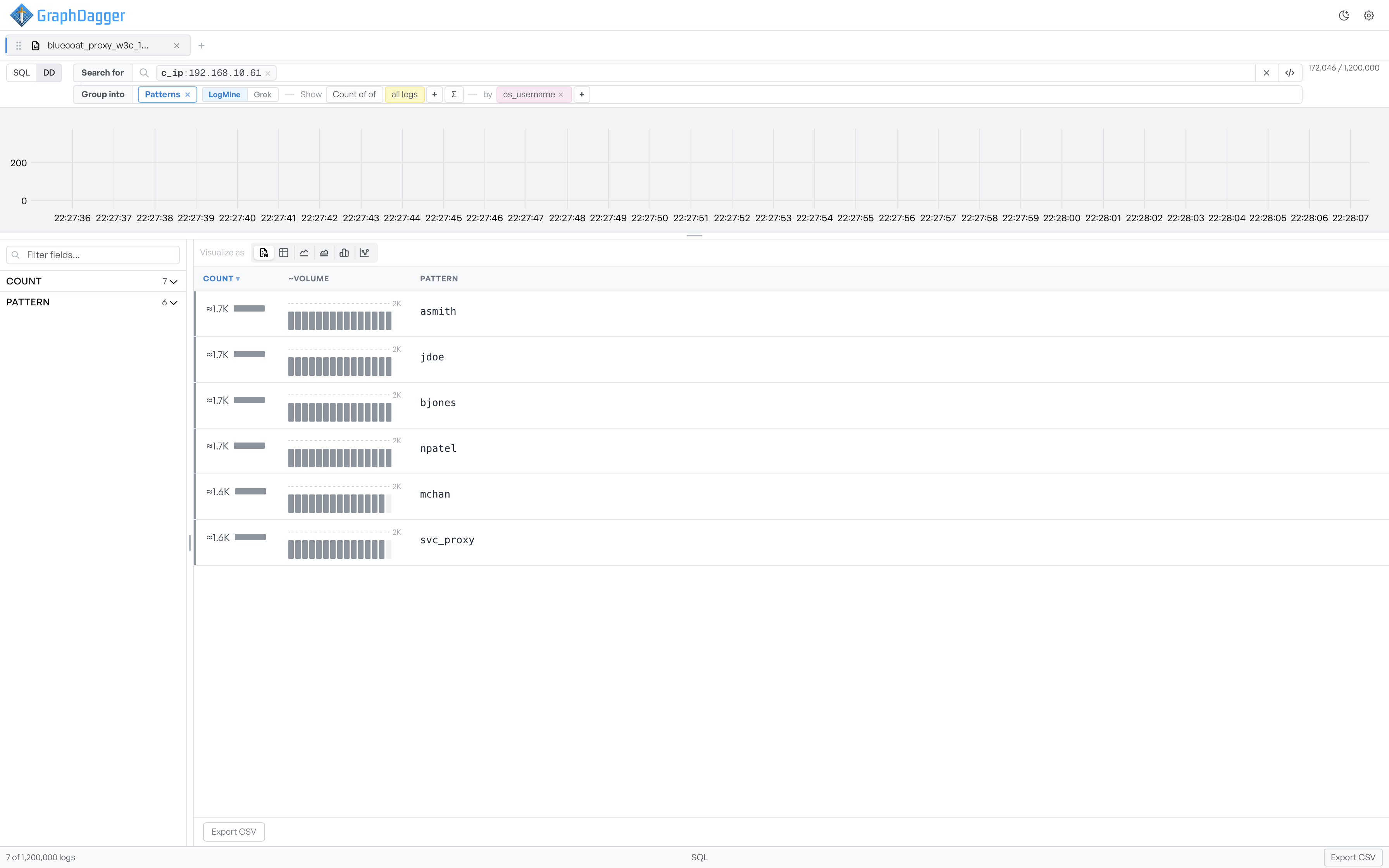
Read the patterns table#
Each row in the Patterns table represents one extracted pattern.
| Column | What it shows |
|---|---|
COUNT | Approximate row count covered by the pattern (for example ≈1.7K). Click the header to sort; the downward arrow is the current sort direction. |
~VOLUME | A mini bar sparkline of the pattern's activity across the file. Each bar is a time bucket; the small 2K label is the upper-bound scale. |
PATTERN | The extracted template or key. For grouped aggregations the cell shows the group key; for raw pattern extraction it shows the placeholder-annotated template. |
The field panel on the left updates in Patterns mode to match. For example, COUNT and PATTERN become top-level facets. Expand them to filter the pattern list.
Add Show and by controls#
The Show and by controls from the Fields mode also appear in Patterns mode, on the right side of the query bar. They let you count patterns against another field, for example Count of all logs by cs_username. You can then see which patterns each user generated.
Filter by a pattern#
Select a pattern to narrow the result set to the rows that match it. The activity histogram, the facets panel, and the events table all update together. Use this to drill into the long tail: pick the smallest patterns in the table to find the rows that do not match the common shapes.
Export the pattern rows#
Use Export CSV in the bottom-right to write the extracted pattern rows to a CSV file. Each row in the export has the same columns as the on-screen table.