Find rows with a query#
Type field expressions into the Search for bar, or tick values in the facets panel, and watch the whole workspace narrow with them.
Log Explorer narrows a loaded file two ways: with a query you type into the Search for bar, and with point-and-click selections in the facets panel on the left. Both work on the same parsed fields. Both update the events table, the activity histogram, and the result count at the same time.
The Search for bar#
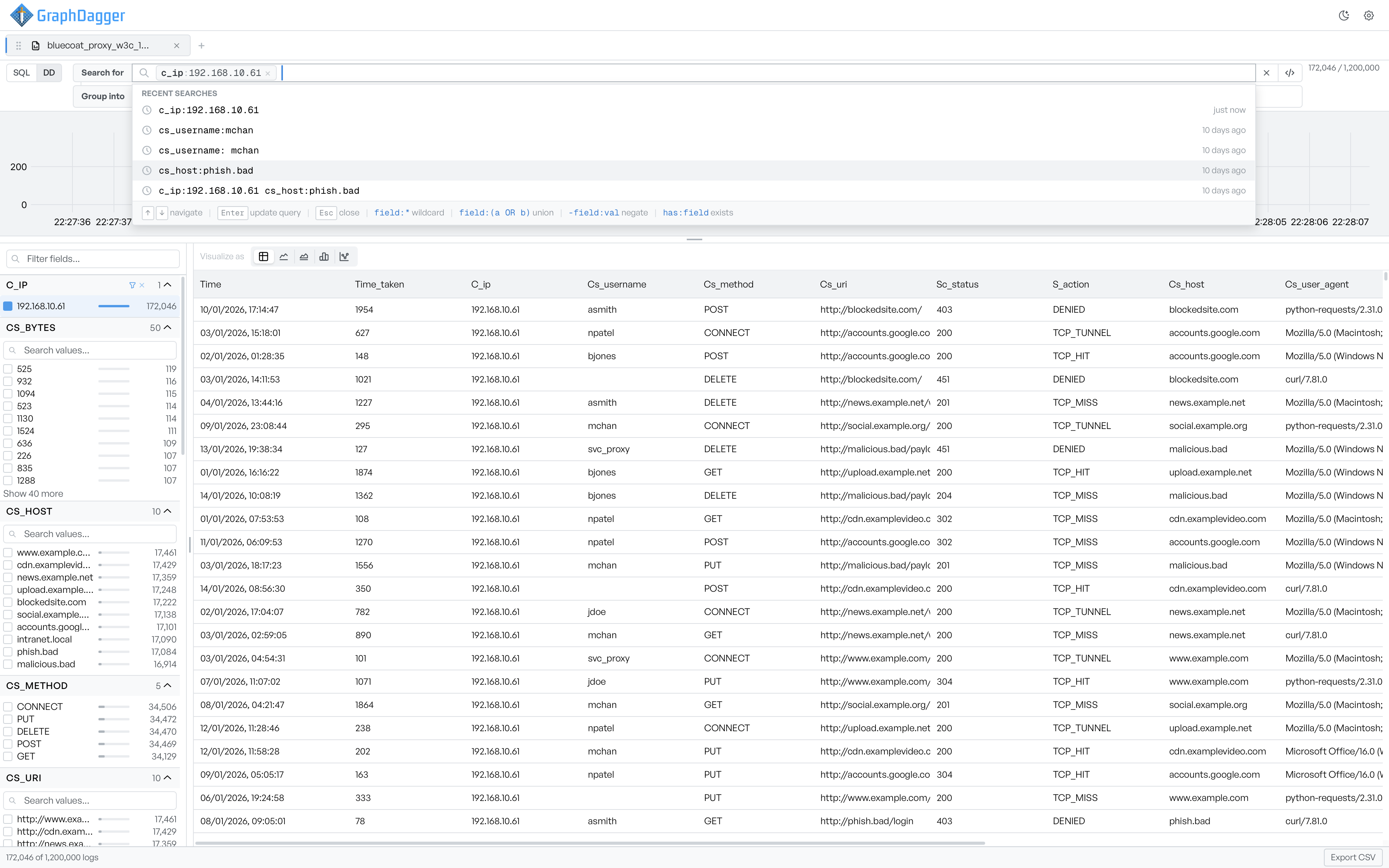
The Search for bar accepts field-based expressions such as c_ip:192.168.10.61. Each expression matches a parsed log field against a value. Matching rows stay. Log Explorer filters out everything else.
Query syntax#
A legend appears when you focus the search bar. It summarizes the supported syntax:
| Syntax | Meaning |
|---|---|
field:value | Match rows where the field equals the value. |
field:(a OR b) | Match rows where the field equals either value. |
-field:value | Negate: match rows where the field does not equal the value. |
has:field | Match rows where the field exists. |
Chain several expressions in the same bar to intersect them. For example, cs_host:phish.bad cs_host:192.168.10.61 combines two conditions.
Recent searches#
A Recent searches dropdown appears when the bar is focused but empty, and while you edit a query. Each row shows the query and a relative time such as "10 days ago". Select a row to replace the current query with that entry.
Keys for the search bar#
The legend also lists the keys available while the bar is open:
- ↑ / ↓ move selection through the recent-searches list.
- Enter runs the current query.
- Esc closes the dropdown.
Result count#
The badge on the far right of the query bar shows matched rows against the full file, for example 172,046 / 1,200,000. The status bar at the bottom shows the same count as 172,046 of 1,200,000 logs.
The facets panel#
The left panel groups rows by parsed field, so you can filter without a query. Each facet group (for example C_IP, CS_BYTES, CS_HOST, CS_METHOD, CS_URI) expands to show the distinct values it contains with the row count for each.
- Filter fields... at the top of the panel filters the list of fields by name.
- Search values... inside an expanded group filters the list of values within that field.
- Show 40 more at the bottom of a group expands the visible values.
- Select a value to check its box and add it to the current query. The other regions of the workspace update immediately.
Use the facets for an overview of what values a field holds. Use the search bar when you already know the filter you want.
Remove a filter#
To remove a single filter, open the value in the facets panel and clear its box. You can also delete the matching expression from the Search for bar. To clear every filter at once, select the × inside the search bar to empty the query. The count returns to the full file total and Log Explorer resets every facet.