Read response headers#
Every returned header sits on its own row, with long values you can expand.
The Headers tab lists every header the server returned. Each header sits on its own row in a two-column grid. This page covers how to read those rows.
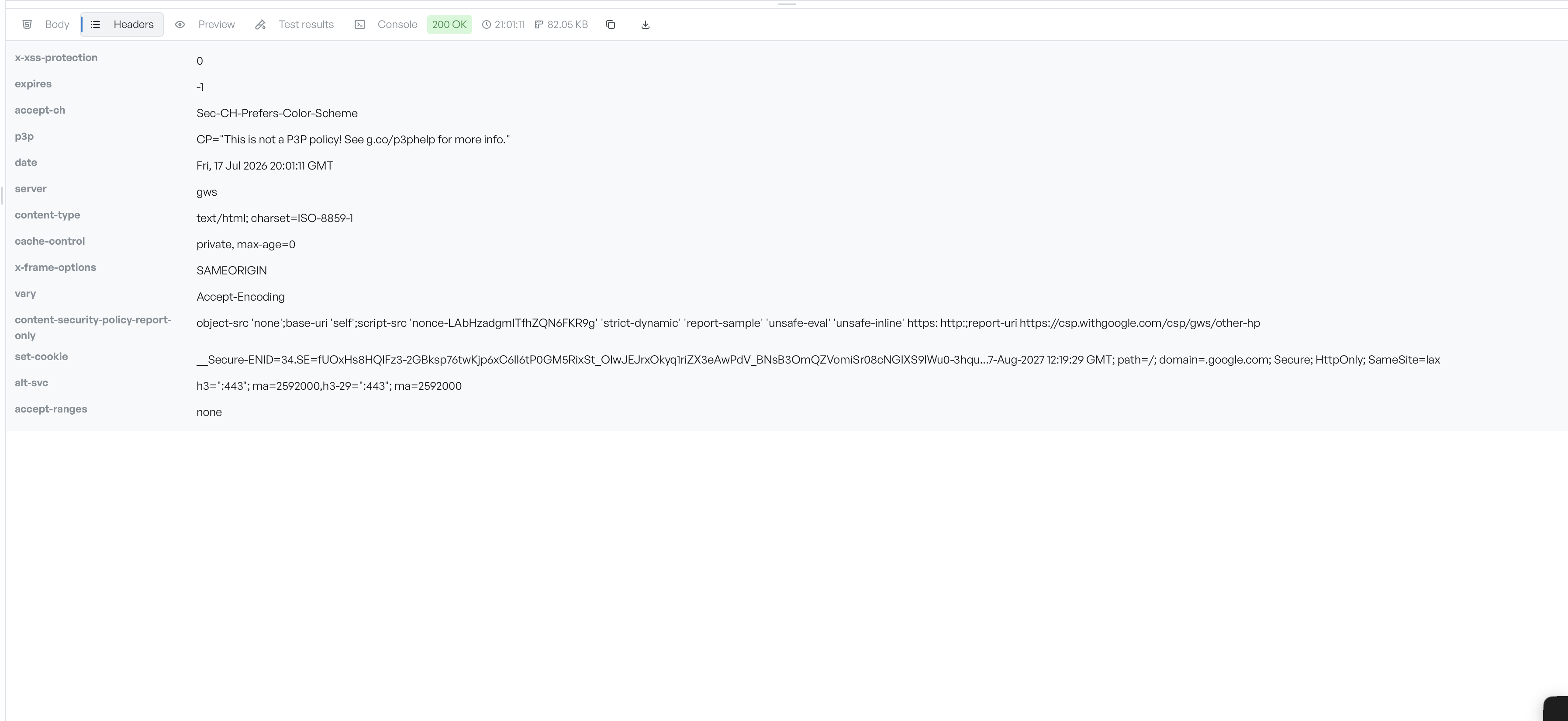
Expand a long value#
The tab truncates long values to a single line so the grid stays readable. Each value has an expand button and a copy button. Select expand to reflow the full value onto multiple lines, then collapse it again when you are done. The copy button copies that single value to the clipboard.
This helps with long values such as Set-Cookie, Content-Security-Policy, and signed URLs that carry a whole token.
Header order#
Headers appear in the order the server sent them. The tab does not sort them alphabetically.
When no headers came back#
If the response carried no headers, the tab shows the message "No headers available" in place of the grid. This is rare and usually points to a network-level problem rather than a normal reply from the server.