Step through the recorded run#
Switch the preview between Screenshot and DOM, then use the play controls or the keyboard to stop on any moment.
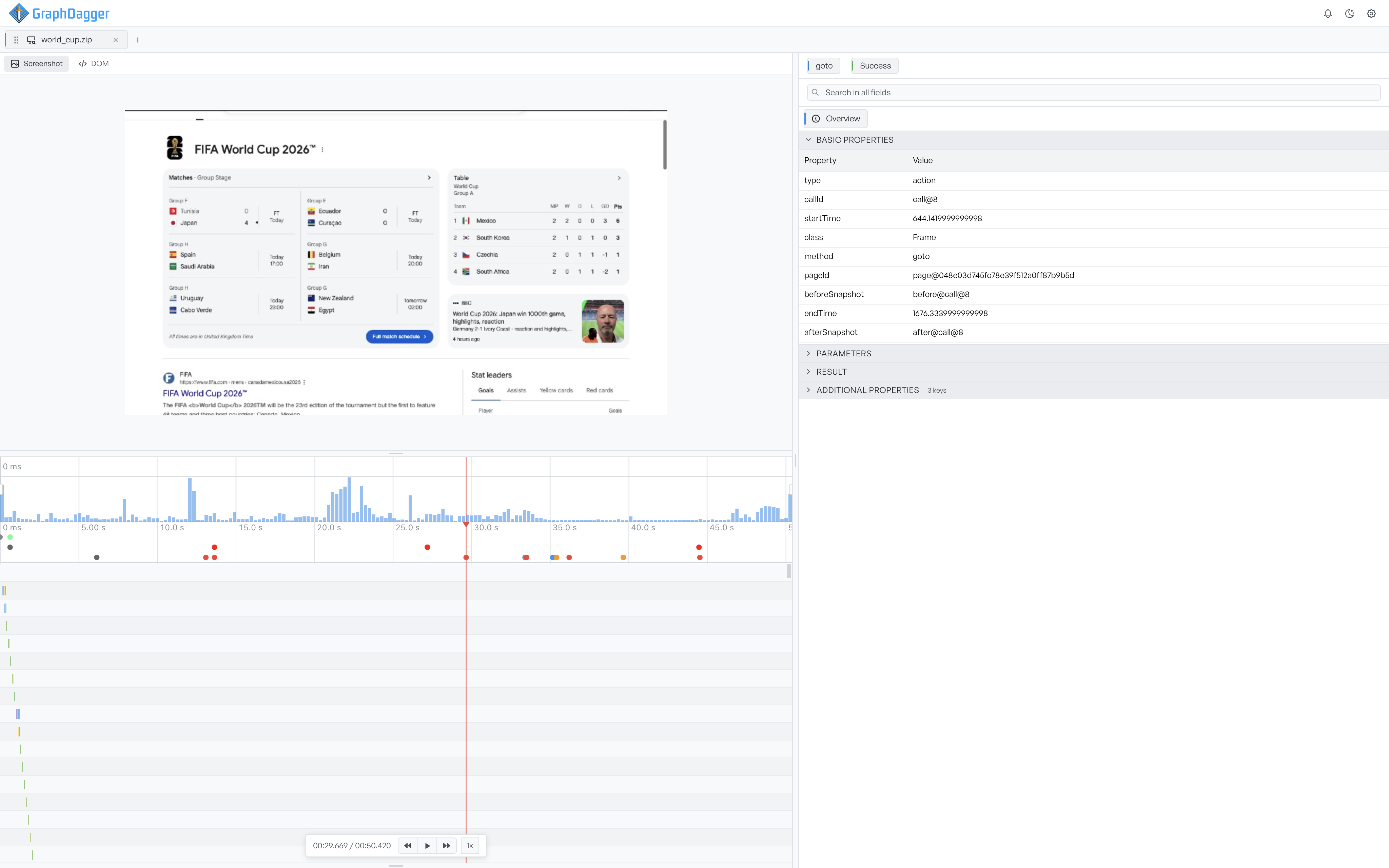
The preview shows the page at the current time. The play controls under the timeline move that time. Together they let you replay the session and stop on any moment.
Switch between Screenshot and DOM#
The preview has two modes, and the toggle above it switches between them.
- Screenshot shows the recorded screencast: the actual picture of the page captured at the current time. This is the fastest way to watch the run play back.
- DOM rebuilds the page's structure from the snapshot the selected action saved. It is the real structure and not a picture, so you can point at elements in it and read them. See Inspecting elements.
If there is no picture for the current moment, or if no action is selected in DOM mode, the preview says so. It does not show a stale frame.
Use the play controls#
The controls sit below the timeline, next to the current time and the total length.
- Play and pause run the screencast forward from the current time. Playback stops on its own when it reaches the end.
- Step back and step forward jump to the previous or the next action, not a fixed number of seconds, so you move action by action through the run.
- The speed control cycles through 0.25x, 0.5x, 1x, 2x, and 4x each time you select it.
When you zoom the timeline in, a second figure next to the speed shows the current zoom level.
Move the time with the keyboard#
With the timeline in focus you can move the time without the mouse. The left and right arrow keys nudge the current time by one per cent of the run. Hold Shift to move by five per cent. Home jumps to the start, and End jumps to the end.
To click and drag the playhead itself, and to zoom, see The timeline.