Open a trace file#
Drop a .zip or .trace onto the start screen and follow the three loading phases until the workspace opens.
You open a trace from the start screen. Drag a .zip or .trace file onto the drop zone, or select Choose File to browse for one. The drop zone lists the accepted types below it.
A Playwright trace is normally a .zip. This is the file a recording produces, either recorded here or exported from your own test run.
Follow the three loading phases#
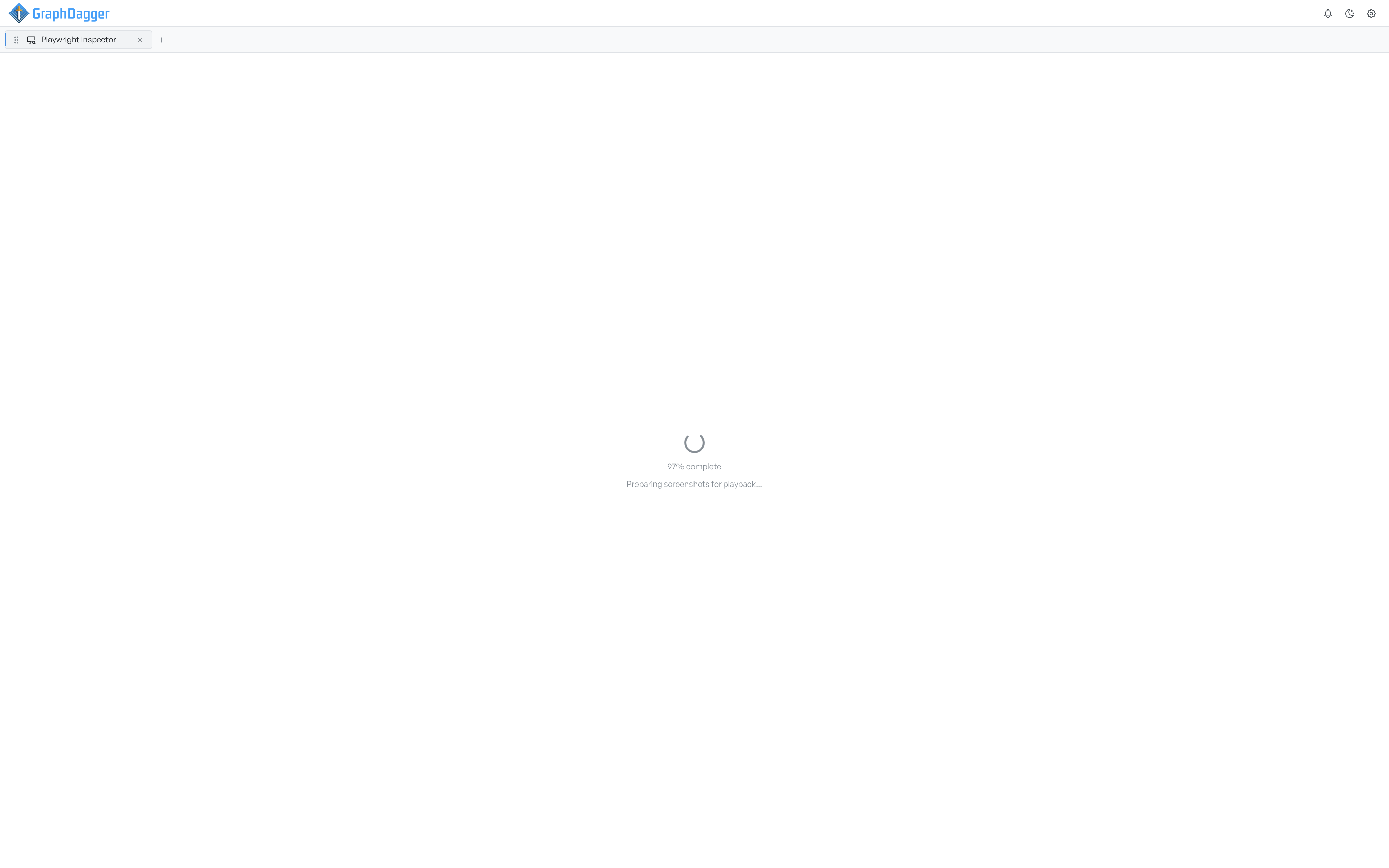
A trace loads in three phases. The app shows a percentage, so you can follow progress on a large file:
- Extracting trace contents unpacks the file.
- Processing trace data reads the actions, events, console output, and network requests.
- Preparing screenshots for playback decodes the screencast frames so playback is smooth.
When the load finishes, the workspace opens and the tab takes the name of the file. If the file is not a valid trace, or holds no trace data, the load stops and a message tells you what went wrong.