Start and save a recording#
Start a browser from the Record trace toolbar, use the site yourself, then save the session as a trace file you can open.
You do not need an existing trace to use Playwright Inspector. The Record trace toolbar at the top of the start screen launches a real browser, follows you while you use it, and saves the session as a trace you can open straight away.
A recording needs a working browser environment. If anything is missing, a notice appears above the toolbar, and the launch button stays disabled. See Browser and environment checks.
Start a browser and use the site#
- Select a browser from the menu, then type the address to start at.
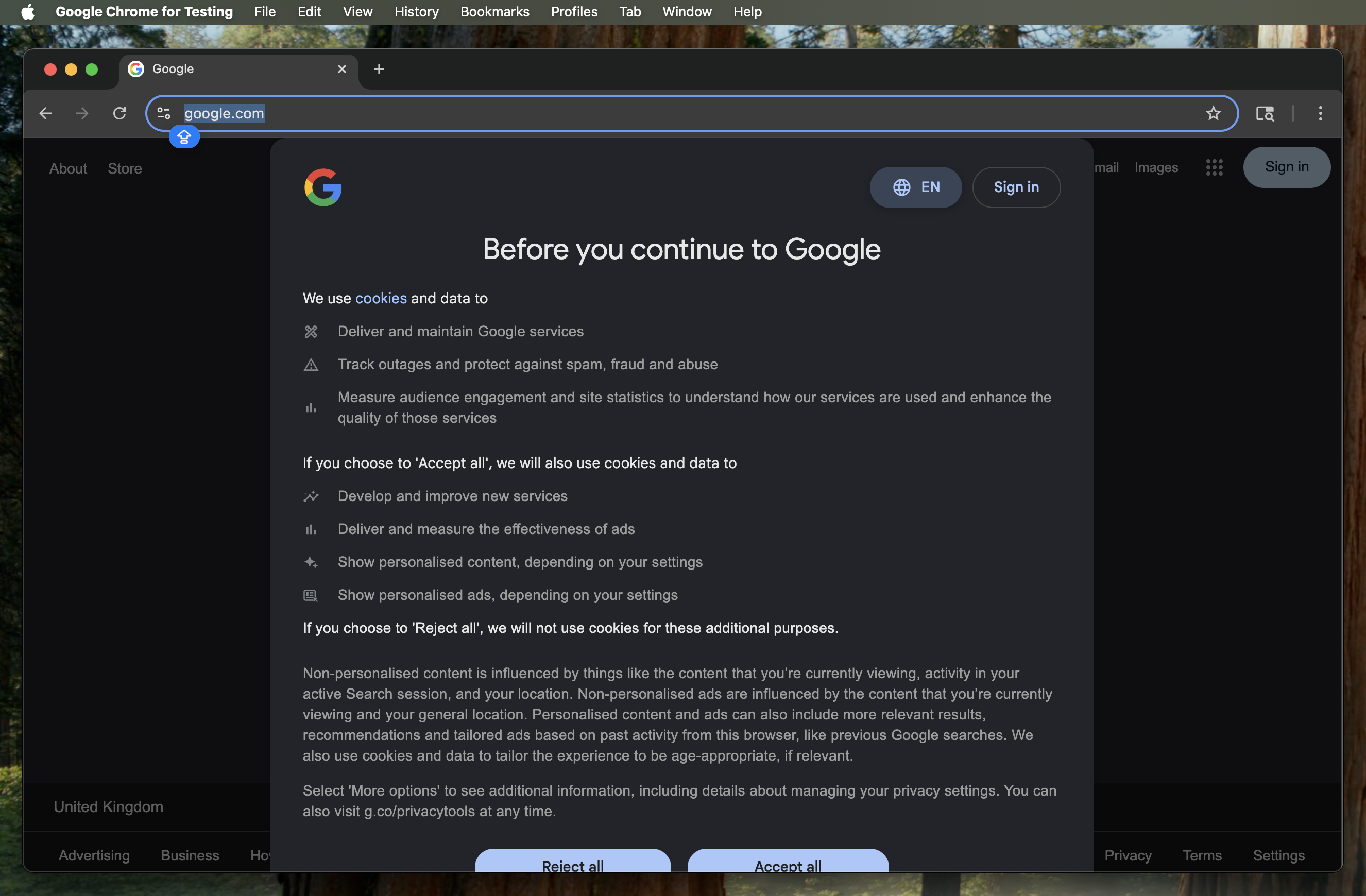
- Select Launch, followed by the browser name (for example Launch Chrome). A browser window opens at your start address.
- Use the site as you normally would. The recorder captures everything you do.
Save the trace and open it#
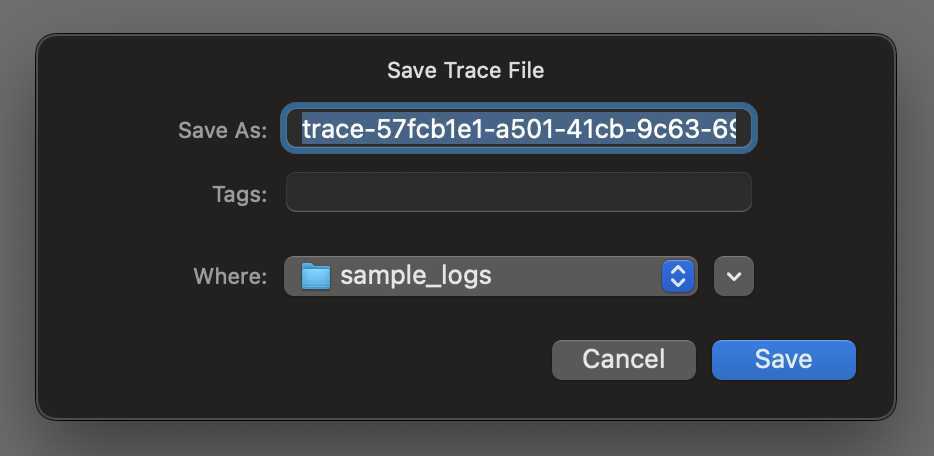
When you finish, select Stop and Save Trace. A save dialog opens with a suggested file name. Select where to keep the .zip.
Once you save the trace, the toolbar shows Trace saved with a Load Trace button. Select it to open the recording in the same tab and start to read it.

If a launch or a save fails, a message explains why and offers Retry.