Check the recording requirements#
Find out what the recorder needs before it can start, and how to fix a missing requirement or a browser you cannot choose.
A recording drives a real browser through Playwright, so three things have to be in place before you can start: Node.js, the Playwright package, and at least one browser binary. To open and read an existing trace you need none of this. The checks apply only to a recording.
Fix a missing requirement#
If a requirement is not met, a notice sits above the Record trace toolbar and names what is missing. The launch button stays disabled until you resolve it. The notice has two buttons: Open in Settings takes you to where you can fix the problem, and Re-check tests again after you make a change.
The three requirements are:
- Node.js runs the recorder. The app cannot install it for you. Download Node.js 18 or later from nodejs.org, or use your platform's package manager. To check that it is present, run
node --versionin a terminal. - Playwright is the automation package the recorder uses. If it is missing, install it from a terminal with
npm install -g playwright. See playwright.dev for more. - A browser binary is the browser the recording drives. At least one of Chromium, Firefox, or WebKit is enough, and you can install these from inside the app. See Installing browsers.
Choose a browser engine#
The browser menu offers Chrome, Firefox, Edge, and Safari. These map onto the engines Playwright installs: Chrome and Edge run on Chromium, Safari runs on WebKit, and Firefox runs on Firefox.
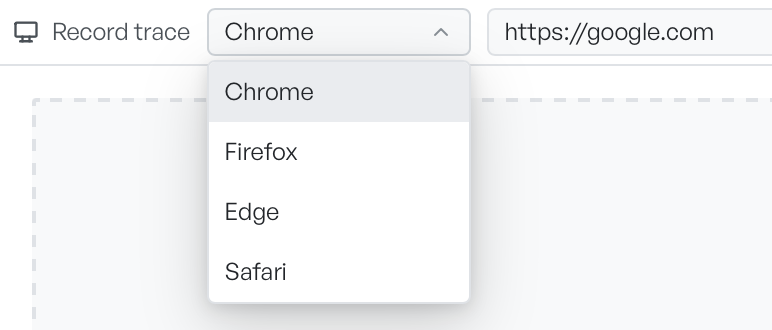
The menu marks a browser whose engine is not installed as (N/A), and you cannot select it. Install the engine, then select the browser. If you launch a browser and its binary turns out to be missing, the recorder tells you and checks again which browsers are installed.