Open a past credential#
Everything you decode this session stays in memory with its findings attached, so you can reopen it, reuse it, or send it into Compare.
Auth Inspector keeps every credential you decode, so you can go back to one without a hunt for the original string. History is a working list of what you have looked at. Each entry keeps its audit findings, so the list doubles as a record of what was wrong with each credential.
Nothing is written to disk#
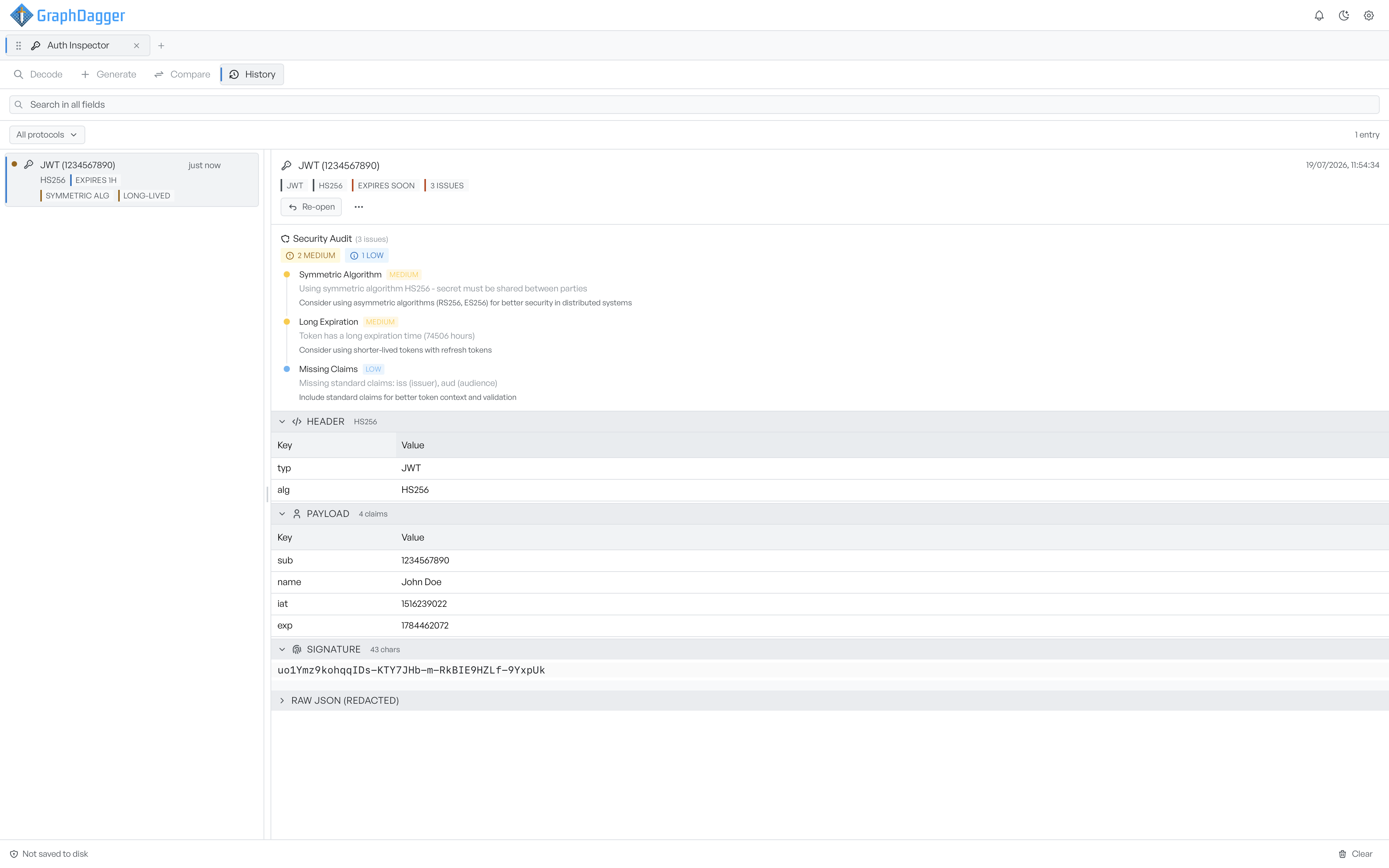
History lives in memory for the length of the session, and Auth Inspector never saves it. Close the app and it is gone. The footer says so, and the panel repeats it when the list is empty, because the difference matters when you handle live credentials.
The list holds the 50 most recent entries, newest first. If you decode the same input twice in a row, Auth Inspector does not create a second entry.
Find an entry#
Each entry takes its label from its contents rather than from its position, so a JWT shows its subject and a SAML assertion shows its issuer. Under each label, a line of detail gives the algorithm, key size, or token type.
Search matches across the label, protocol, and that detail line. The protocol menu narrows the list to one credential type, and lists only the types actually present.
Up to three chips per entry carry the important state. Expiry comes first, as EXPIRED or as the time left. The remaining slots go to the most serious findings, so you see a token signed with alg:none or a self-signed certificate without opening anything. The chips leave out low and informational findings to stay meaningful.
Open and reuse an entry#
Select an entry to open it in the detail pane. Badges summarise the protocol, algorithm, expiry state, and issue count. The pane then gives the full audit and the same decoded sections you saw in the Decode tab.
Re-open puts the credential back into Decode with its original input restored. From the actions menu you can also send an entry into Compare as either Token A or Token B. That is the quickest way to line up two credentials you looked at minutes apart.
Redaction, and the one exception#
The stored view replaces signatures, secrets, private keys, passwords, and cipher material with [redacted]. The collapsible raw section at the bottom of the detail pane carries the label Raw JSON (redacted) for that reason, and Copy decoded (redacted) and the JSON export give you the same protection.
The exception is deliberate and labelled. Copy raw token gives you the credential exactly as you pasted it, unredacted, because you keep a credential in order to reuse it. For certificates, Certificate PEM exports the certificate block on its own.
Clear empties the list, and asks you to confirm first.