Find a block and run it#
Open the reference window over the canvas to read what a block takes and returns, then run the real operation on your own input before you wire it in.
The block reference answers the question you have halfway through a flow build: what does this block do, what goes in, and what comes back out. It opens in a floating window over the canvas, so you keep your place. For operation blocks it goes one step further. It lets you run the operation on your own input, then and there.
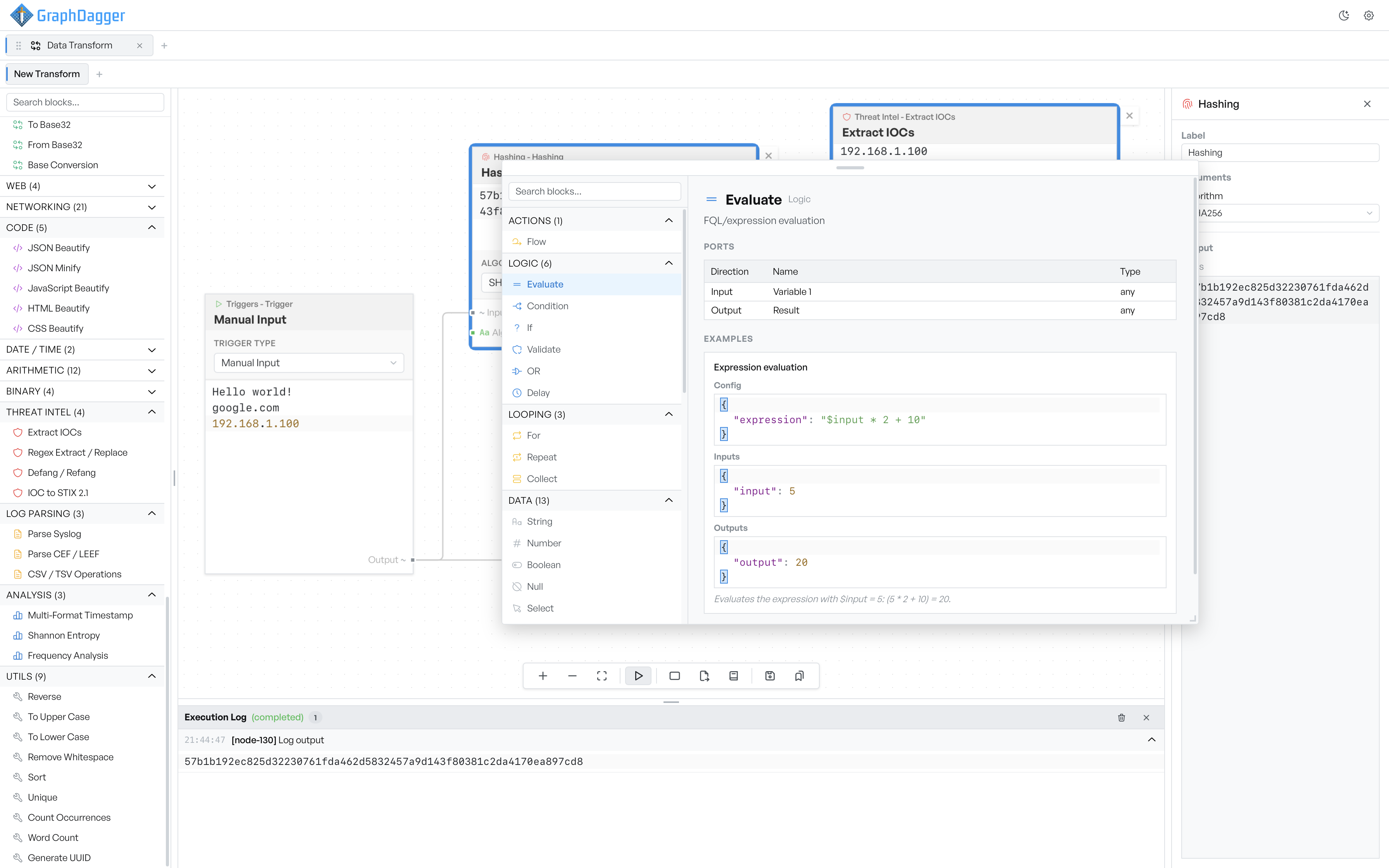
Open the block reference#
Two routes open the window, and they land you in different places.
The Block reference button on the flow toolbar opens the window with nothing selected, ready for you to browse. The info icon on any row in the block catalogue opens the window at that block. This is the quicker route when you want to check a block before you use it. The info icon does not add the block to the canvas.
Close the window with the button in its top-right corner, or press Escape. Drag it by its top edge, resize it, and maximise it. The window remembers its size and position, so it stays where you put it.
Find a block by name#
The left side lists every block, grouped by category, with the number of blocks in each. The Actions, Logic, Looping, Data, and Visualization groups start open; the operation categories start closed.
The search box above the list matches both block names and their descriptions. A search for the task you want often finds the block, even when you do not know its name. A search opens every group that has a match. When you clear the search, the groups go back as they were.
Read a block entry#
Select a block and the right side fills, in a consistent order.
A short description comes first. Then Ports: a table with a row per port. Each row gives the direction, Input or Output, the port name, and the type of data the port carries. For operation blocks, Arguments follows. It lists each argument with its type and its default value. The defaults are the fastest way to see what a block does if you change nothing.
Examples come next: real input and output pairs, with the arguments that produced them. Operation blocks show the input, the arguments, and the output. The Actions, Logic, Looping, Data, and Visualization blocks show the configuration, the inputs, and the outputs, followed by a sentence that explains what the example demonstrates. Some blocks end with a note about how they behave.
Nearly every block has at least one worked example. A handful do not, mostly the ones that reach out to the network or take a key file.
Try It#
Operation blocks end with a Try It section. It is not a canned demonstration. It runs the real operation against whatever you type, with the same code the flow engine uses.
Put your own data in the Input box, set any arguments, and press Run. The result appears underneath, along with how long it took. If the operation fails, the output pane shows the label Error and the message instead.
This is the quickest way to settle a question about a block without a change to your flow. Work out the right regex, check what a parser makes of a real log line, or confirm an encoding. Then go and build the flow with confidence.
There is no copy button. Select the text in the output and copy it with the keyboard.
Note The Try It form cannot show every kind of argument. Where a block takes a multi-select or a key file, the form leaves that field out. The operation then runs with the default, and nothing tells you a field is missing. Affected blocks include IOC extraction and XOR with a key file. Set those arguments on the canvas. Do not trust the playground result for them.
Only operation blocks have Try It. The block reference documents the Actions, Logic, Looping, Data, and Visualization blocks, but you cannot run them here. What they do depends on the flow around them.