Run a transform flow#
Press Run flow, then work out what happened when blocks finish out of order and a failure never raises a notification.
Click Run flow on the toolbar and the flow executes. While it runs, that button becomes Cancel. Nothing runs on its own as you build. Arguments you change and wires you draw take effect on the next run only.
Before you trust a result, understand one thing: a flow does not run in the order it is laid out.
Why blocks run out of order#
Blocks run as soon as their inputs are ready. They do not run left to right, and they do not run top to bottom. Two chains that do not depend on each other run at the same time. The order of the rows in the execution log shows what finished first, not how the canvas is arranged.
This matters when a flow has side effects. If one branch must happen after another, connect them. Do not rely on their position on the canvas.
Only blocks connected back to the trigger run. A stranded block has no path from the trigger and no incoming connection of its own. The flow skips it entirely, and it produces no output and no error. A block that produced nothing at all is usually a block that is not wired in.
Blocks on the untaken side of a branch are marked as skipped. This is normal, and it is not a failure.
Read the output in three places#
Each one suits a different question.
- Block preview - the block's current output on the canvas. It is enough for a quick glance mid-pipeline.
- Inspector - the full output of the selected block, and how long it took. Go there when the preview is truncated or when you want the timing.
- Execution log - the whole run, in order.
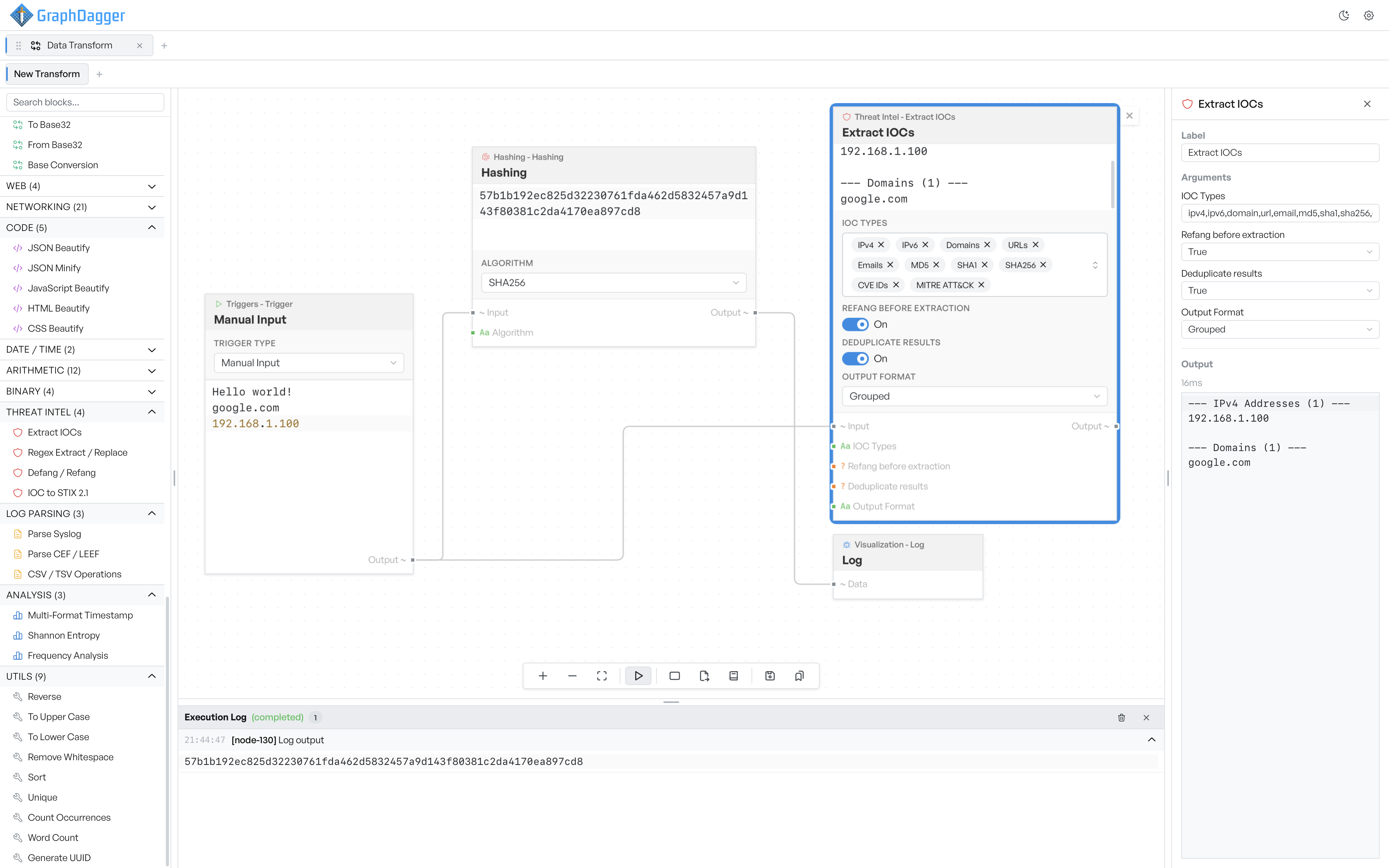
Each log row carries the time and the name of the block that produced it. Rows that carry data expand when you click them, so you can read the full payload instead of a preview. The log follows new rows as they arrive. Scroll up and it stops following, so you can read something mid-run without a jump back down.
Add a Log block anywhere in a flow to write the value that passes through it to the log. It is the cleanest way to see what happens in the middle of a pipeline, and you do not have to unpick the wires.
Warning The trash icon clears the log and also clears every block's stored output, so the inspector goes back to 'Run the flow to see output' for the whole flow. There is no confirmation.
Warning Closing the execution log with its × hides it until you reopen the feature. There is no button to bring it back.
The app does not keep the log when you close it.
Spot a block that failed#
A block that fails does not stop the flow. It records its error and passes nothing on. The rest of the flow carries on running, with empty input where that value should have been.
The consequence is worth spelling out: a run in which several blocks failed still reports as completed, and no notification appears. A failing block shows red on the canvas, and its message appears in the inspector and in the execution log, but nothing interrupts you. If a result looks wrong rather than absent, check the log before you trust it.
Only a problem with the flow as a whole stops a run. That raises a 'Flow run failed' notification, which carries a Retry button. The usual cause is a loop in the connections, which the app reports as a cycle that cannot be executed.
See Troubleshooting for the errors you are most likely to hit.
Stop a run in progress#
Click Cancel and the flow starts no more blocks. Anything already in flight finishes rather than stops, so a block that waits on a slow network request runs to completion even though the run is ending. The app marks the run as cancelled and reports nothing.