What Data Transform builds#
Draw a reusable pipeline on a canvas instead of piping a sample through separate tools, and find the catalogue, inspector, and execution log around it.
Data Transform chains encoders, decoders, hashers, parsers, and analysis operations into a pipeline that you draw on a canvas. You do not pipe a sample through a handful of separate tools, and you do not write a script that you throw away afterwards. You drop blocks onto a canvas, connect them, and see the data at every step.
The result is reusable. Save a pipeline that unpicks a suspicious attachment today, and open it again next week. You can also set it to run whenever a new file lands in a folder.
Open Data Transform#
Open Spotlight and select Data Transform, or click the Data Transform tile wherever it appears. The feature opens in its own workspace tab. On first use it creates an empty flow called Transform 1, so you can start straight away.
Four regions around the canvas#
Four regions surround the canvas in the middle, and a floating toolbar sits over it.
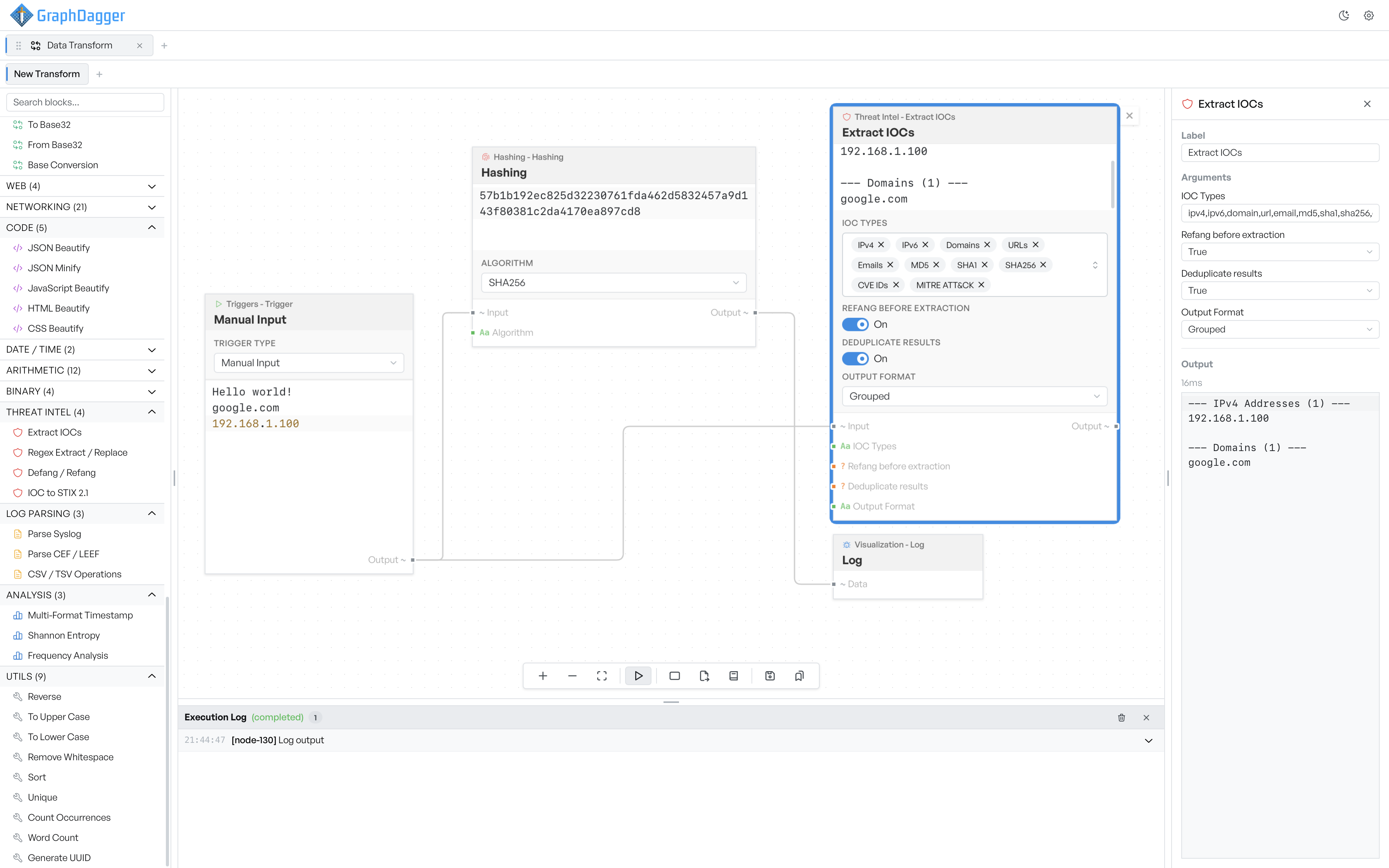
- Block catalogue - holds everything you can drop onto the canvas.
- Inspector - shows the detail of the block you select.
- Execution log - fills up when a flow runs.
Drag the divider between two regions to resize them. You cannot collapse the catalogue or the inspector. The app does not remember the sizes you set, so they return to their defaults next time you open the feature.
Keep several flows in tabs#
The strip above the canvas holds your flows. Each tab is a separate pipeline with its own blocks, connections, and results. You can keep an unrelated flow in each tab and move between them freely.
To add a flow, click the + button at the end of the strip. New flows are called New Transform. To rename a flow, save it to the library under the name you want. The tab then changes to match.
To close a flow, click the small × on its tab. The app closes it immediately, with no confirmation and no way back, so save anything you want to keep first. The × does not appear when only one tab is open, because a flow must always be open.
The app keeps your flows when you close it, and they are all there when you reopen it. The app does not remember which tab you selected, so you land on the first one.
Warning There is no undo in Data Transform. Closing a tab, deleting a block, and deleting a library entry are all immediate and permanent.
Find a block in the catalogue#
The catalogue groups every block by category, and shows the number of blocks beside each category name. Actions, Logic, Looping, Data, and Visualization start expanded. The operation categories below them start collapsed.
The search box at the top matches block names and block descriptions. A search for what you want to do often finds the right block, even when you do not know its name. While a search is active, every category with a match opens. Clear the search and they close again.
You can add a block in two ways. Click it in the catalogue and it lands on the canvas, or drag it and it lands where you drop it, snapped to a grid. The info icon on each row opens the block reference for that block instead of adding it.
Read a block in the inspector#
The inspector shows the block you select. Select nothing and it reads 'Click a node to inspect'.
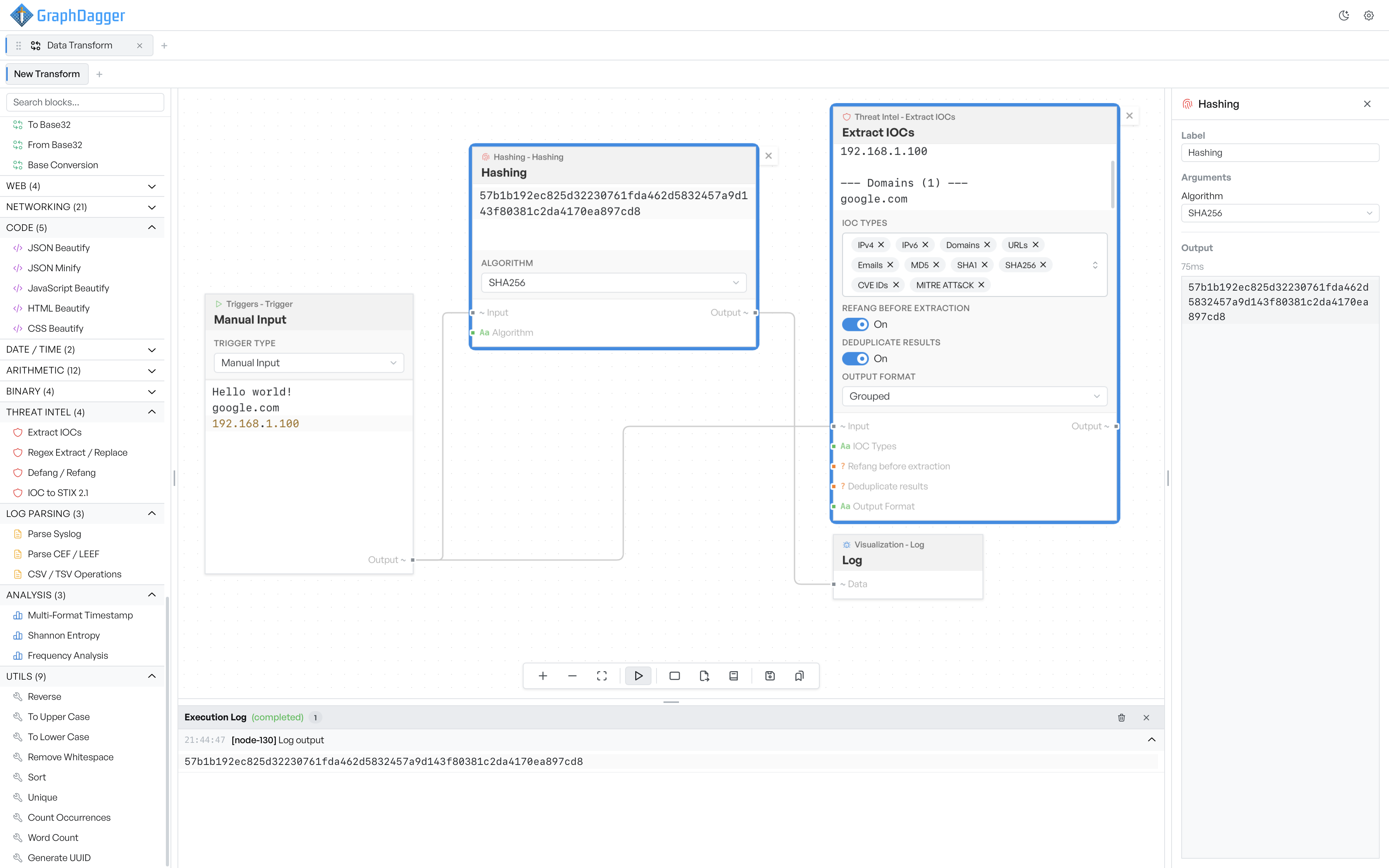
The inspector has three parts.
- Label - a free-text name that replaces the default title on the block. Set it when a flow has several blocks that do similar things.
- Arguments - the block's settings, each with the right kind of control. Operation blocks that take no arguments have no Arguments section.
- Output - what the block produced on the last run, and how long it took. Before you run anything, it reads 'Run the flow to see output'. If the block failed, its error message appears here instead.
The inspector shows one block at a time. Select several blocks on the canvas and the inspector does not combine them.
What the toolbar buttons do#
Every button on the toolbar is an icon with a tooltip.
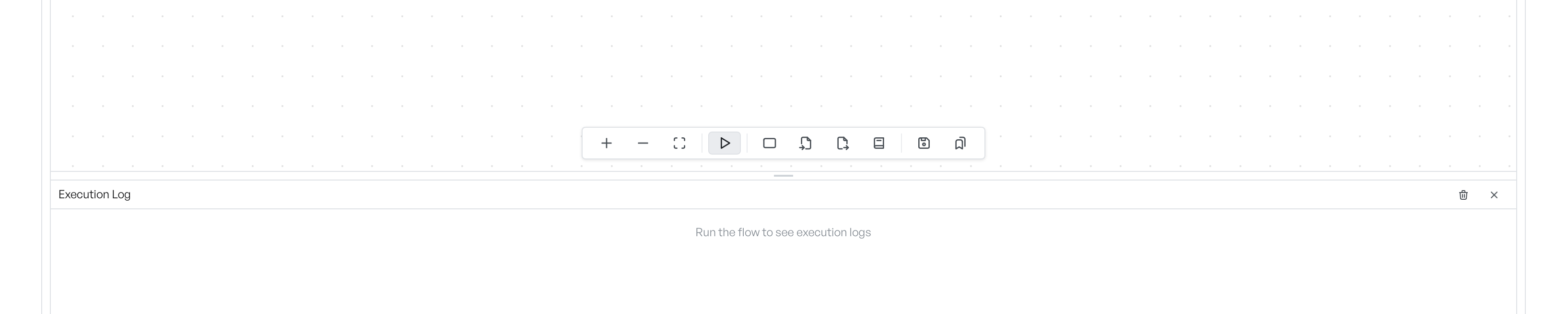
The toolbar carries zoom in, zoom out, fit the view to the flow, run the flow, add a group, import a flow, export a flow, open the block reference, save to the transform library, and open the transform library. Run flow becomes Cancel while a run is in progress.
There is no keyboard shortcut to run a flow, to save, or to zoom. The only canvas shortcuts are Backspace or Delete to remove the selection, and Shift to select several blocks at once.
Where to go next#
Building a flow covers how to compose a pipeline. Running a flow covers how to execute it and read the results. Triggers explains how a flow starts, including runs on a timer and runs when a file changes.
The block pages describe every operation you can drop on the canvas. Core blocks covers the blocks that steer a flow rather than transform data.