What starts a transform flow#
Select one of the four trigger types to decide when a flow runs and what data enters it at the top.
Every flow has exactly one trigger, and the trigger answers two questions: when does this flow run, and what data enters it. Change the trigger type and the same set of blocks stops being something you run by hand. It becomes something that runs on a timer, or the moment a file on disk changes.
The app creates the trigger when it creates the flow. The trigger is not in the block catalogue, and you cannot delete it.
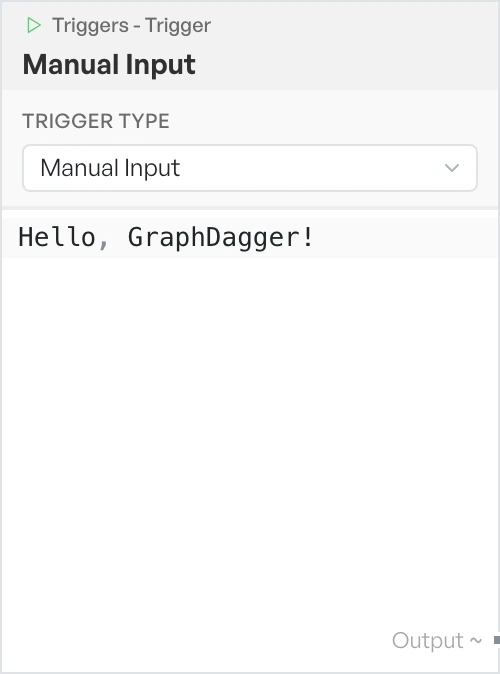
Select a trigger type#
Select the trigger block and use the Trigger Type dropdown. There are four choices, and the app renames the block to match your choice, so the canvas always shows how the flow starts.
| Trigger Type | Runs when | Emits |
|---|---|---|
| Manual Input | You press Run flow | The text you typed into the block |
| File Input | You press Run flow | The contents of a file you picked earlier |
| Schedule | A timer fires, and on Run flow | The time it fired, as an ISO 8601 string |
| File Watch | A watched file or folder changes, and on Run flow | The changed file's content or path |
Schedule and File Watch still run on demand. Run flow works whatever the type, which is how you test a scheduled flow without a wait for the next tick.
Manual Input#
This is the default. The block shows a text editor, and the app passes whatever you type into the flow.
The app reads the content as JSON first. If it parses, the flow receives structured data, so {"host": "example.com"} gives downstream blocks a real object to select fields from. If it does not parse, the flow receives your text exactly as written. You can paste a log line, a base64 blob, or a JWT without escaping anything, and it still works.
File Input#
File Input reads a file from disk and passes its contents in as the flow's input.
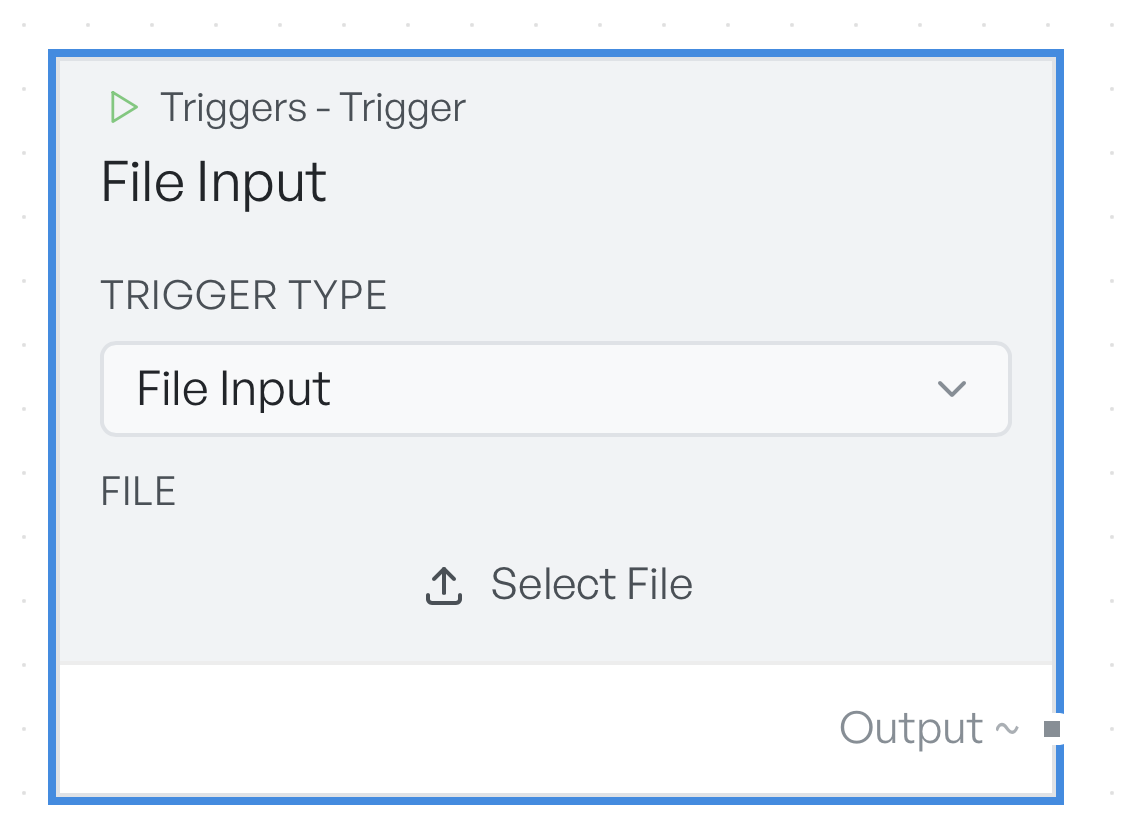
Click Select File to pick the file. The button then shows the file name, and a hint below it tells you how many characters the app loaded.
The app reads the file when you pick it, not when the flow runs. If the file changes on disk afterwards, the flow keeps the copy it loaded. Pick the file again to refresh it, or use File Watch if you want the flow to follow changes.
Schedule and File Watch#
These two types turn a flow into something that runs without you. Both run only while the app is open, and both have their own pages:
- Schedule runs the flow on a fixed interval.
- File Watch runs the flow when a file or folder changes.
When a trigger has no input#
A trigger that cannot produce input fails with a short message on the block, which also appears in the execution log. Manual Input with an empty box reports No input data provided. File Input with no file picked reports No file selected. File Watch with no target reports No watch path selected.
These are node-level errors, so they do not raise a notification. See Troubleshooting for how failures surface.