Set a File Watch trigger#
Point a flow at a file or folder on disk so it runs on every change, and select what each change hands the flow.
File Watch runs the flow whenever a file or folder on disk changes. Point it at a log that an appliance keeps appending to, or at the folder your captures land in. The flow then processes each new sample as it arrives, rather than when you remember to run it.
Set the trigger type to File Watch. The block gains a set of controls for what to watch, and for what to hand the flow when something changes.
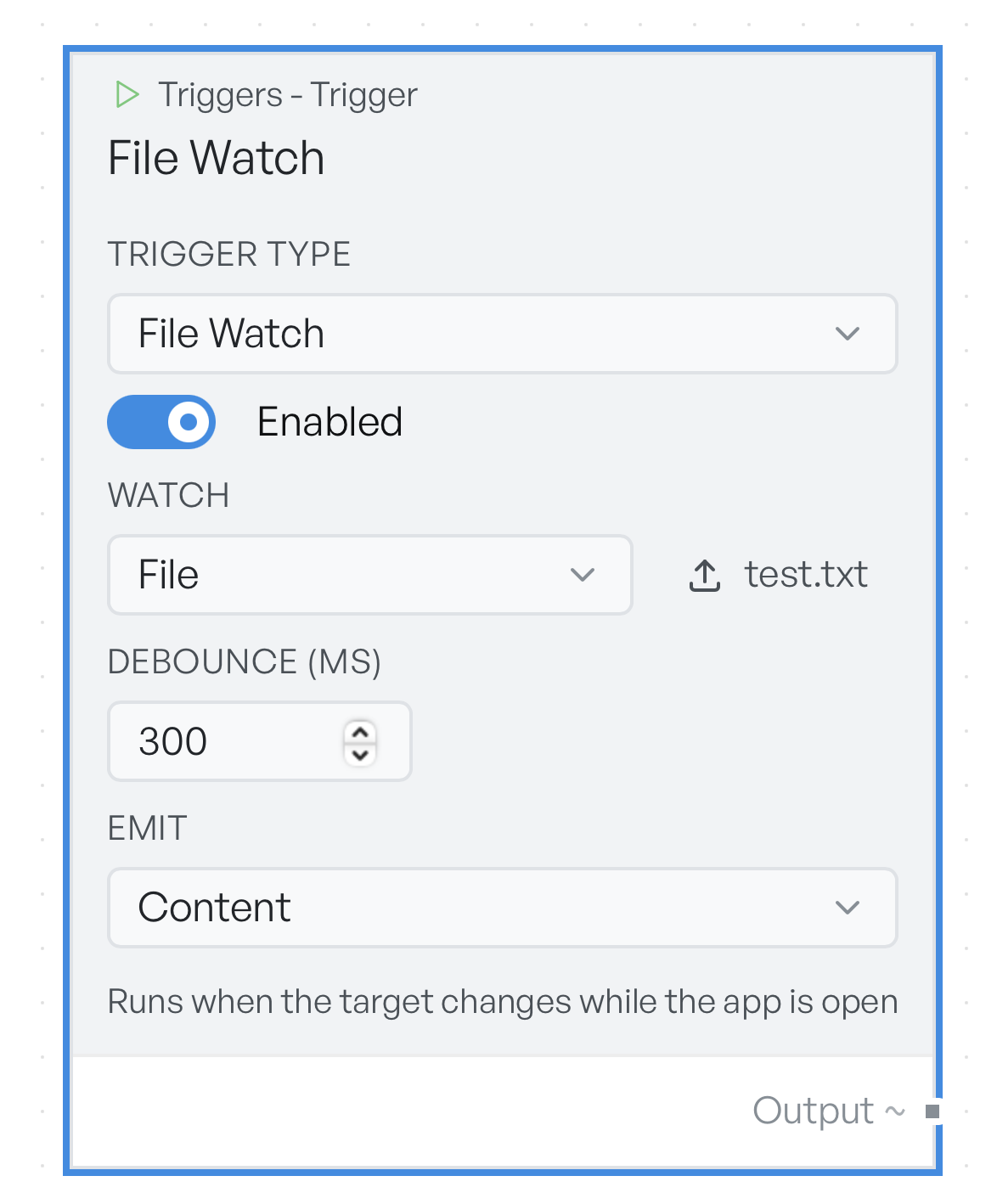
Select a file or folder to watch#
File Watch adds four controls to the trigger block.
- Enabled - arms the watch. Default off. The app watches nothing until you turn it on.
- Watch - the kind of target. Options:
Folder,File(defaultFolder). A button below it opens a picker, and once you choose, the button shows the target's name. - Include subfolders - watches the files in nested folders as well. It appears only for a Folder target, and it is on by default. Turn it off to watch only the files directly in that folder.
- Debounce (ms) - how long the app waits for changes to settle before it runs the flow. Default
300.
A switch between Folder and File clears the target, so select the kind first and the path second.
A program that writes a file in several bursts would otherwise fire the flow several times. The debounce collapses that into one run. Raise it for noisy targets, and lower it if you need the flow to react faster.
A line at the bottom of the block confirms the state. With a target picked and the toggle on, it reads Runs when the target changes while the app is open. Otherwise it reads Enable and pick a target to run on change.
Note There is no filename pattern or extension filter. A folder watch reacts to every file in scope. If you only care about some of them, check the path in the flow and stop early.
What each change passes in#
A change gives the flow a list of the files that changed, each with its path and its content. The Emit setting decides which part of that list the trigger passes on.
| Emit | The flow receives |
|---|---|
| Content | The content of the most recent changed file |
| Path | The path of the most recent changed file |
| Batch | Every change in the batch, each with its path and content |
Content is the default, and it suits the common case of one file that changes at a time.
The distinction matters when the debounce window catches several changes at once. Content and Path both pass on the last change only, and discard the rest. If a folder can receive several files together and you need all of them, use Batch and iterate over the list.
Content is empty when there is nothing to read: the file was deleted, the change was to a directory, the file is not text, or the file is larger than 5 MB. Large files still run the flow, but they arrive with no content. If you work with files that big, use Path and read the file yourself downstream.
Run a watch flow by hand#
Click Run flow on a watch flow and it does not wait for a change. It runs immediately and passes in the watched path as a plain string, so you can check the rest of the flow is wired correctly before you rely on it to fire by itself.
Which window a watch runs in#
Watches run in the main window only, and only while the app is open. A flow in a popout window does not fire on change. The app does not pick up changes made while it is closed. The watch resumes from that point.
If a watch cannot start, a notification appears with the title 'File watch could not start'. The usual causes are a path that no longer exists, or a path the app cannot read.