Make a transform flow#
Start at the trigger, add one operation block at a time, connect their ports, and set each argument in the inspector.
A flow is a set of blocks and the connections between them. Data enters at the trigger and passes along the wires you draw, and each block reshapes it on the way through. To build a flow, get the data in first. Then add one operation at a time, and check the result before you add the next.
Start at the trigger#
Every flow has a trigger when you create it. The trigger is the entry point. You cannot delete it, and it does not appear in the catalogue, because a flow has exactly one.
By default the trigger is a Manual Input trigger with a text box. The flow receives whatever you type there. Paste a JWT, a base64 blob, a log line, or a list of addresses, and you are ready to build the rest.
At the trigger you also decide that a flow runs on a timer or when a file changes. See Triggers for the other three types.
Add operations and connect them#
Find the operation you want in the catalogue, or search for it, and add it to the canvas. Every operation block has the same shape: one Input port on the left, one Output port on the right, and an extra input port for each of its arguments.
To draw a connection, drag from an output port to an input port. To replace a connection, draw the new one. A connection to a port that is already taken replaces what was there, with no message.
The argument ports make a flow more than a fixed chain. You can feed any argument from elsewhere in the flow instead of typing it into the inspector. Earlier blocks can build a passphrase, a regex, or a URL, so you do not hard-code it.
Blocks snap to a grid as you move them. A flow usually reads left to right, though nothing enforces that.
Set arguments in the inspector#
Select a block and its arguments appear in the inspector. Set the Label at the top when a flow has several blocks of the same kind, to keep the canvas readable.
Note Changing an argument does not re-run the block. Nothing recalculates until you run the flow, so the Output you are looking at belongs to the last run, not to the settings currently on screen.
Add blocks without leaving the canvas#
Right-click the canvas to open a block picker organised by category. The block lands where you clicked. This is quicker than a return to the catalogue once you know what you want.
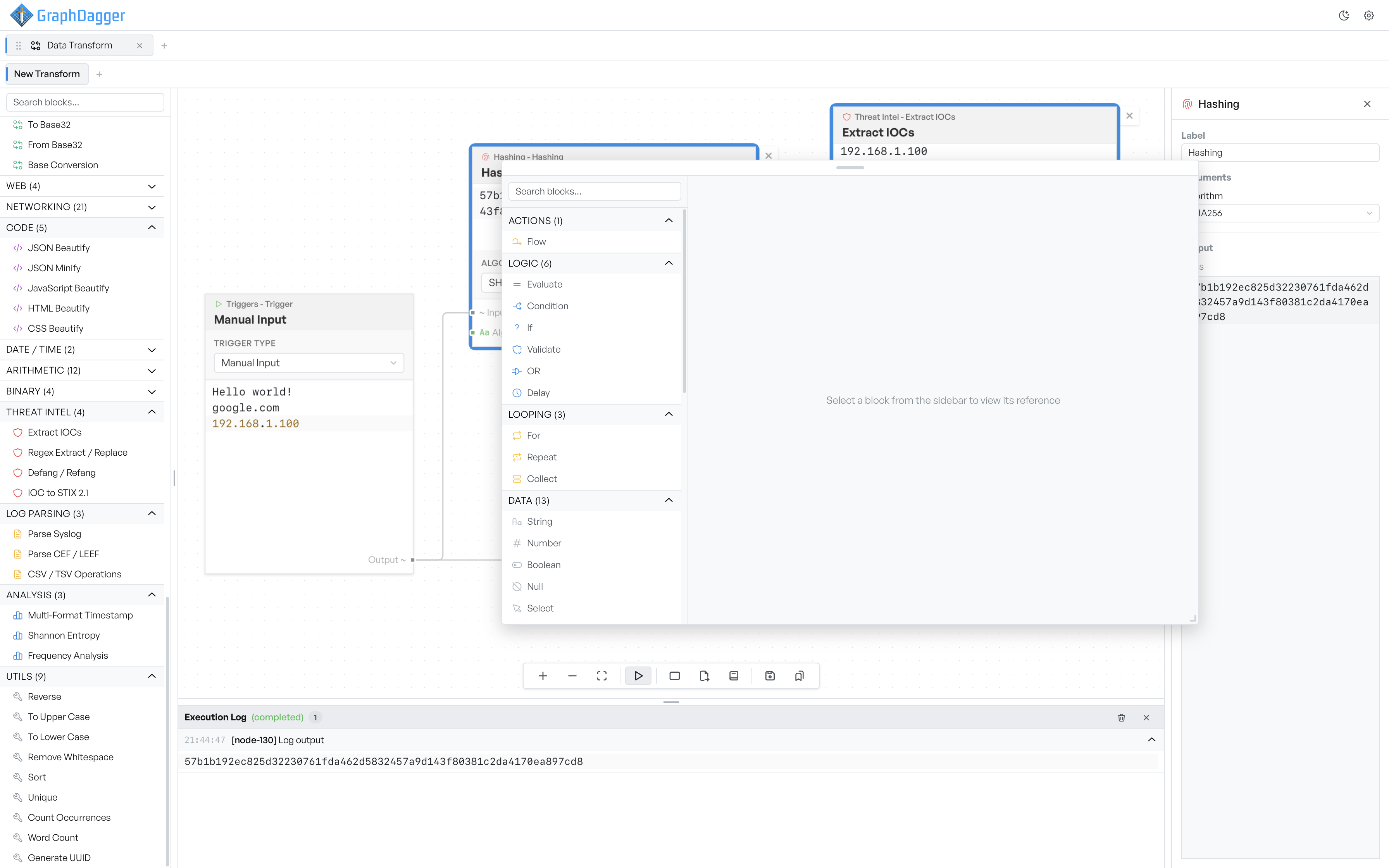
The better method is to drag a connection from a port and release it over empty canvas. The same picker opens, but it shows only the blocks that can accept what you drag, and the app wires up the block you select. This is the fastest way to extend a chain, and it prevents incompatible connections entirely.
Right-click with two or more blocks selected and the menu offers Create Group instead. Create Group boxes them up so you can move them together.
Read a block before you add it#
When you are not sure what a block does, open the block reference. It lists every block with its ports, arguments, and worked examples. For operation blocks it also lets you run the operation against your own input without a change to your flow. It is usually quicker to work out the right arguments there first than to wire a block in and run the whole flow to find out.
Group blocks to keep a flow readable#
Add group on the toolbar drops an empty group onto the canvas, and you can drag blocks into it. A block that you drag inside the group's bounds attaches to the group. Drag it out and it detaches again.
Groups are visual only. They never execute, and they do not change how data flows. Delete a group and its blocks stay on the canvas.
Deletions you cannot undo#
There is no undo. Delete a block with Backspace or Delete and it is gone permanently. The same is true when you close a tab. The trigger is the one exception. It is protected, and Delete does nothing to it.
Once a flow is worth keeping, save it to the transform library or export it to a file.