Edit a table's columns#
Rename columns, change their types, set their flags, and read the statement your edits will run.
Every table opens with two views: Data and Structure. Structure is where you see and change the shape of the table, its columns and their types, rather than the rows inside it.
Each column has a row that holds its name, its type, four flags, and its default value. As you make changes, the panel builds the matching CREATE TABLE statement. You read exactly what your edits mean before you apply them.
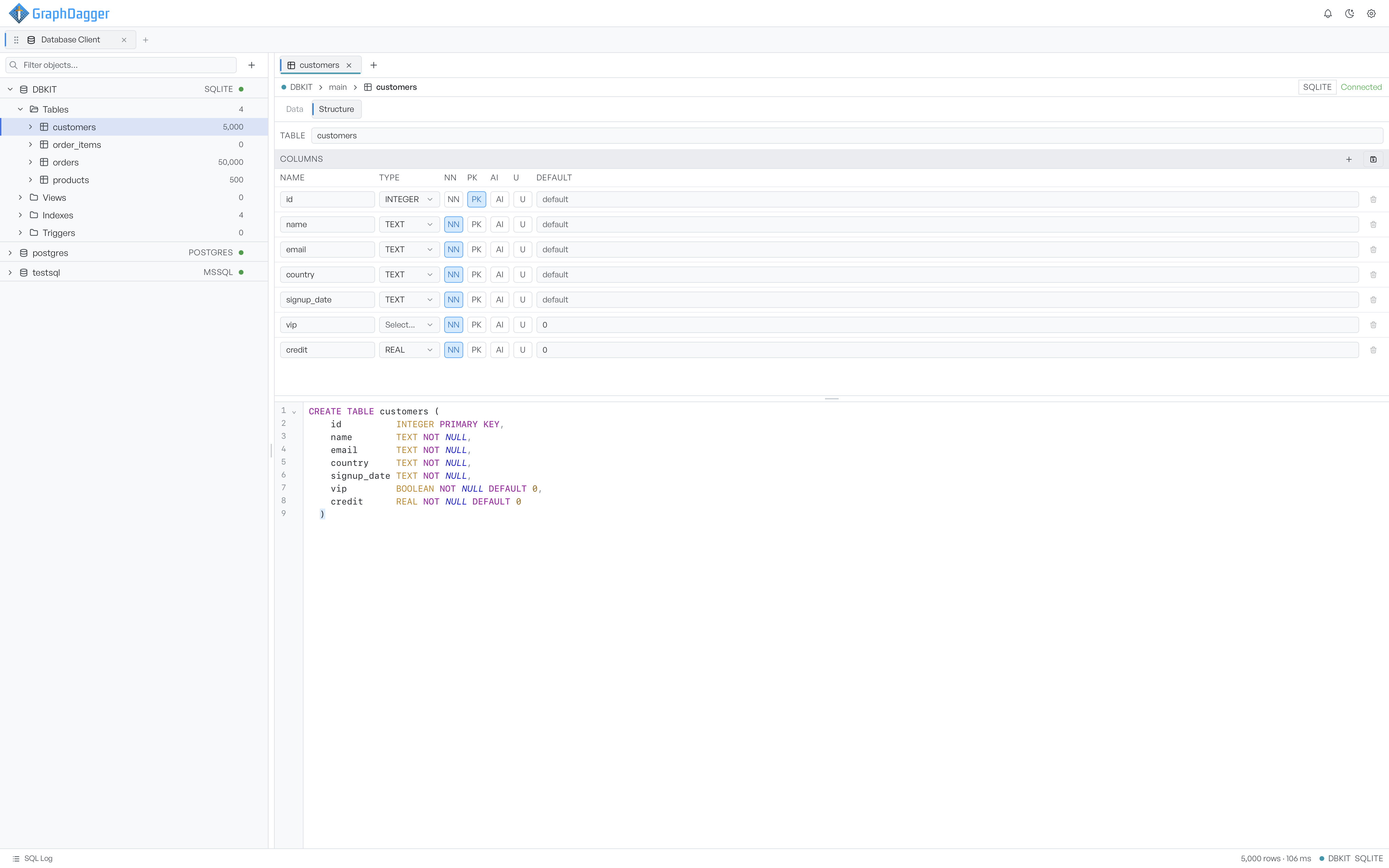
Read the four column flags#
Each column carries four toggles:
- NN marks the column Not Null, so it must always hold a value.
- PK marks it part of the Primary Key, the column that identifies each row.
- AI marks it Autoincrement, so the database fills it with the next number.
- U marks it Unique, so no two rows may share a value.
A toggle is on when it is highlighted. Select one to turn it on or off.
Add, edit, and remove columns#
Edit a column by typing a new name, picking a type from its dropdown, toggling its flags, or setting a default. Use the plus button in the Columns header to add a column, and the bin button on a row to remove one. You cannot remove the last remaining column.
When the table looks right, select the save button in the Columns header to apply your changes to the database. Database Client works out the difference and alters the table for you. It also renames the columns that you renamed. The SQL log records the change.
Views are read-only here#
A view has columns but no editable structure, because its query defines it rather than a column layout. When you open a view's structure, Database Client shows its columns and its defining SQL for reference. The panel has no editing controls.