Read the ER Diagram#
Study a database you did not design as a map of table boxes joined by their foreign keys.
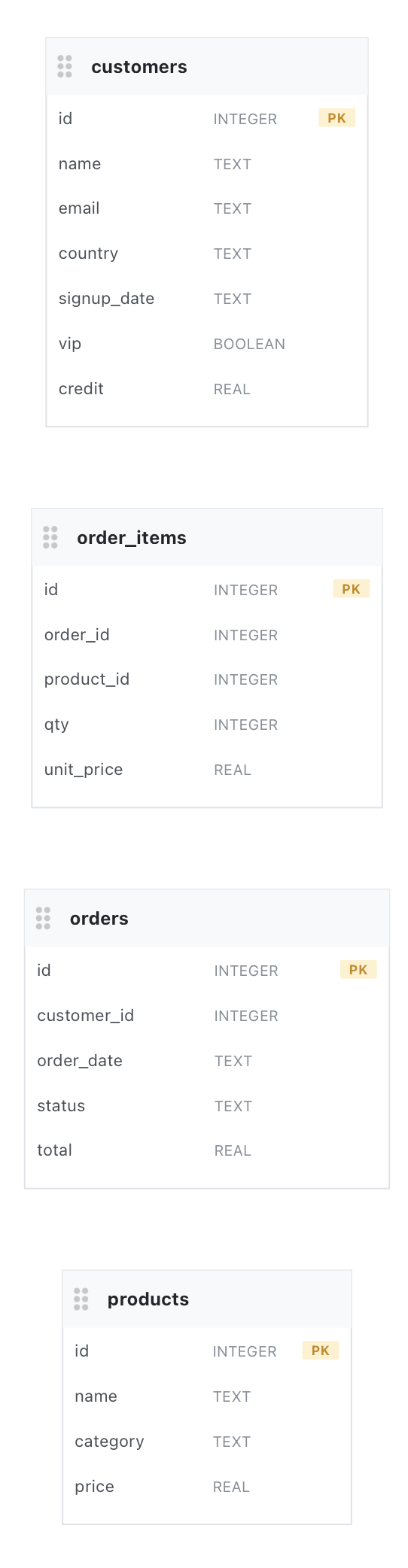
The ER Diagram draws the whole database as a map: every table as a box, and every foreign key as a line joining them. It is the fastest way to understand a database that you did not design. You see at a glance which tables are central and how they connect.
To open it, right-click a connection in the sidebar and select ER Diagram. Database Client reads the schema, lays the tables out, and fits them to the window.
Read the boxes and lines#
Each box lists a table's columns with their types. A PK badge marks a primary key, the column that identifies each row. An FK badge marks a foreign key, a column that points at another table. The lines between boxes are those foreign keys, and an arrow marks the referenced end.
Hover a table to see its relationships listed as text. Select a table to highlight it and everything it connects to. The rest of the map dims, so the connected set stands out. Select the table again, or select empty space, to clear the highlight.
Zoom, pan, and move tables#
Scroll to zoom in and out, and drag an empty part of the canvas to pan. To move a single table, drag it by the grip on the left of its header. If you lose your place, the fit-to-view button in the corner frames the whole diagram again.
For a database with no tables, Database Client shows a short empty message instead of a canvas.