Find and open schema objects#
Move through the sidebar tree of tables, views, indexes, and triggers, and use its right-click menus to open or build objects.
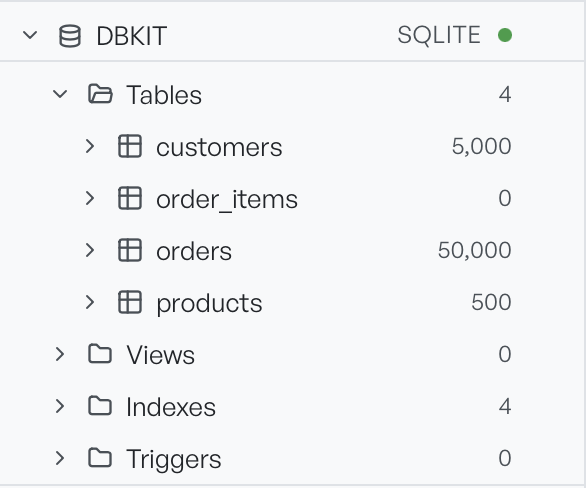
The sidebar is how you find your way around a database. Expand a connected database to see its contents. Database Client groups them into Tables, Views, Indexes, and Triggers, and each group shows how many it holds. Expand a table to see its columns.
Each table shows its row count next to its name, so you can tell at a glance which tables hold data and which are empty. The filter box at the top of the sidebar narrows the tree to objects whose name matches what you type. This helps in a database with many tables.
Open a table#
Double-click a table to open its data. To go straight to a different view, or to act on the object without opening it, right-click it.
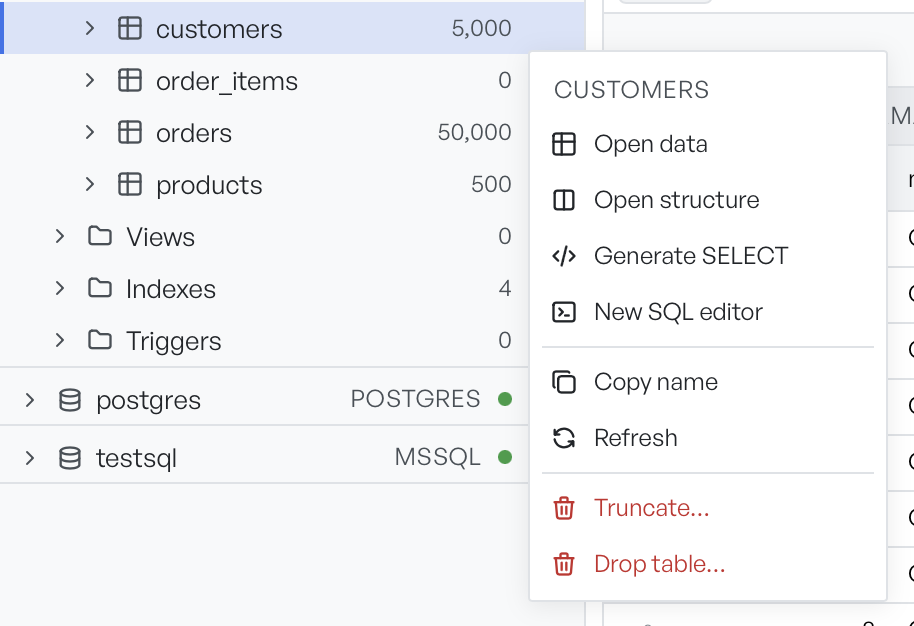
The table menu holds these actions:
- Open data and Open structure: open the table in either view.
- Generate SELECT: writes a
SELECTfor the table into a new SQL editor. - Truncate: empties the table.
- Drop table: removes the table.
The same menu also opens an empty SQL editor on the database, copies the table name, and refreshes the table.
Truncate and Drop table are marked in red. Both open the generated SQL in an editor instead of running it straight away. You review and run the statement yourself, and that review is the confirmation step.
Make a new object#
Right-click a group, such as Tables or Indexes, to start a new object of that kind. The menu writes a starter statement into a new SQL editor: a CREATE TABLE, CREATE VIEW, CREATE INDEX, or CREATE TRIGGER with the right shape for the engine. You fill in the details and run it. Refresh, on the same menu, reloads the group from the database.
Act on a whole connection#
Right-click the database itself, at the top of its branch, for actions that apply to the connection as a whole.
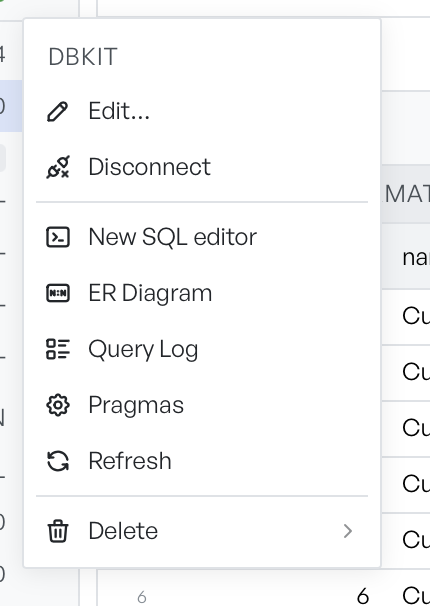
From here you can:
- Edit the connection, or Connect and Disconnect it.
- Open a New SQL editor scoped to this database.
- Open the ER Diagram to see how its tables relate.
- Open the Query Log to watch the statements it runs.
- Open Pragmas, for a SQLite database.
- Refresh the whole schema, or Delete the connection.