Set up a server engine#
Enter the host, login, and encryption settings that PostgreSQL, MySQL, and SQL Server need.
PostgreSQL, MySQL, and SQL Server run as servers that you reach over the network. Their connections need an address and a login rather than a file. The form is the same for all three.
Fill in the Host and Port of the server, the Database to open on it, and the User and Password to log in with. Database Client fills the port with the usual default for the engine you picked: 5432 for PostgreSQL, 3306 for MySQL, 1433 for SQL Server. It updates the port when you switch engine, unless you type your own.
Your operating system keychain stores the password, not the connection. When you edit a connection later, the Password field is blank. Leave it blank to keep the saved password, or type a new one to replace it.
Set the encryption mode#
The encryption control depends on the engine.
For PostgreSQL and MySQL, an SSL mode field sets how strict the encryption is. The choices run from disable, through allow and prefer, to require, verify-ca, and verify-full. The stricter modes also check the server's certificate. Use them when you need to be sure you are talking to the right server.
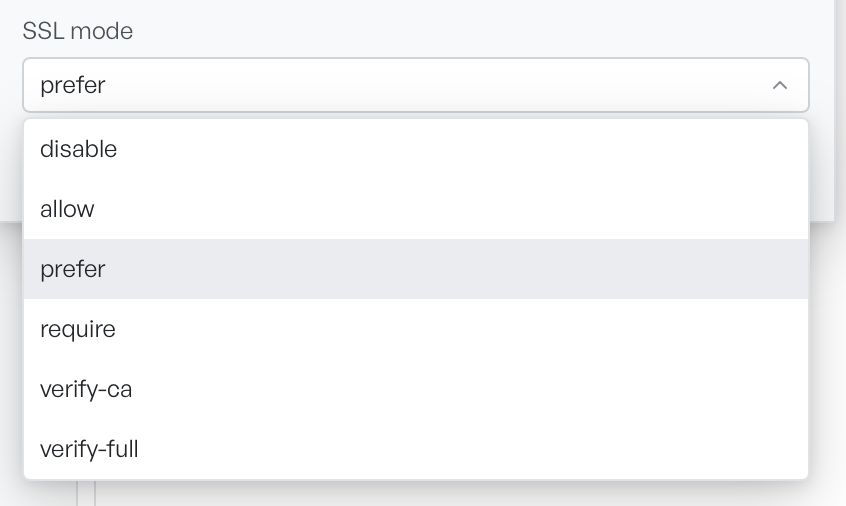
For SQL Server, an Encryption field replaces SSL mode. It offers three modes:
- On (trust server certificate): encrypts the traffic, and accepts the server's certificate without checking it.
- On (verify certificate): encrypts the traffic, and checks the certificate against a certificate authority.
- Off (login packet only): encrypts the login packet and nothing else.
Trust server certificate is the common choice for the self-signed certificates SQL Server generates by default. That mode encrypts the traffic, but it does not check the certificate against a certificate authority.
Test the login first#
Select Test to try the login with the details you entered. A server connection has more that can go wrong than a file. The test tells you whether the host, port, database, and login all line up, before you commit the connection. Then select Add connection.