Make a connection#
Fill in the New connection form, test the details before you commit them, and save the database to your sidebar.
A connection is a saved database that appears in the sidebar. You create one from the New connection form. Database Client keeps it, so you can reopen it later without typing the details again.
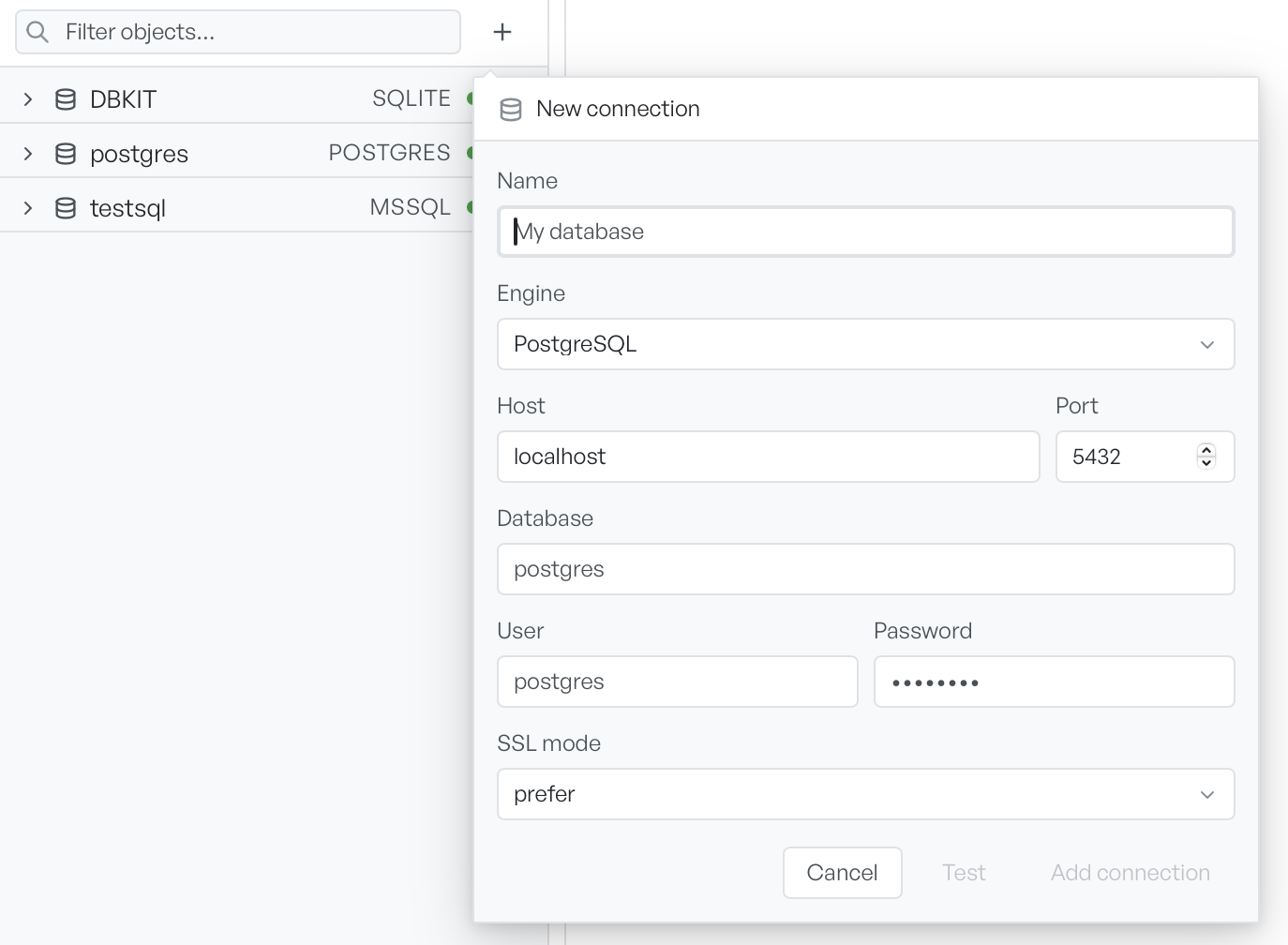
To start, select the plus button at the top of the sidebar, next to the filter box. The New connection form opens. What it asks for depends on the engine you pick, so select the engine first.
Pick an engine#
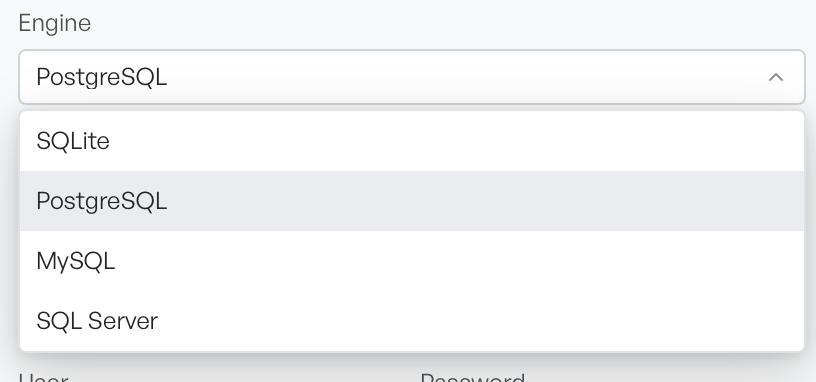
The Engine field lists SQLite, PostgreSQL, MySQL, and SQL Server. Your choice changes the rest of the form. SQLite asks for a file on your computer, and the other three ask for a server address and a login.
The two paths are covered separately:
- SQLite for a database file.
- Server engines for PostgreSQL, MySQL, and SQL Server.
Name, test, and save it#
Every connection needs a name. It is the label you see in the sidebar and the status bar, so pick a name that you recognise, such as Staging or Local orders.
Before you save, select Test. Database Client tries to reach the database with the details you entered, and tells you whether it worked. The test saves nothing, so it is safe to use while you work out the details.
Select Add connection to save it. The new connection appears in the sidebar. Your operating system keychain holds the passwords for server engines, not the connection itself. The form never shows a stored password back to you.
Change a saved connection#
Right-click a connection in the sidebar and select Edit to reopen the form with its saved details. The button then reads Save changes. Leave the password blank to keep the stored one, or type a new one to replace it.