Find a block's ports and examples#
A floating panel documents every block, so you can check what it takes in before you wire it.
The block reference is a floating panel that documents every block: its ports, worked examples and notes. Open it when you are not sure what a block takes in, what it gives back or how to wire it.
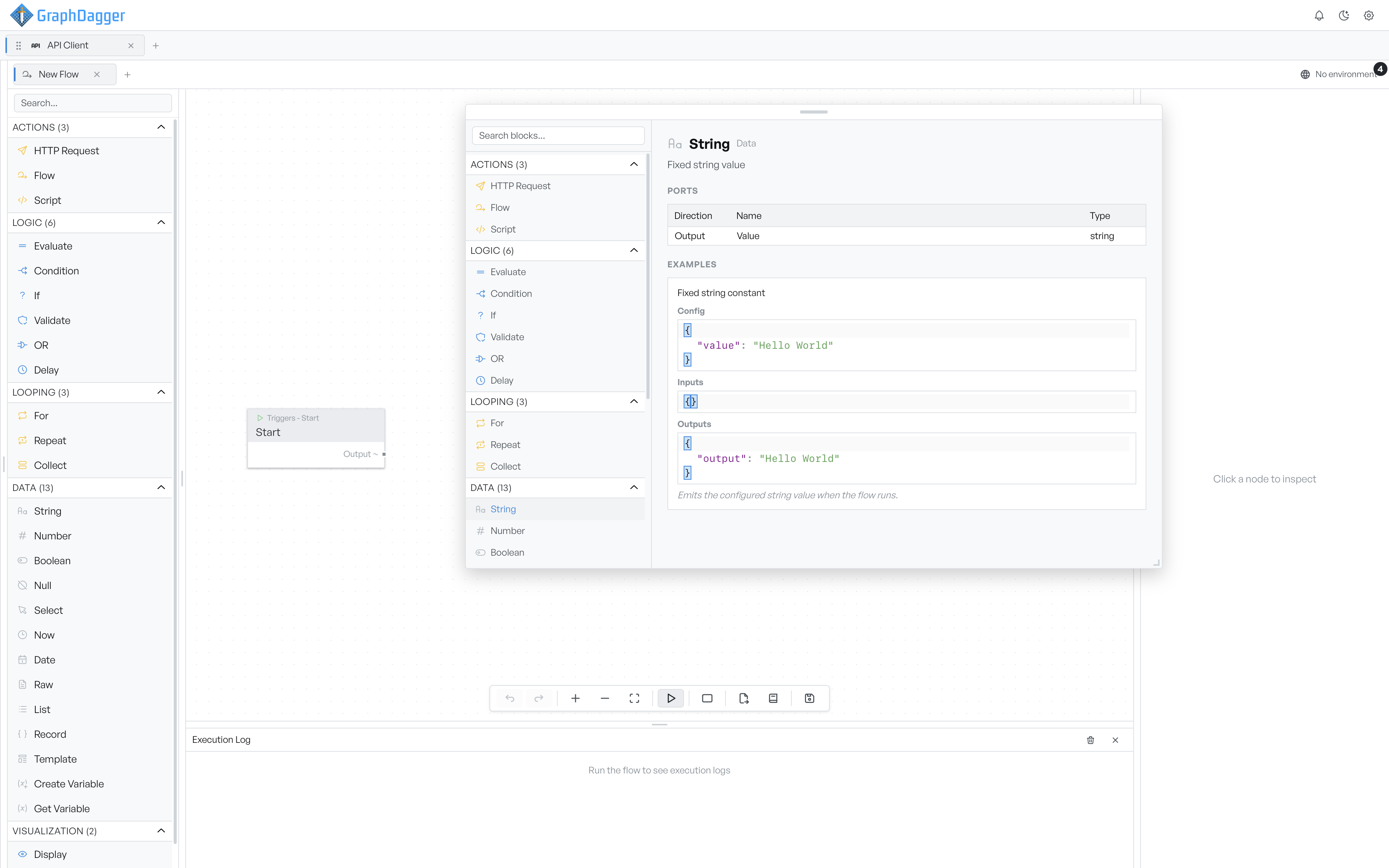
Open the panel#
There are two ways in.
- Select the reference icon on the canvas toolbar to open the panel with nothing selected.
- Select the small info icon next to any block in the catalogue to open the panel on that block.
The panel floats over the workspace. Drag its top handle to move it, drag the bottom-right corner to resize it, and use the maximise control to make it fill the workspace and restore it again. It remembers its size and position for next time.
Find a block in the list#
The panel lists every block, grouped by category, with a search box that filters by name or description. The Start trigger is not listed. Select a block to show its detail. With nothing selected the detail side reads "Select a block from the sidebar to view its reference".
Read ports, examples, and notes#
The detail side leads with the block's category and a short description of what it does. Below that sit three parts.
- Ports: lists the block's inputs and outputs in a table, each with its direction, name and type, so you can see what connects to what.
- Examples: shows one or more worked cases, each with a sample configuration, the inputs, the outputs and a short explanation.
- Notes: adds tips or edge cases worth knowing.
A block with no examples or notes omits those parts.
Close the panel#
Select the close icon at the top, or press Escape. The panel hides and keeps its place for the next time you open it.