Edit a block in the inspector#
Select any block to rename it, fill in its configuration, and read the result of its last run.
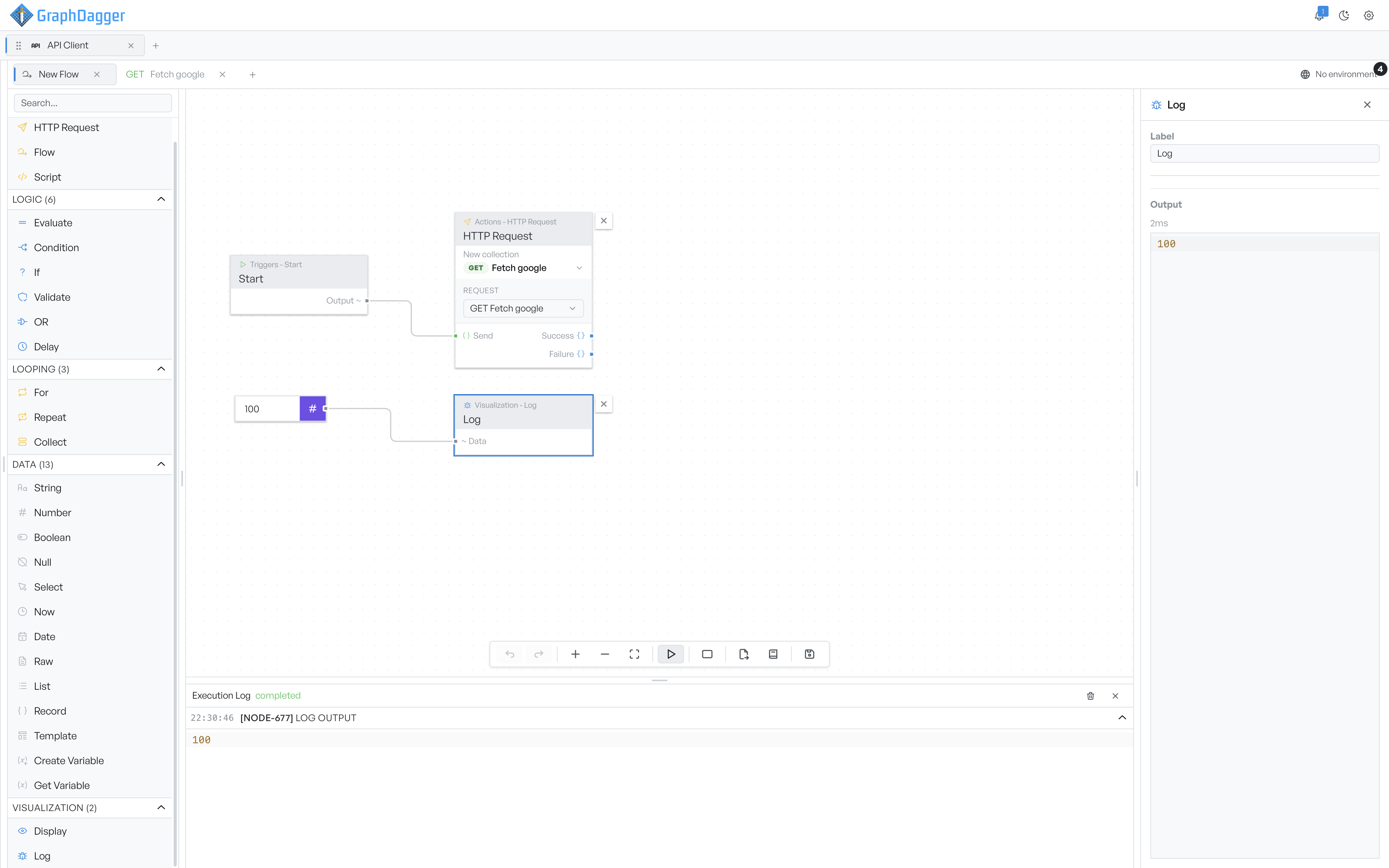
The inspector holds one block at a time. Select a block to see its label, its configuration and its most recent output. With nothing selected the panel reads "Click a node to inspect".
The block name and close icon#
When you select a block, the header names it. A close icon clears the selection. You can also clear it by selecting an empty part of the canvas.
Rename the block#
The first field is the block's label. Edit it to rename the block on the canvas. A clear label makes a busy flow easier to follow, and some blocks match upstream values by the name you give them.
The configuration form#
Below the label is a form whose fields depend on the block. A value block asks for a single value. An HTTP Request block asks for a saved request to run. A Flow block asks for the flow to call. For what each block configures, see the reference pages under block categories, the HTTP Request block and the Flow block.
A group has a simpler form: a label and a colour. Groups have no output.
The last result#
After a run the Output section shows the block's most recent result, with the time the block took above it. The panel shows an object as JSON and other values as plain text. A failure shows its error message. A block that has not run yet reads "Run the flow to see output".
A Script block shows a little more here: the pass and fail count of its tests, and anything it logged to the console.