Open a pcap file#
Import a saved pcap, pcapng, or cap file and work on it exactly as you would a live capture.
Packet Capture can analyse saved capture files alongside live captures. You get the same workspace, packet list, filter bar, and detail pane. Anything you can do on a live capture, you can do on an imported file.
Supported formats#
Import accepts three file extensions:
.pcap: classic libpcap format, written by tcpdump, Wireshark, and most network tools..pcapng: the newer pcap-ng format, also written by Wireshark..cap: a legacy alias for libpcap that some vendors use.
The workspace decides the format from the file's contents, not its extension. A .pcap file from a non-standard tool still opens if the bytes are valid.
Import a file#
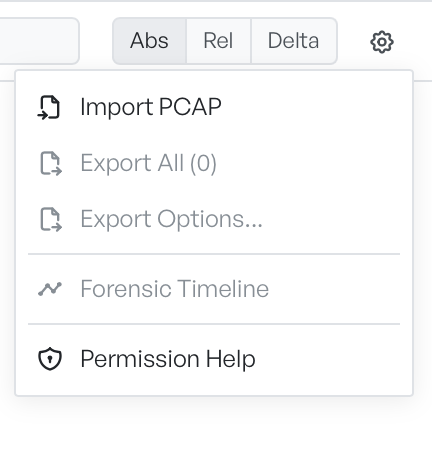
Open the cog menu and select Import PCAP. A native file picker opens. Select a file, and the import begins.
Large files stream in instead of a single load. The packet count rises as the workspace reads frames. You can filter, search, and inspect before the import finishes.
A loader icon replaces the cog during the import. If the file fails to load, an error appears in red on the toolbar. The workspace keeps the partial state, so you can copy details from the rows it already imported.
Mixing imported and live frames#
When you import into a tab that already contains frames, the workspace appends the imported rows to the end of the list. The rows keep their original timestamps, so the Time column can show frames out of order if the imported file overlaps an earlier capture. Select Clear first if you want a fresh workspace.
What to expect on large files#
The workspace supports a multi-gigabyte capture. Expect the following:
- The import runs in the background. The packet count is the most reliable progress indicator.
- Filters and searches stay fast, because the workspace evaluates each expression against the in-memory index.
- Memory use grows with the file size. When you close other tabs, the workspace releases their indexes.