Colour rows and add comments#
Tint the rows that matter and attach written notes to them, both held only for the life of the tab.
As you work through a capture, you can mark rows so the frames that matter stay visible in a long list. Packet Capture gives you two kinds of mark: a colour that highlights the whole row, and a written comment. Both marks stay with the frames you apply them to, and both stay with the tab.
Select rows to mark#
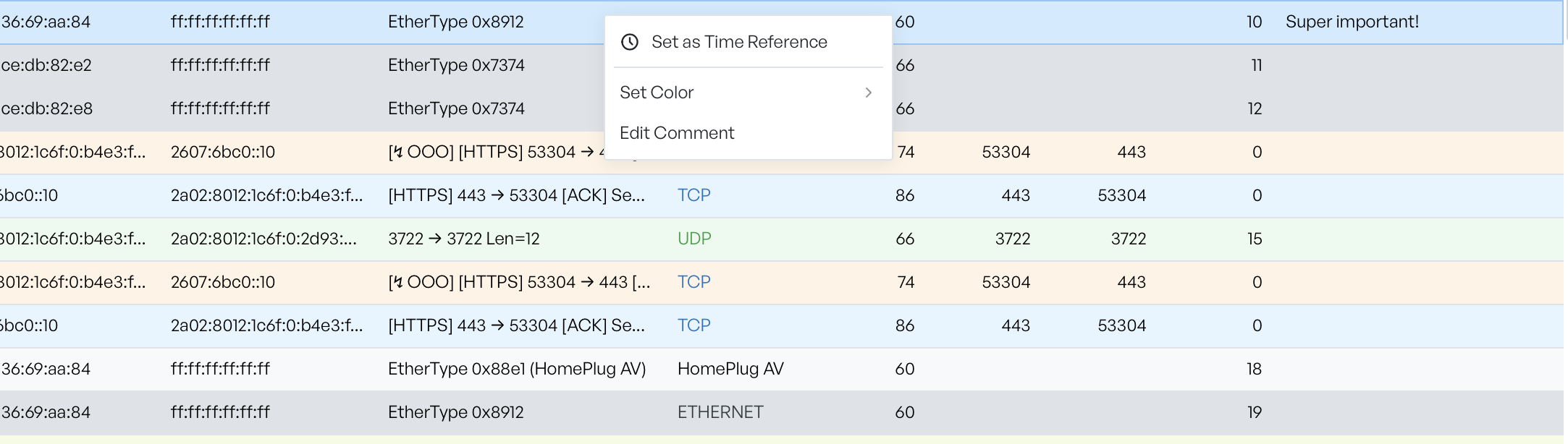
Right-click a row in the packet list to open the context menu. To mark several frames at once, select them first (hold the modifier key to add rows, or drag to select a range), then right-click. A colour or comment then applies to every selected frame, not only the one under the pointer.
Set a row colour#
Select Set Color to open a submenu of seven colours: Red, Orange, Yellow, Green, Blue, Purple, and Pink. The colour tints the row and its left edge, and replaces the default protocol colour. A marked frame stands out from the traffic around it.
To remove a colour, right-click the row again and select Clear Color. The row returns to its protocol colour.
Write a comment#
Select Add Comment to write a note against a frame. A small editor opens. Type the comment and select Save, or select Cancel to discard it. When a frame carries a comment, the context menu offers Edit Comment instead, so you can change or clear the note later.
The first time you add a comment, a Comment column appears in the packet list to show your notes inline. The column stays for the rest of the session.
Marks are session-only#
Colours and comments live with the tab for as long as it is open. The workspace holds them in memory and does not write them to disk. When you close the tab, the marks are lost.
They are not part of the capture data either. When you export the capture, the workspace writes the original frame bytes, so colours and comments do not appear in the saved .pcap file. See Exporting a capture for what the exported file contains.