What the filter bar does#
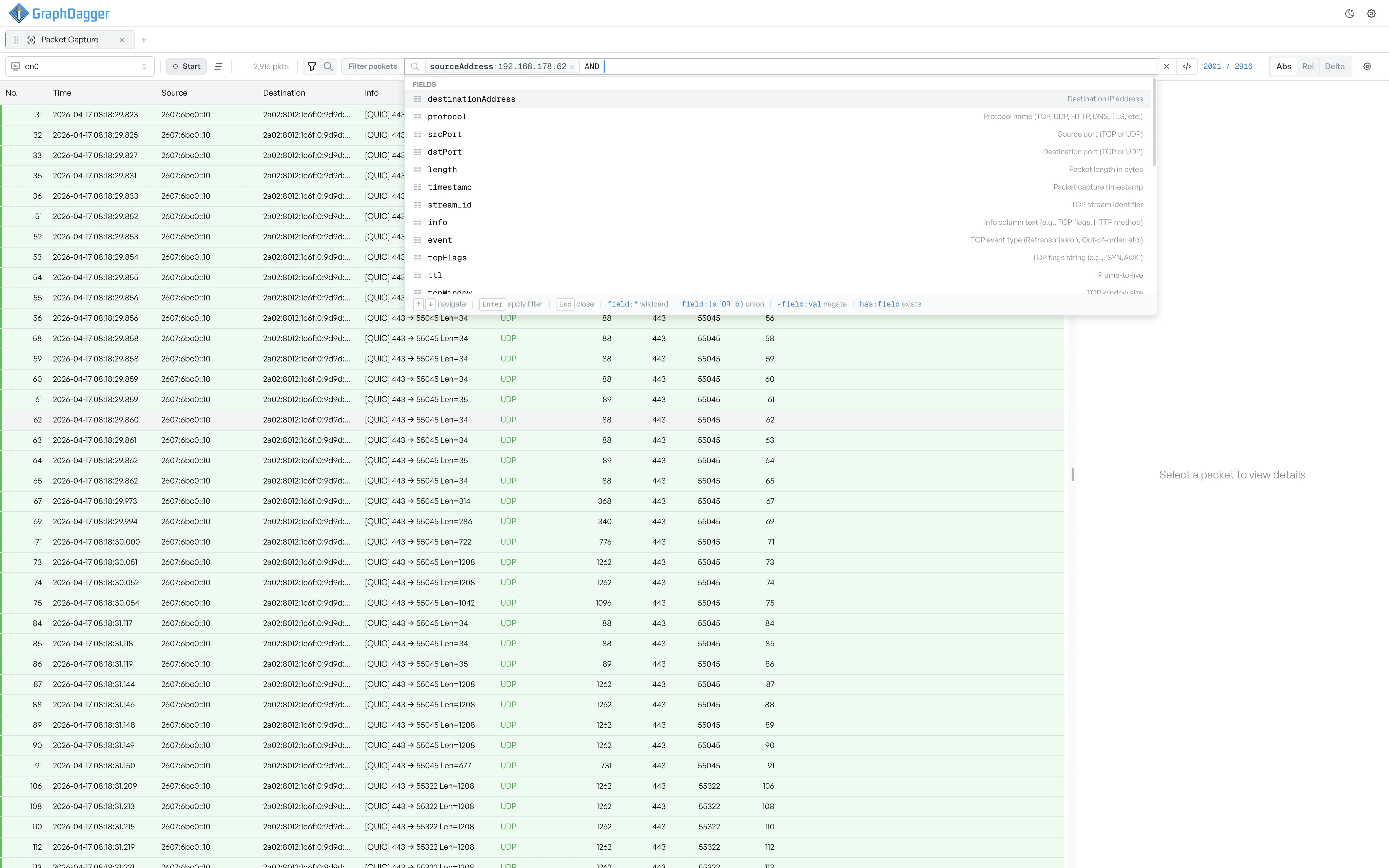
Type a field-based expression into the toolbar and watch the packet list narrow on every keystroke.
Filters narrow the packet list to only the frames you care about. The filter bar sits in the toolbar. It accepts field-based expressions and applies them as you type. The list updates on every keystroke, so there is no separate apply step.
Filter or search#
A funnel and magnifying-glass toggle sits next to the bar. The funnel selects the filter bar. The magnifying glass switches to a search box that finds matching text in payloads instead of filtering the list. The two inputs do not share state, so you keep both inputs when you switch between them.
Write a filter#
Select the filter input and type a field name. The autocomplete menu lists every matching field with a one-line description. See Available fields for the full list.
Use the up and down arrow keys to move through the menu. Press Enter to insert the selected field into the filter. After a field, the menu suggests matching operators and values for the next step.
The full reference for wildcards, unions, negation, and the AND or OR pill chain is on Filter syntax.
Match count and clear#
The filter count shows the number of frames the current expression matches against the total in the capture (for example, 2,001 / 2,916). Select the X icon to clear the entire filter and restore the full list.
If a clause is malformed, an error appears under the bar in red. The list stays on the last valid expression until you fix the error.
Compiled DSL preview#
The </> icon next to the clear button toggles a preview of the compiled Wireshark DSL underneath the bar. See Compiled DSL preview for what the preview shows and when it helps.
Filters stay with the tab#
Filters live with the current tab. Each tab keeps its own filter bar, so you can compare two views of the same capture and keep your place in each. The filter clears when you close the tab.