Start a live capture#
Pick an interface, record and stop, clear the list, and keep it scrolled to the newest frame.
A live capture records every frame the chosen interface sees, in real time. The list fills as frames arrive. You can filter, search, and inspect before you stop the capture.
Pick an interface#
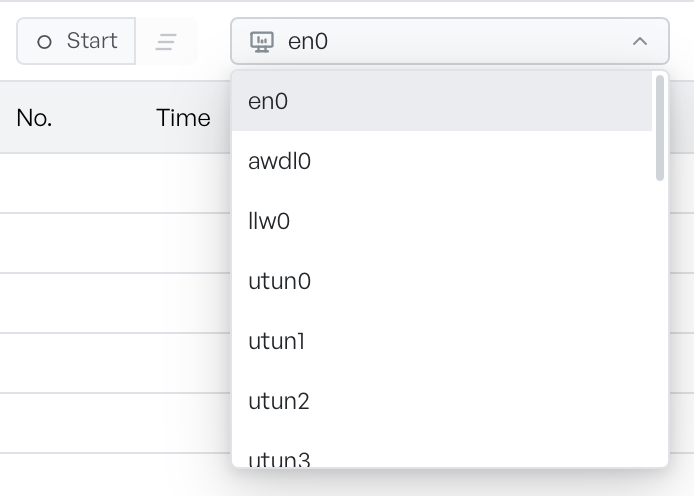
Select the interface dropdown to list every network adapter on your machine, each with a short description (for example, en0 - Wi-Fi). The list is fixed at the moment the workspace opens. If you connect a new interface afterwards, reload the tab.
The dropdown is disabled while a capture runs. Stop the current capture before you switch adapter.
If the platform requires elevated permissions to read raw packets, you can still use the picker, but Start fails with a permission error. See Capture permissions for how to fix that.
Start and stop#
With an interface picked, the Start button becomes active. Select Start to begin the recording, and the button switches to Stop. Frames appear in the list as the workspace captures them.
Select Stop to end the capture. Every frame stays loaded, so you can carry on with filters, inspection, or export. You can start the capture again on the same interface or a different one. The workspace appends the new frames to the list.
Clear the packet list#
The broom icon next to Start and Stop empties the list and removes every captured frame. There is no undo, and the icon is disabled while the list is already empty. The selected interface stays chosen, so you can start a fresh capture straight away.
Follow the latest packets#
The Follow switch keeps the list scrolled to the newest frame while the capture runs. Turn it off to scroll up and read older rows without a jump back down on every new frame.
When Start fails#
If Start fails because the workspace cannot open a raw socket, the cog icon on the toolbar turns orange. Open the cog menu, select Permission Help, and follow the fix for your platform. See Capture permissions, then select Start again.