Make a breakpoint#
Name the breakpoint, set the conditions that trigger it, choose its pause point, and save it from the editor.
To create a breakpoint, select the + button in the Breakpoints sidebar. The breakpoint editor opens in the right pane.
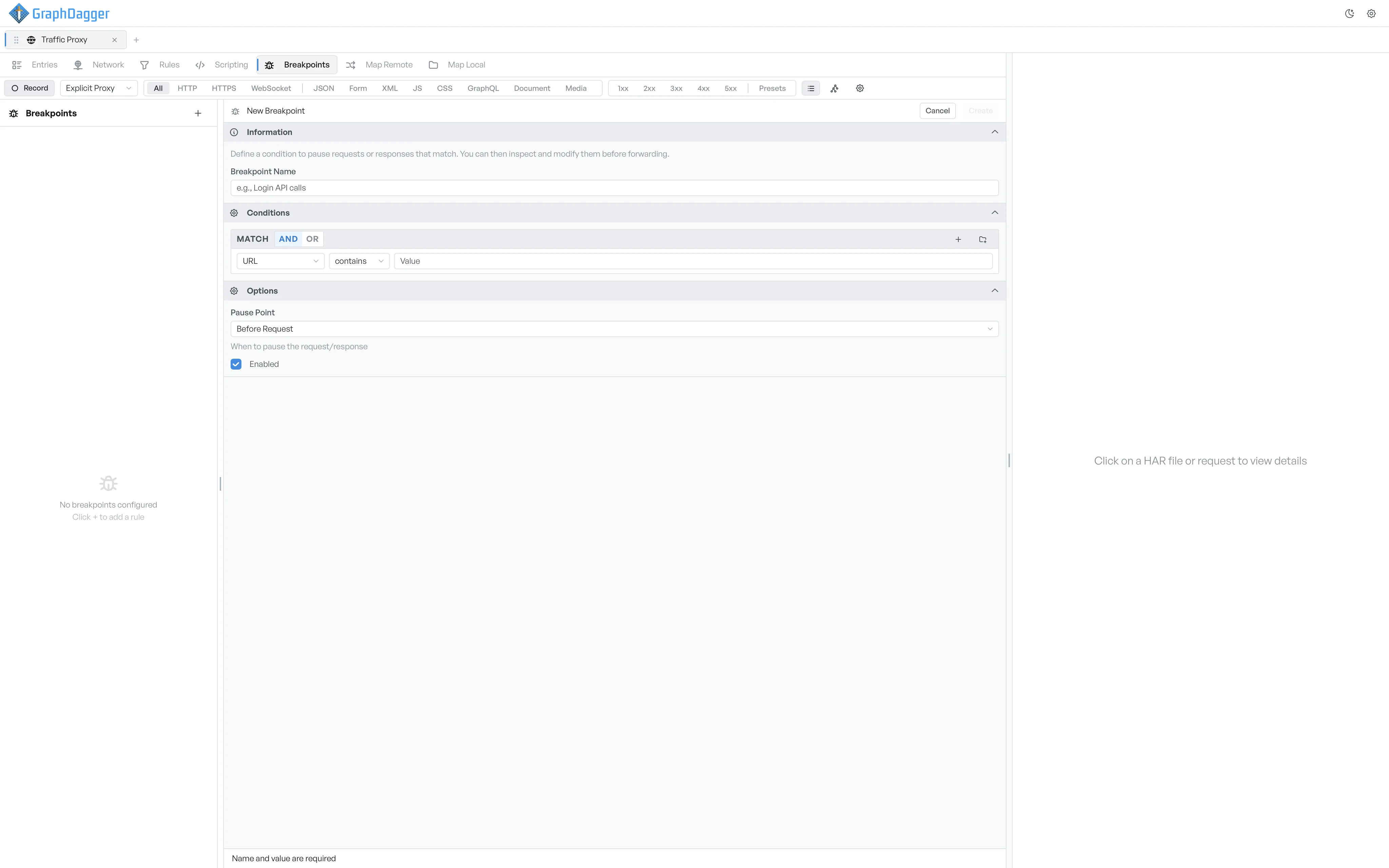
What the breakpoint editor holds#
- Information: the breakpoint's name. Pick a name that explains when the breakpoint fires, for example
Login API callsorCheckout failures. The sidebar shows this name, and each paused request carries it as a label. - Conditions: the conditions that decide which requests trigger the breakpoint.
- Options: the pause point and the Enabled toggle.
Save the breakpoint#
The footer at the bottom shows Ready to save breakpoint when the form has a name and at least one condition with a value. Otherwise it shows Name and value are required. The Create button (or Update when you edit) at the top right becomes active when the footer shows ready.
Cancel a new breakpoint#
The Cancel button next to Create discards the in-progress breakpoint and clears the editor.